

Before you start
- You need invoice-viewing access from your MSP.
- If you can switch companies, set the company selector first.
- Invoices are copied from your PSA. Allow time for a new or changed invoice to arrive.
Find an invoice
1
Open Invoices
Click Invoices in the sidebar.
2
Filter the list
Use the column filters. Invoice #, Reference, Apply To, and PO
# take text. Company takes one or more companies. Type,
Status, and Date have their own filters.
3
Show more columns
Use the column toggle to turn on hidden columns. A column only appears when
your PSA supplies data for it. The Company column is hidden when you
select one company.
4
Sort and page
Click a column heading to sort. The default is Date, newest first, with
invoices from the same day ordered by Invoice #. Use the page controls
at the bottom, or change the page size to 25, 50, 100, or 250.
5
Open the document
Click the Invoice #, or open the row menu and choose View PDF. See
Download and export invoices.
Read the columns
The list does not let you edit amounts, change status, void, or resend an invoice. Contact your MSP about corrections. MSP staff can see which PSA field fills each column in Where invoice data comes from.
Open an invoice’s line items
Branch preview: the subtotal, tax, and total footer below is verified on an
upcoming release branch.
1
Find the Items count
The Items column sits next to Total. ConnectWise, Autotask, and Halo
invoices show a count once their lines have synced.
2
Click the count
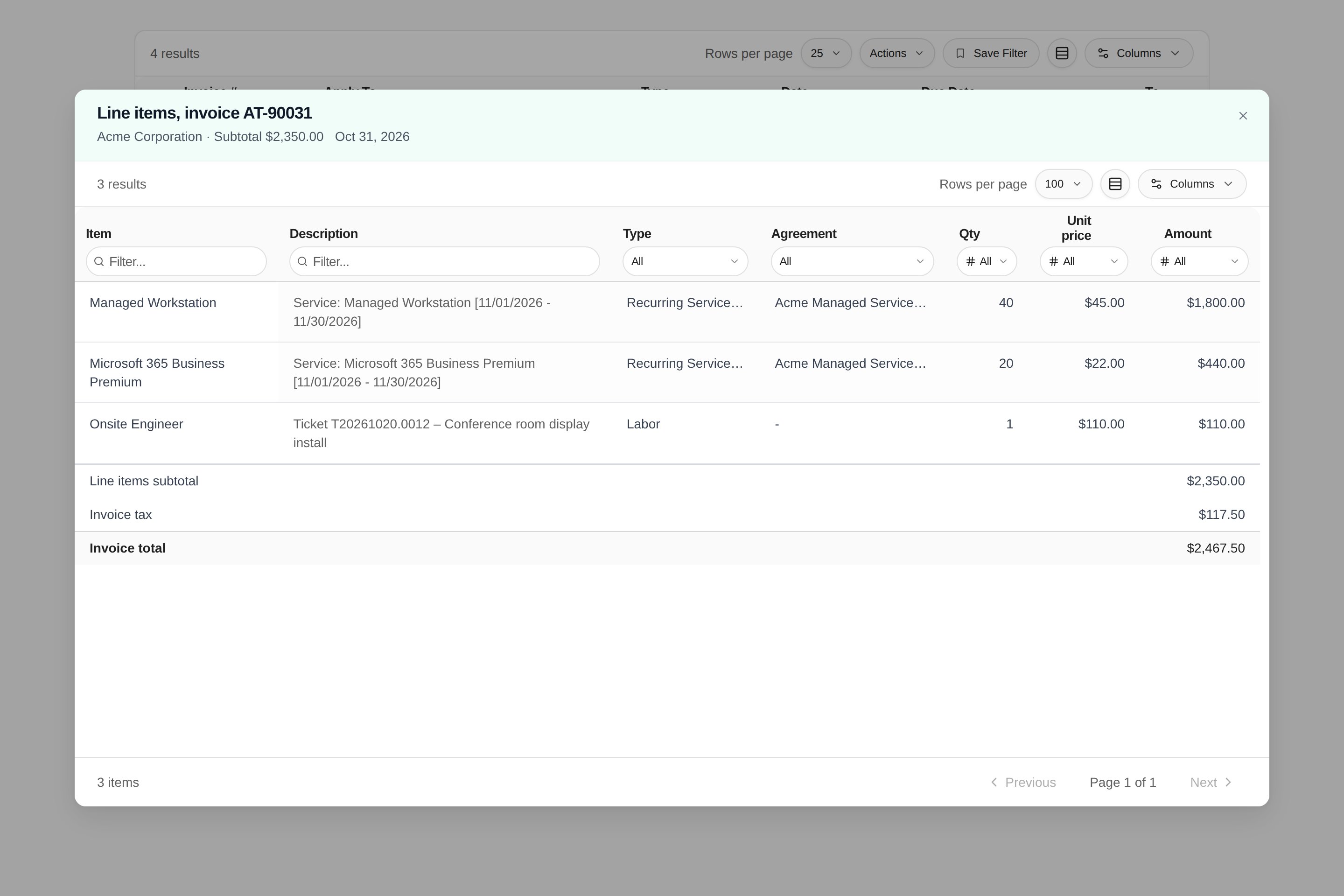
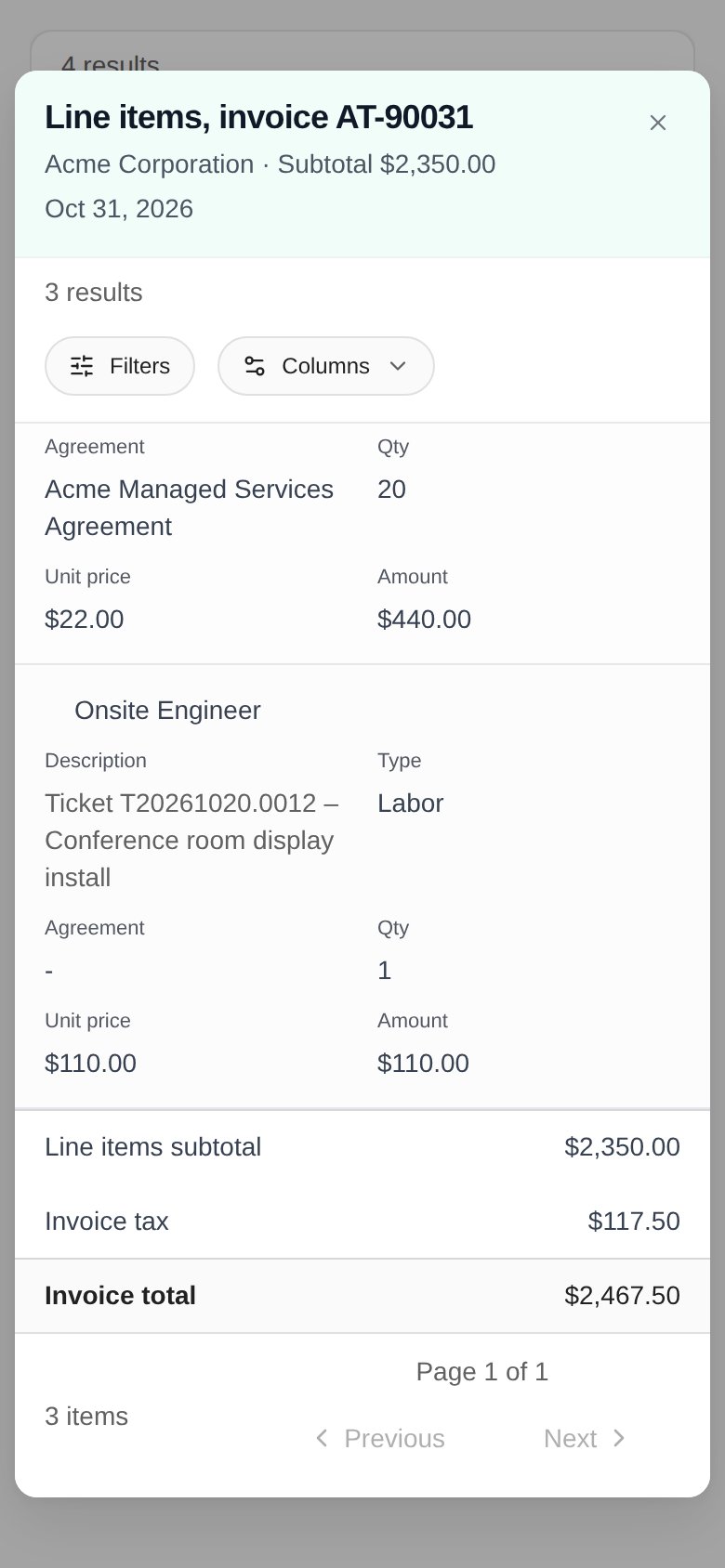
The Line items dialog opens for that invoice, with its company,
subtotal, and date at the top. You can also open the row menu and choose
View line items.
3
Read, filter, and total the lines
Each line shows the Item, Description, Type, Agreement,
Qty, Unit price, and Amount. Filter any column; Line items
subtotal at the bottom adds up the lines before tax. When a filter leaves
only a subset of the lines, the label changes to Filtered line items
subtotal. Turn on Date from the column toggle.
Invoice tax and Invoice total stay the same when you filter. They come from the invoice supplied by your PSA; filtering does not recalculate tax or produce a new invoice total. The header continues to show the invoice subtotal.
For example, an invoice with a Line items subtotal of $2,350.00 and **Invoice tax** of $117.50 has an Invoice total of $2,467.50. Filtering to a $110.00 line shows Filtered line items subtotal of $110.00, while the tax stays $117.50 and the invoice total stays $2,467.50.
- Desktop
- Mobile
Add an invoice to a meeting
1
Open the row menu
Click the three dots at the end of the invoice row and choose Add to Meeting. For several invoices, check their rows and choose Actions > Add to Meeting.
2
Check Items to add
The Add to Meeting Agenda dialog lists the invoices under Items to add.
3
Choose the meeting
Open Select Meeting and pick an upcoming meeting. The dialog does not create meetings. If none appears, create the meeting first.
4
Click Add to Agenda
Wait for the success message, then open the meeting to confirm the invoice is on its agenda.
Troubleshooting
Frequently asked questions
Why is the Company column missing?
Why is the Company column missing?
It is hidden when you select one company. Turn on all companies in the
selector, or check the column toggle.
Does Apply To apply a payment?
Does Apply To apply a payment?
No. It names the source item, such as an agreement.
Does Add to Meeting email the invoice?
Does Add to Meeting email the invoice?
No. It only adds an agenda item to the meeting you pick.
Where is Add to Planner?
Where is Add to Planner?
The row menu has no Add to Planner action. It has View PDF, View line
items when the invoice has lines, and Add to Meeting.
Why do the line items not add up to the invoice total?
Why do the line items not add up to the invoice total?
The line amounts are before tax. Compare Line items subtotal, Invoice
tax, and Invoice total in the footer. If you filter to fewer lines,
only Filtered line items subtotal changes; tax and total still refer to
the full invoice.