

Before you start
- Your MSP must have Pax8 or Sherweb connected in Settings > Integrations. Without one, Storefront shows nothing to manage.
- You need Storefront read access to open the module. You need Storefront write access to send a request. In the role editor this is the Storefront resource with Read or Write access.
- MSP staff need Manage access to the Storefront resource to see prices and costs, change settings, and mark requests fulfilled.
- A request is not a change. Quantities and products change only after your MSP fulfills the request with the distributor and the next sync confirms it.
Open Storefront
1
Click Storefront in the sidebar
Subscriptions opens first.
2
Pick the company
Use the company selector in the top bar. Company users see only their own company.
3
Choose a tab
The tabs are Subscriptions, Catalog, Azure Usage, and Requests. Azure Usage appears only when Pax8 is connected. Requests is for MSP staff and does not appear for company users.
Request a product
1
Open the Catalog tab
Click Catalog. Featured products appear first.
2
Pick one company
For Pax8 products, select one company in the top bar. The Request button is disabled until you do, and its tooltip reads Select one company to request this product. The button is also disabled without Storefront write access.
3
Check the price (Pax8)
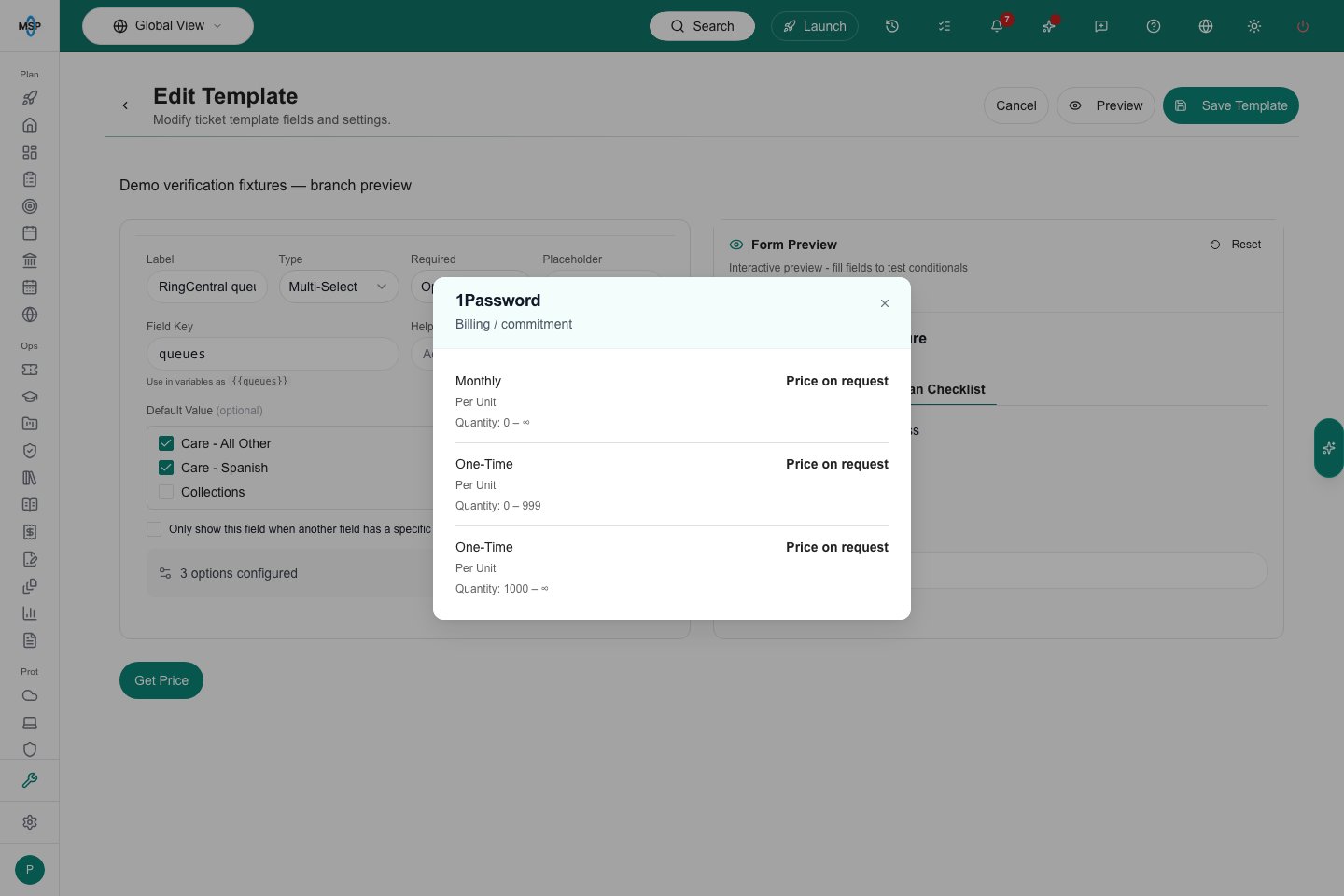
Click Get Price on a Pax8 product. If more than one company is selected, pick one in the dialog. The dialog lists each offer with its price, billing term, and commitment.
4
Click Request
Click Request on the product row.
5
Fill in the request
Enter the quantity. For Pax8, pick a billing and commitment option if the list appears. Add notes if you want. Click Send Request.
6
Keep the confirmation
A message confirms that the request was recorded. As a company user, you see Request sent to your service provider. You’ll get a notification when its status changes. Your MSP is notified. The product is not added until your MSP fulfills the request.
Get Price lists distinct pricing options in compact rows. Each row shows billing and commitment terms, charge and pricing type when supplied, quantity range, and price. Repeated identical options appear once; different tiers and commitments remain separate. Price on request means no retail price was supplied. The image shows sample pricing options.
Request a quantity change
1
Open the Subscriptions tab
Click Subscriptions. Find the subscription. A Self-service badge next to the quantity means changes are allowed.
2
Open Change Quantity (Pax8)
Click the … menu on the row and choose Change Quantity. You can also click the row, then click Edit in the details dialog.
3
Enter the new total
Enter the new total quantity, not the number to add. To go from 10 to 12, enter 12. The dialog shows the minimum, maximum, and increment. Add notes if you want.
4
Submit
Click Submit Request. A message says the request was submitted for approval, or that it was approved and is awaiting fulfillment.
5
Sherweb: use Request Change
For a Sherweb subscription, click Request Change on the row, enter the new quantity, and click Send Request.
Review requests (MSP staff)
1
Open the Requests tab
Click Storefront, then Requests. The table shows Product, Company, Quantity, Status, and Requested, 25 requests per page.
2
Open a request
Click the product name. The dialog shows the company, provider, SKU, billing and commitment terms, the old and new quantity, and any notes.
3
Approve or reject
Click Approve for a request that is Pending approval. To reject a request, type the reason in the Resolution notes / provider order reference box and click Reject. A reason is required.
4
Make the change with the distributor
Place or change the order in Pax8 or Sherweb. MSPortal does not send the change for you.
5
Wait for the sync, then mark fulfilled
After the next sync shows the new quantity, open the request, type the order reference in the notes box, and click Mark fulfilled. This needs Manage access to the Storefront resource. If the sync has not confirmed the quantity, an error says so. Try again after the next sync.
Only MSP staff with Manage access, or users who hold the Approver Role for that company, can approve or reject. The person who sent a pending request sees Cancel request on it. A Pax8 quantity change sent by staff with Manage access is approved automatically, and one from a company user can skip approval when the subscription does not require it. New product requests and Sherweb requests always start as Pending approval. Set the approver role in Licensing settings.
Choose what clients see (MSP staff)
MSP staff with Manage access set this under Settings > Storefront > Catalog. Each product shows two switches: Catalog decides whether clients can find and request it, and Subscriptions decides whether clients see their existing subscriptions to it on their Subscriptions tab. The two are separate, so hiding a product from the catalog leaves its subscriptions where they are until you turn off Subscriptions too. Your team always sees every subscription.- Rename a product: open the ⋯ menu on a Pax8 product or Sherweb SKU, choose Client display, and enter the Name shown to clients. Clients see that name in the catalog and on their Subscriptions tab. Your own lists keep the distributor’s name, with Clients see under it. Clear the field to go back to the distributor’s name.
- Write the text on a featured card: in the same Client display dialog, enter the Featured card text. It shows on the item’s card while it is featured. Leave it empty to show the distributor’s description. Featured Pax8 products and featured Sherweb SKUs both appear as cards at the top of the client catalog.
- Hide products by vendor or product line: click Visibility rules, choose a vendor and, optionally, a product line, and click Add rule. One rule covers both distributors: on Pax8 it matches the vendor, and on Sherweb, which sends no vendor, it matches products whose name starts with the vendor name, and with the product line when the rule has one. For a Sherweb product whose name doesn’t start with its vendor, such as Office 365 E3, type that start as the vendor (Office 365). If you use Sherweb, you can also type a vendor that Pax8 does not list. Each rule shows how many Pax8 products and Sherweb SKUs it covers. The longest matching rule wins. Turn off a rule’s Catalog switch to take its products out of the catalog.
- Hide one product’s subscriptions from clients: turn off the Subscriptions switch on the Pax8 product’s or Sherweb SKU’s row, beside its Catalog switch. The row then shows Override; click the reset arrow next to it to hand the product back to its rule and the default. To change many products at once, select them and choose Hide from Subscriptions, Show on Subscriptions, or Reset Subscriptions to Rules from Actions; a reset asks first, because it clears every switch you set on those products. Show on the Subscriptions tab in the product’s Client display dialog is the same setting.
- Hide subscriptions by vendor or product line: turn off a rule’s Subscriptions switch. Clients no longer see their subscriptions to those products, from either distributor. Until you set it, a rule’s Subscriptions switch follows the default (or the vendor’s rule, for a product-line rule), so adding a rule never hides or shows a subscription by itself. A rule you set shows Override; click the reset arrow next to it to hand it back to the default.
- Hide subscriptions by default: click Visibility rules and turn on Hide subscriptions from clients by default under Pax8 or Sherweb. Subscriptions that no product switch, and no rule whose Subscriptions switch you set, shows then leave clients’ Subscriptions tab. It is off until you turn it on, and it is separate from Hide products from clients by default.
Troubleshooting
Frequently asked questions
Does Storefront open on the Catalog?
Does Storefront open on the Catalog?
No. It opens on Subscriptions. Click Catalog to browse products.
Does approval mean the licenses are ready?
Does approval mean the licenses are ready?
No. Awaiting fulfillment means approved but not done. The subscription quantity changes after your MSP fulfills it and the next sync confirms it.
Does requesting more licenses assign them to people?
Does requesting more licenses assign them to people?
No. A quantity request changes the subscription total. Assigning a license to a person is separate.
Why is a product still on a client's Subscriptions tab after I hid it?
Why is a product still on a client's Subscriptions tab after I hid it?
The Catalog switch removes a product from the catalog only. To take its subscriptions off the client’s Subscriptions tab, turn off the product’s Subscriptions switch in Settings > Storefront > Catalog, right beside its Catalog switch. You can also turn off Subscriptions on a visibility rule for that vendor or product line, or turn on Hide subscriptions from clients by default. See Choose what clients see.
Can a company administrator manage the catalog?
Can a company administrator manage the catalog?
No. MSP staff set catalog visibility and self-service rules in Settings > Storefront.
How do I track my request?
How do I track my request?
Company users do not have a Requests tab. You get an in-app notification when the status changes. Ask your MSP if you need more detail.
Should I send the request again if nothing happens?
Should I send the request again if nothing happens?
No. A duplicate is refused while the first request is open. Ask your MSP for an update.