

The workspace groups related project pages into sections. Open Overview for the dashboard. MSP staff switch between MSP Dashboard and Client Dashboard; company users receive their permitted client view.
Before you start
- You need access to the project. Company users see only what their MSP shares. The MSP manages project access and display settings.
- Open Projects, click the project, and click Overview.
Read the MSP Dashboard
MSP staff use MSP Dashboard for operational work. A summary rail runs across the top, and every figure in it opens the work it counts:
Hover Tasks or Unassigned open tasks for a reminder of what they count.
Where the task counts come from
The task tiles count the project plan: the project’s tasks from your PSA (or MSPortal, for a native project) together with the tasks of the project’s active client portal. A portal task that was sent to the PSA is counted once, as its PSA task. Tasks that came from an archived client portal are left out, along with any PSA phase that held only those tasks. MSPortal cannot delete a portal’s tasks after they have been sent to your PSA, so archiving the portal removes its tasks from the project. They stay in your PSA. A portal that has sent tasks to your PSA cannot be deleted; archive it instead. Resource views and the project’s Excel export leave the same tasks out. Below the rail, on projects without an onboarding portal, the dashboard shows:- Up to five open tasks, ordered by scheduled end date (or start date when there is no end), with undated work last. Rows show the owner, phase, priority, status, hours, and end date when known. Schedule opens the full plan when your role allows it.
- Up to five pending decisions and action items. Click a title to open it, or click Decisions or Action Items for the full lists.
- The latest weekly update, expanded description and deliverables preview, company, status, health, current phase, shared milestones, hours, budget, dates, and contacts. Project display settings still apply.
- Desktop
- Phone
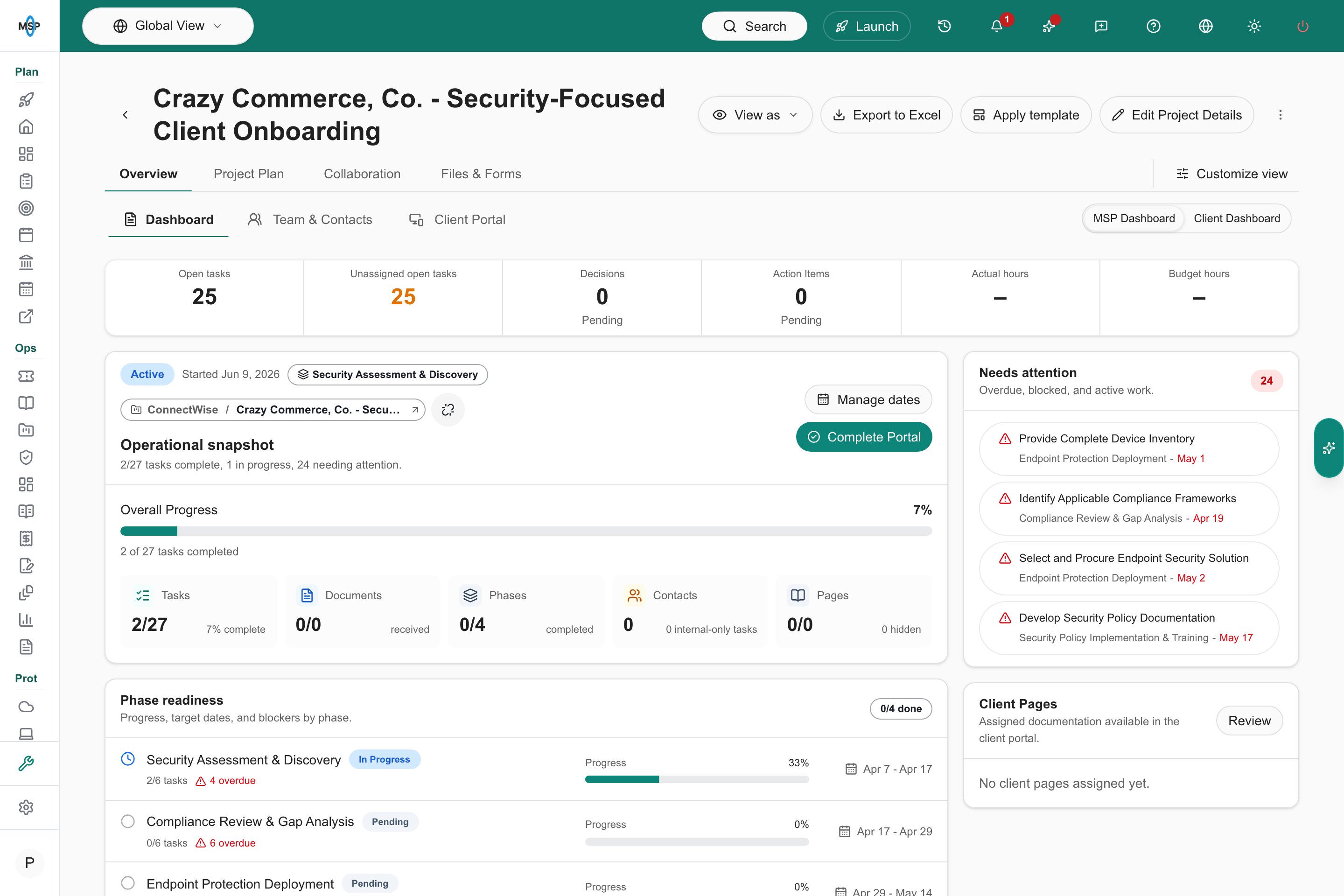
MSP staff review linked onboarding progress and outstanding work within the project dashboard.
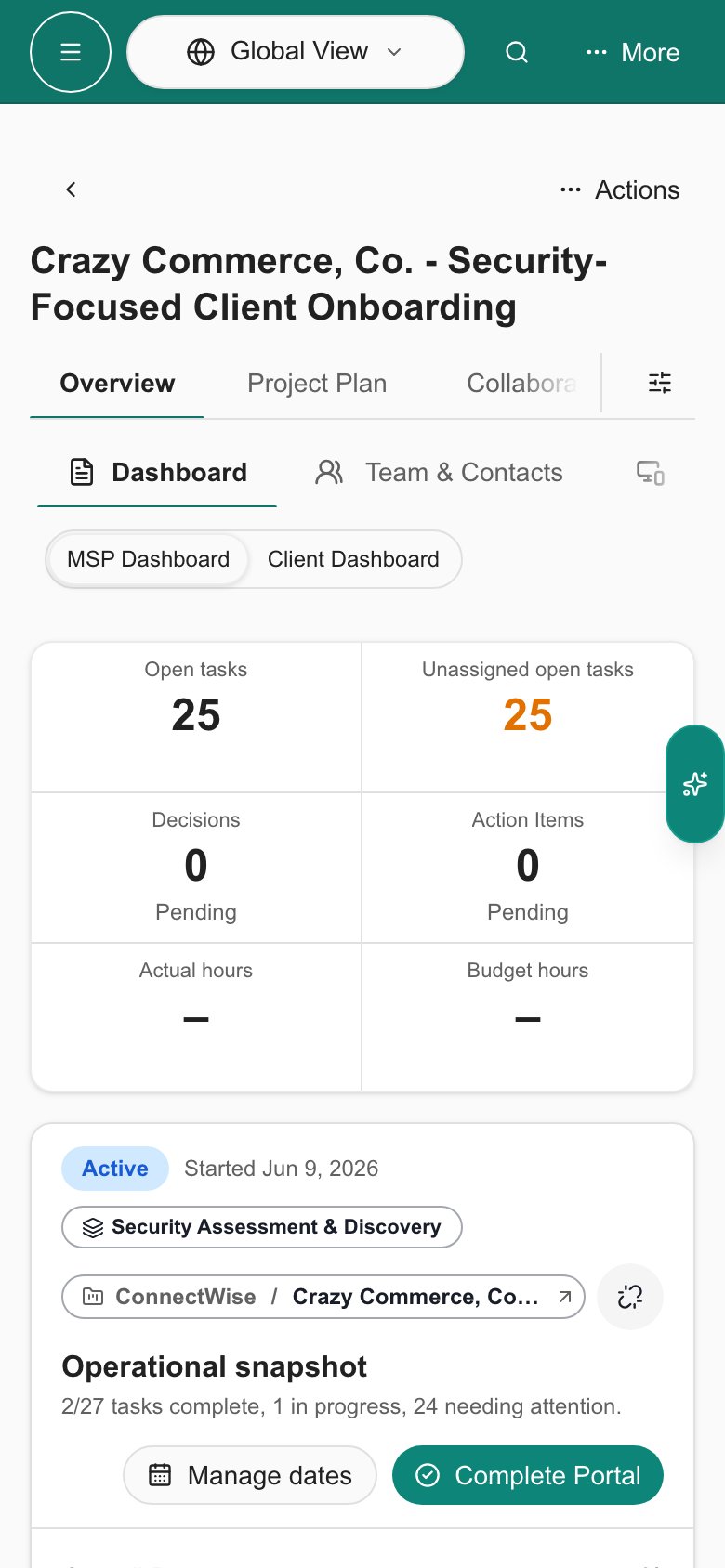
Read the Client Dashboard
MSP staff click Client Dashboard next to MSP Dashboard to see what clients see. Company users get the client view without the switch. A recorded 0% completion is shown, and an unavailable percentage stays blank. Turning dates off in project display settings also hides the next milestone’s date.Read the summary
1
Check the project and Company
Check the project name and company first. Status and health are separate indicators. Neither replaces the actual work and updates.
2
Read the narrative
Project Summary contains the project’s summary when available and enabled. Project Outcome contains the description maintained by the MSP. Use Show more to expand long text and Show less to collapse it.
3
Read the latest Weekly Summary
Review Completed, Coming Up, Risks & Concerns, and Decisions Needed when present. The summary is selected by its Week of date, not its last edit time. Open Updates for other weeks.
4
Follow the relevant detail
The summary panel on the right shows Phase, Goal, and the Next shared milestone that is pending or in progress. What You’re Getting previews up to five deliverables. Open Deliverables for the full list and files. Answer requests assigned to you in Decisions or Action Items.

Understand the different measures
A missing measure can mean it is turned off, not shared, unavailable, or zero. Ticket visibility and display settings change the counts. The progress bars do not have to match each other. Ask your MSP if figures disagree.
Small projects with one ticket show that ticket above the summary, with its status, owner, description, and hours. Detailed time entries are on the staff-only MSP Dashboard. Company users see the shared summary hours when they are turned on.
Review dates and contacts
Details can show Type, Budget Type, PO Number, Started, Target Finish (or Overdue), Deadline, and Last Sync. Deadline appears when it differs from Target Finish. What shows depends on the project data and display settings. Last Sync is the time of the last PSA sync. Under Contacts, you see Project Lead, Client Sponsor, and Additional Contact entries. Click an email or phone link to open your email or phone app. The copy button beside a lead or sponsor copies the email address and sends nothing.When your MSP turns on the Teams chat setting, a small Teams icon beside Project Lead opens a direct chat with the manager. It appears only when a valid manager email is available. See project contacts.
Troubleshooting
Frequently asked questions
Why are there no weekly updates on Client Dashboard?
Why are there no weekly updates on Client Dashboard?
Your MSP may not have written or shared one yet. An empty summary does not mean no work has happened.
Why is a recently edited update not the Weekly Summary?
Why is a recently edited update not the Weekly Summary?
Client Dashboard selects the update with the latest Week of date. Open Updates to read other reporting weeks.
Does 100% of estimated hours mean the project is finished?
Does 100% of estimated hours mean the project is finished?
No. That measures hours used against the estimate. Check project status, completion, deliverables, and outstanding requests separately.
Why can my MSP see more milestones than the Client Dashboard total?
Why can my MSP see more milestones than the Client Dashboard total?
Client Dashboard counts shared milestones. The MSP’s Project Plan > Milestones view can include internal milestones as well.
Where are the rest of the deliverables?
Where are the rest of the deliverables?
What You’re Getting previews at most five. Open Deliverables for the full list available to your account and any shared documents.
Can I change the project contacts or manage users?
Can I change the project contacts or manage users?
No. Your MSP manages contacts and permissions. Being listed as a contact or sponsor does not give you portal access or editing rights.
Does clicking a contact email send a portal message?
Does clicking a contact email send a portal message?
No. It opens your email app. The copy button only copies the address. For support, start with the Home AI Assistant.