

Before you start
- You need Projects access and permission for Cards or List. Each view has its own permission.
- Company users see only the projects their MSP shares with them. Dashboard, Dispatch and Tracker are MSP-only views.
- MSP staff can search across every company they can access.
Find and open a project
1
Choose your company
Use the company selector if it is available, then open Projects. Global View includes only companies you can access.
2
Choose Cards or List
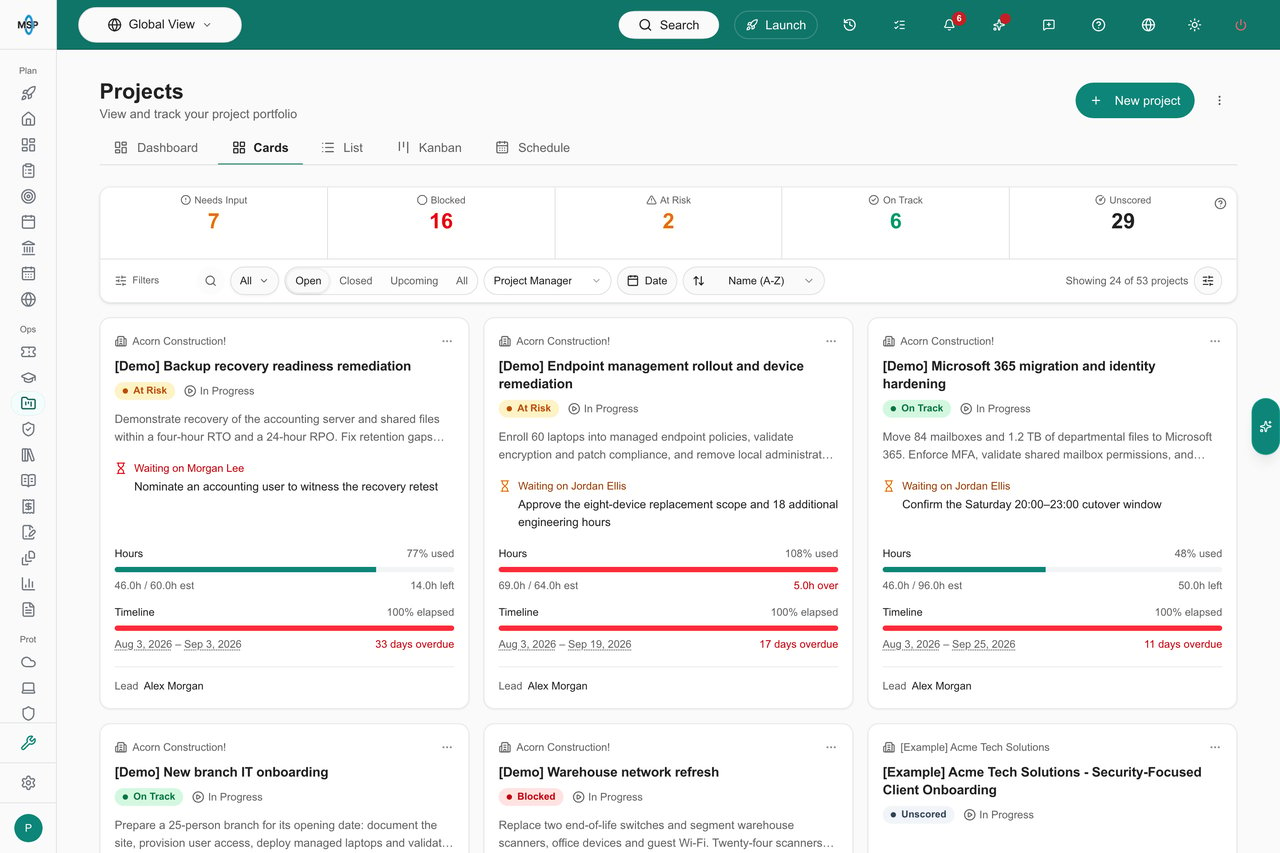
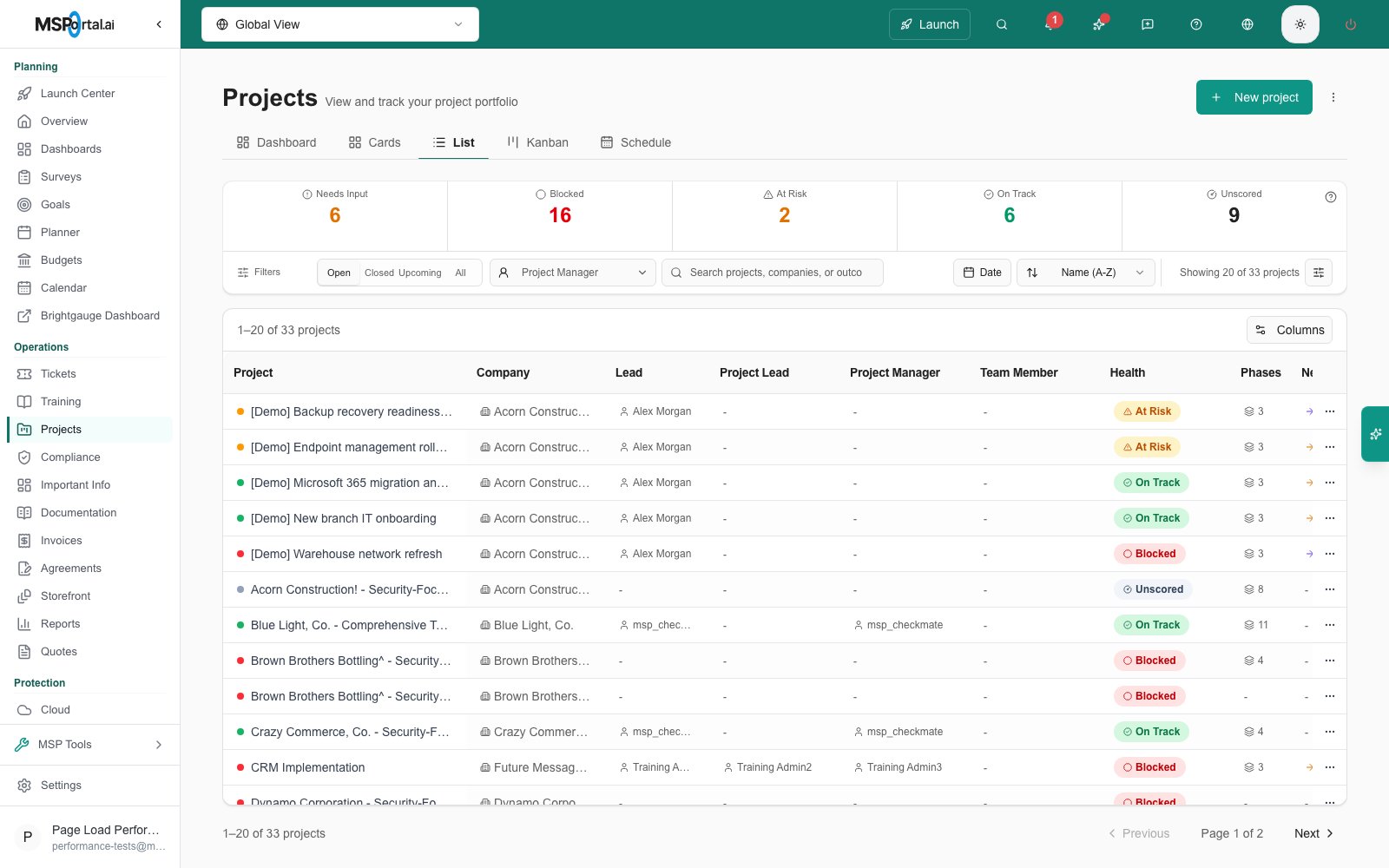
Use Cards for summaries or List to compare rows. Your browser can remember a previous view. If a tab is missing, choose another available view or ask your MSP about its permission.
3
Find the project
Click the search (magnifier) icon and enter part of the project name, company name, or outcome. The state starts on Open. Choose Closed for closed projects, or All to search both. See Filter and sort projects for dates, managers, status, and health.
4
Open its workspace
Click the project card or table row to open its workspace. Use the page controls at the bottom to see more results.
Switch projects from the top bar
In the Advanced navigation style on desktop, open a project and look to the right of Projects in the top bar. The next button shows the current project’s name. Hover over a shortened name to read it in full. Click the project name, type part of another project’s name in Search projects, and select the matching project to open its workspace. The results follow the company selected in the top bar. You can also switch between dashboards, reports, or meetings from their detail pages.
The Advanced desktop top bar in MSPortal Demo. Hover over the project name to read it in full.
Read the project summary
The next action reads Waiting on you when the pending action is assigned to you, Waiting on a named person, or Waiting on client. The request itself sits on the line below. A milestone reads Next milestone with its date. Open the project to read the request before you respond.
On a card, the hours and timeline bars sit together near the bottom, so you can see whether hours used keep pace with time elapsed. Hover over the status, company, next action, Hours, or Timeline to see what each one means and where it comes from.
Cards show only the fields your MSP turns on. A card shows up to four populated custom fields. List can show more.
Compare projects in List
1
Choose a sort order
Use the Sort by menu, for example Name (A-Z), Last Changed, or Due Date (Soonest). Column headings do not sort the whole portfolio.
2
Choose the columns
Click Columns above the table and tick the columns you want. MSP staff with the Project tracker can also turn on a column for each PSA project role, such as Technical Lead or Account Manager. Role columns start hidden.
3
Filter a column
Use the filter on a column heading. See Filter List columns.
Troubleshooting
Frequently asked questions
Why can MSP staff see a project that I cannot?
Why can MSP staff see a project that I cannot?
Company scope, your role, Client project access settings, and each project’s visibility limit what Company users see. Ask your MSP to review them.
Does 100% progress mean the project is finished?
Does 100% progress mean the project is finished?
No. The card’s hours progress compares hours used with the estimate. Check the project status, milestones, and updates for completion.
Why is Dashboard missing from my Projects page?
Why is Dashboard missing from my Projects page?
Dashboard, Dispatch and Tracker are MSP-only, and Tracker shows only when the Project status tracker is turned on for your MSP. Cards, List, Kanban, and Schedule each need their own view permission, and Dispatch uses the Schedule permission.
Can a Company administrator create a project here?
Can a Company administrator create a project here?
No. New project is for MSP staff with project write permission. Ask your MSP to scope the work, or start with the Home AI Assistant and review its proposed ticket before you confirm.