

Before you start
- You need the write or manage Tickets settings permission to change the layout or edit templates. With read access only, the card’s controls are disabled and Save layout does not appear.
- The layout applies to tickets created from a ticket template after you save it. Tickets that already exist keep their description.
How the layout changes the description
Until you change it, the description lists every question and its answer, separated by blank lines:Choose the layout
1
Open the card
Go to Settings > Tickets. On the General tab, scroll to Ticket description layout.
2
Turn on Use a structured layout
Off keeps the layout shown first above. Turn it on to show the other choices.
3
Group answers under section headings
On, each template section’s title becomes a heading over that section’s answers. Sections with no answers are left out. Off, answers follow one another with no headings.
4
Use short labels
On, fields that have a Short label for tickets show it instead of the full question. Fields without one keep the question. See Add a short label to a field.
5
Pick the styles
6
Check the preview
The Preview beside the settings updates as you change them. It uses sample answers from a new employee request and shows them the way the PSA selected in PSA Integration on the same tab displays the description. The hint under the preview names that PSA.
7
Select Save layout
Save layout is available once you change something. “Ticket description layout saved.” confirms the save. Leaving the page without saving discards your changes.
Add a short label to a field
Template questions are written for the person asking for help, so they are often long. A short label gives the technician a compact name for the same answer.1
Open the template
Go to Settings > Tickets > Templates and open the template, or select New Template.
2
Open the field
Under Sections & Fields, select the field to open its editor.
3
Enter the short label
Type a label in Short label for tickets, for example “Desk phone”. It is optional and holds up to 255 characters. Label (display text) and Embedded Template fields do not have one.
4
Save the template
Select Save Template. The short label is kept only when you save.
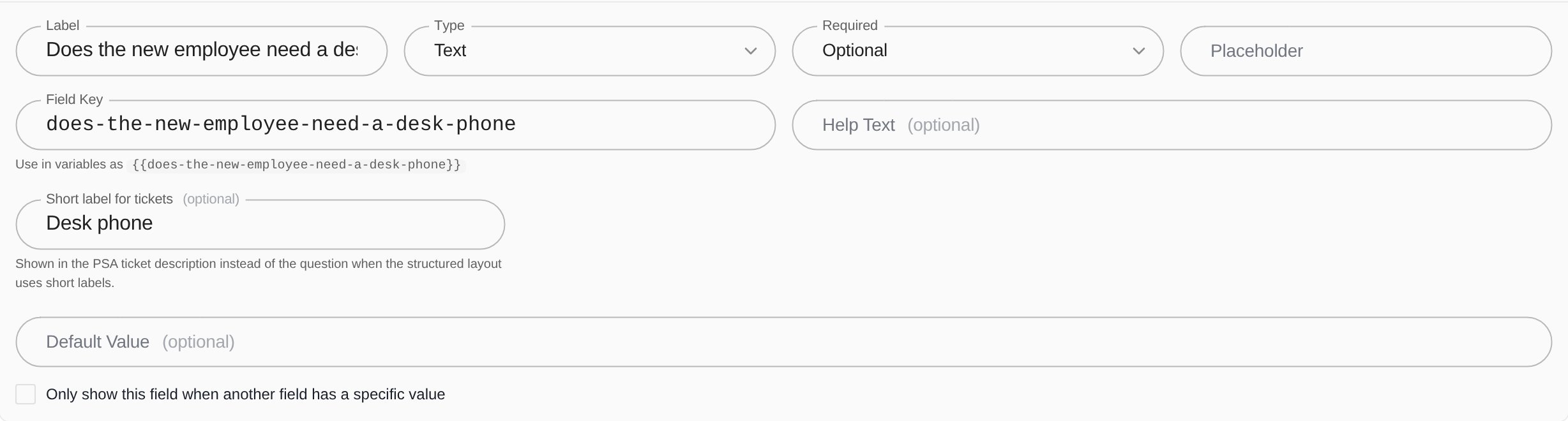
A field with a short label, in a MSPortal Demo template editor.
Preview a template’s description
In the template editor, select Preview and enter sample answers. Under the form, Ticket description shows the description those answers would produce with your saved layout. Pickers such as User or Device show “(details of the selected record)” in place of the record’s details. Preview does not create a ticket. The preview uses the saved layout. After you change the layout in Settings > Tickets, select Save layout before checking a template.What goes into the description
- Answered questions, in template order. Blank questions are left out.
- Questions hidden by a template’s conditional logic are left out, even if they had an answer before they were hidden.
- Label (display text), PSA Classification and Embedded Template fields do not add a line. Each embedded template creates its own ticket.
- Acknowledged notices are listed at the end as “Acknowledged:” with the notice text.
- A label that already ends with ”?”, ”!” or ”:” gets no extra colon.
How each PSA shows it
The layout you choose is the same for every PSA. How it looks depends on the PSA that receives your tickets:
The settings preview and the template editor’s Ticket description preview both follow the PSA selected in PSA Integration, so you can check the result before you save. With the structured layout off, every PSA gets the default layout.
Troubleshooting
Related guides
Ticket settings
Delivery, defaults and the other cards on the General tab.
Create and preview a ticket template
Add sections and questions, then try the form in Preview.
How to create a ticket template
Field types, conditional logic and embedded templates.
Show or require a field conditionally
Rules that hide questions, and their answers, from the ticket.