

Who sees what
Every field starts unticked in every display group. Client users see fields only on tickets they can already open, so the role’s ticket visibility, such as Own Tickets Only, still applies. Empty fields are left out.
Name the Change Info Fields
Autotask’s API sends Change Info Fields 1 to 5 without the names you gave them in Autotask, so MSPortal shows them as Change Info Field 1 to 5 until you name them.1
Open the Autotask connection
Go to Settings > Integrations, open your Autotask connection and choose the Configure step.
2
Name each field
Under Change Info Field names, type the name each field has in your Autotask, such as Impact Analysis or Rollback Plan. Each name saves when you leave the box. A box left empty shows as Change Info Field and its number.
3
Not sure which field is which?
Click the eye beside a box. It shows up to three recent values of that field from your Change Request tickets, newest first.
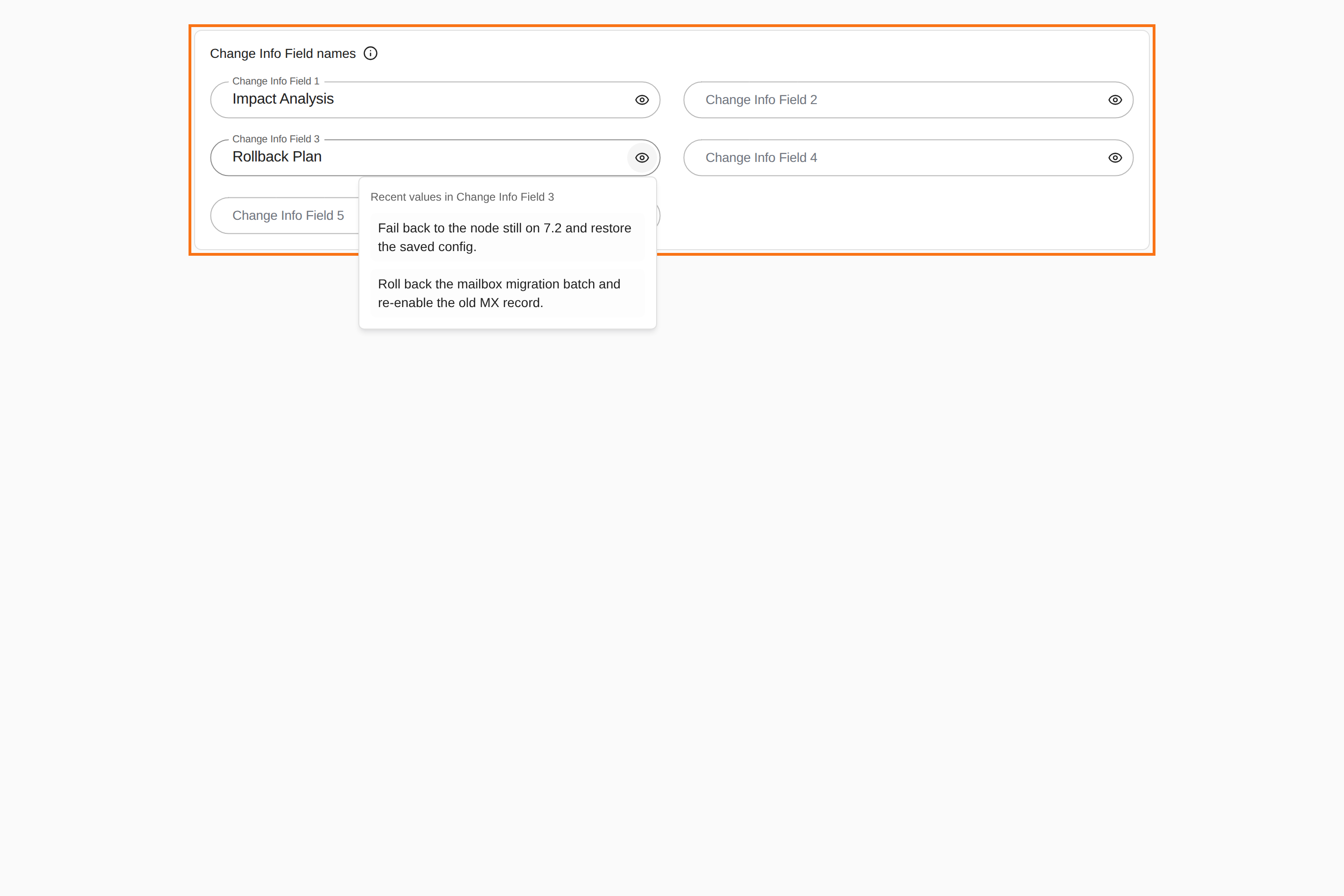
The eye beside a Change Info Field shows recent values from your Change Request tickets.
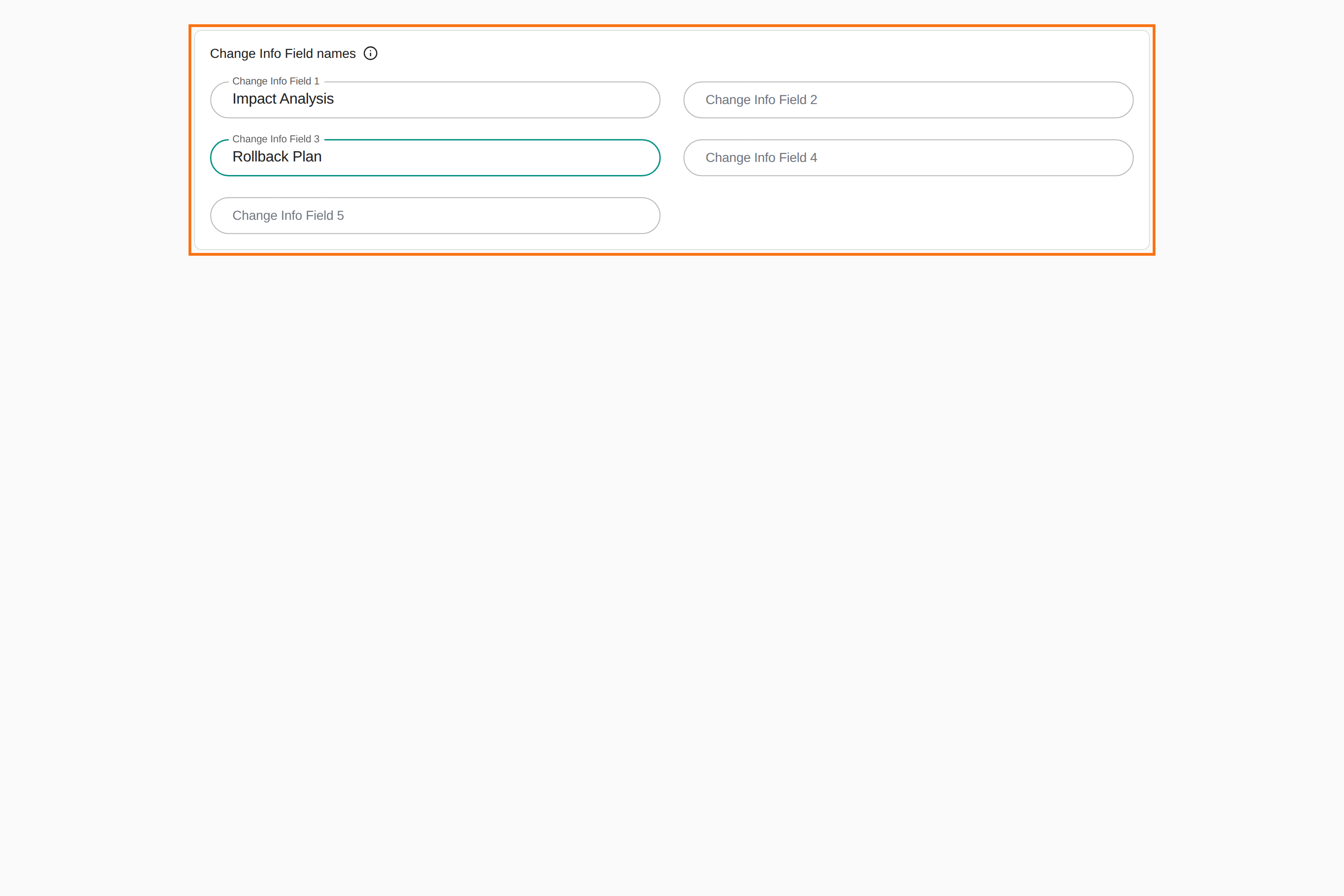
Change Info Field names in the Autotask connection's Configure step.
Choose the fields to show
1
Open the display group
Go to Settings > Tickets > Display Groups and edit the group assigned to the client role, or create one. Staff see every field any group ticks, so to show a field to staff only, tick it in a group with no client roles.
2
Tick Change Management Fields
Under Field Visibility, open Change Management Fields (only shown on Change Request tickets). It lists Autotask’s Change Approval Status, Change Approval Type, Change Approval Board and the five Change Info Fields, with the names you gave them. These fields show only on Change Request tickets.
3
Tick Custom Fields
Custom Fields lists the ticket UDFs synced from your PSA. A ticked field shows when the ticket has a value for it.
4
Click Update Group
The group’s other field settings stay as they were.
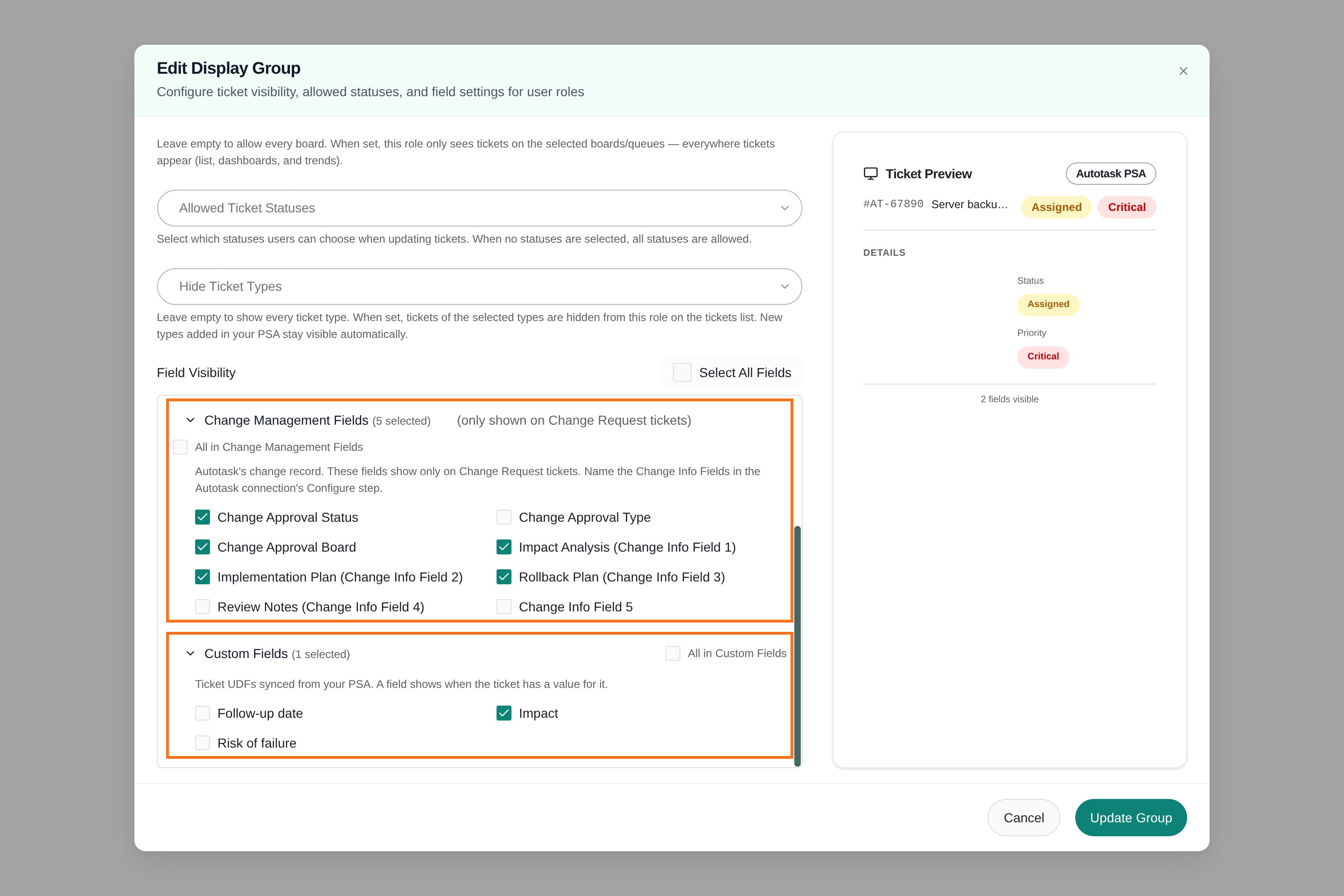
A display group with Change Management Fields and Custom Fields ticked.
Where the fields show
- Ticket details. Change Management Fields and Custom Fields sit under the ticket’s details, each in its own section. Picklists show their names, such as Approved or the name of your change approval board. Long text keeps its line breaks and folds after six lines; Show More opens the rest.
- Change approval panel. When a ticket has a change request, the same two sections sit above the approver’s decision.
- Change approval email. The email asking someone to approve a change lists their fields under Change details. In a custom Change Approval Request email template, add the
{{psa_fields}}variable where the list should go.
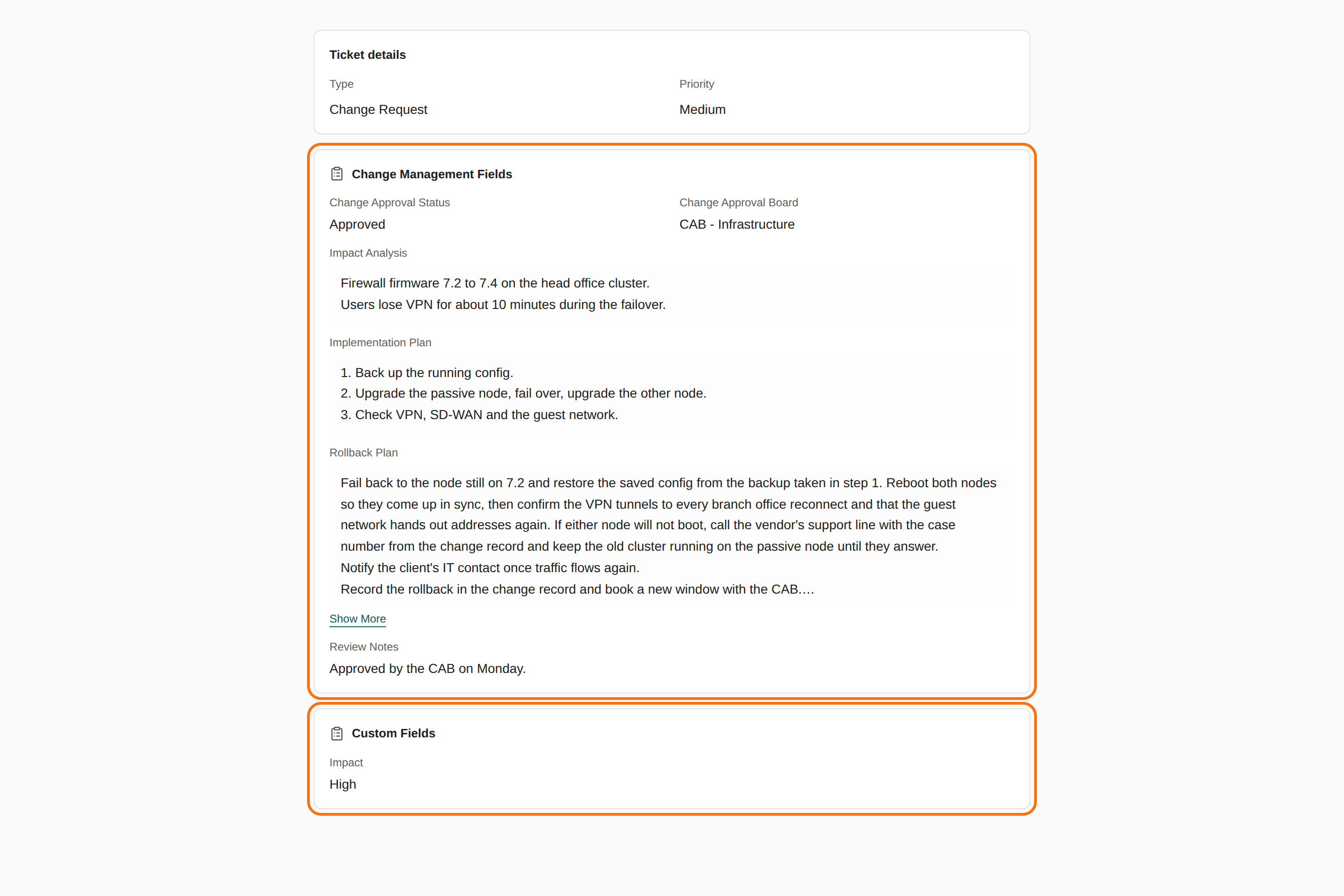
A Change Request ticket's Change Management Fields and Custom Fields, as staff see them.
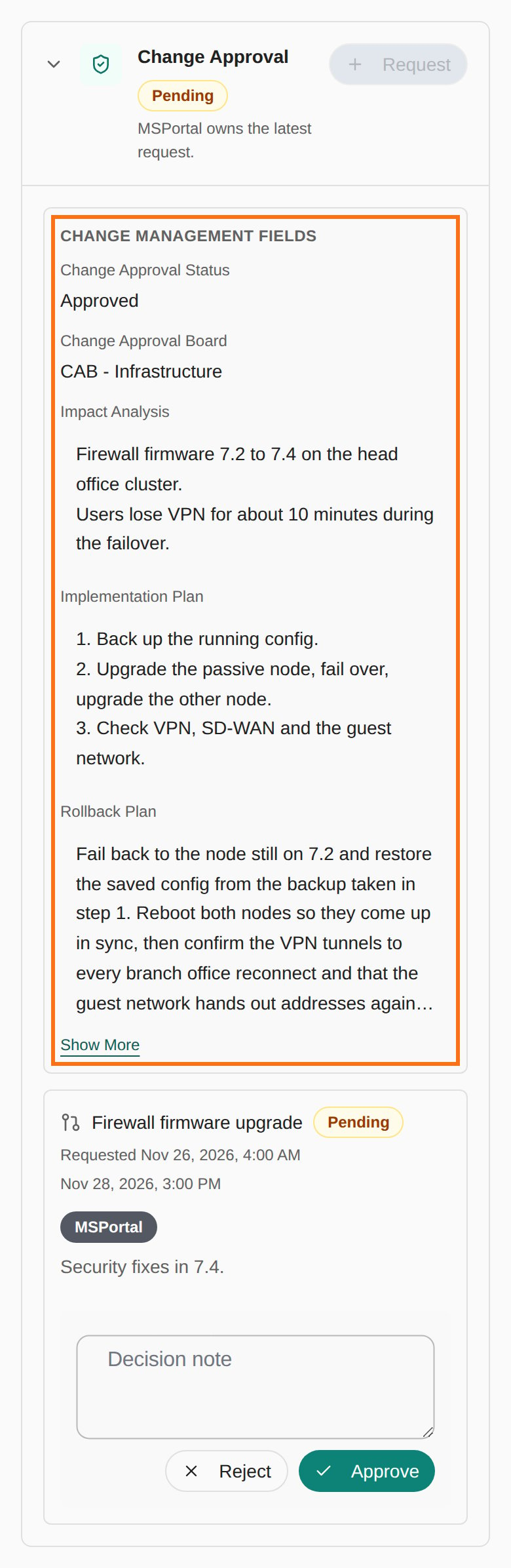
The change approval panel on a phone, as a client approver sees it.