

Which dates are written
MSPortal writes the expiration date that its automatic warranty check found for the device’s serial number. The check uses the latest end date across every coverage the manufacturer lists. For HP that includes the factory warranty, bundled warranty and Care Packs.- Only devices with a successful automatic warranty check and a known expiration date are written.
- A manufacturer record whose start date equals its end date is a placeholder, not real coverage. Those devices show no warranty date and nothing is written until real dates are found.
- Only the expiration date is written. The warranty start date stays in MSPortal.
- Dates you enter by hand in MSPortal, without an automatic check, are not written.
Before you start
- Autotask API permissions. In Autotask, open Admin > Resources/Users > Security Levels and edit the level assigned to the MSPortal API user. Under Inventory, give Configuration Item access of View (All) and Edit.
- Company mapping. Link your Autotask companies to MSPortal companies. Serial-number matching only looks inside the Autotask company mapped to the device’s company.
- Warranty data. Your devices need serial numbers and a supported manufacturer so MSPortal can check their warranty. See Understand device details.
Turn on warranty writeback
1
Open the Sync step
Open Settings > Integrations > Autotask PSA > Configure and go to Sync.
2
Turn on Warranty writeback
Under Extended data, turn on Warranty writeback.
3
Save
Continue from Sync, or select Save & Exit. Continuing from Sync also starts a background synchronization of your selected Autotask data.
4
Re-check permissions
Under Permissions, select Re-check and resolve anything reported as denied.
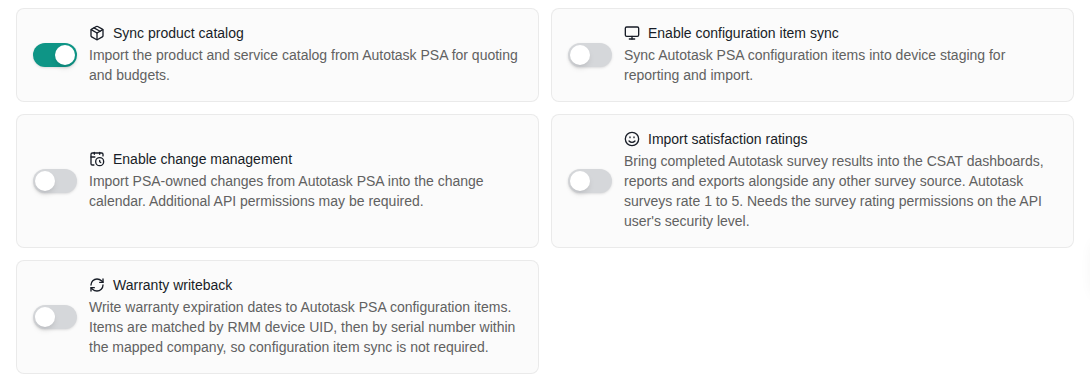
Warranty writeback on the Sync step, available with configuration item sync turned off.
How devices are matched
MSPortal finds the configuration item for each device in this order:- Linked item. A device imported by Autotask configuration item sync is already linked to its configuration item and is updated directly.
- RMM device UID. A device from Datto RMM matches the active configuration item that carries the same RMM device UID. This is how Datto RMM links its devices to Autotask.
- Serial number. Otherwise, MSPortal looks for exactly one active configuration item with the same serial number in the Autotask company mapped to the device’s company.
- its serial number is missing or a placeholder, such as “To be filled by O.E.M.” or “Default string”;
- more than one configuration item has its serial number in that company;
- another MSPortal device matches the same configuration item.
When it runs
- Daily, at about 04:35 UTC.
- First run: covers every device with a successful warranty check.
- Later runs: send only devices whose warranty was checked again since the previous run.
- Weekly: a full pass on Sundays picks up devices whose configuration item appeared in Autotask, or whose company was mapped, after their warranty check.
- Failures: if Autotask rejects an update, the next run tries again.
Check the result
After the next daily run, open a device you know in Autotask and check Warranty Expiration Date on its configuration item. Compare it with the warranty end date on the device in MSPortal.Turn it off
Turn off Warranty writeback on the Sync step and save. Future runs stop. Dates already written to Autotask stay as they are.Troubleshooting
Frequently asked questions
Do I need Autotask configuration item sync?
Do I need Autotask configuration item sync?
No. Devices from Datto RMM are matched by RMM device UID or serial number. Configuration item sync is only needed if you also want Autotask configuration items imported into MSPortal.
Will this also update IT Glue?
Will this also update IT Glue?
If your Autotask configuration items sync into IT Glue, that sync carries the date into the IT Glue configuration. You can also write IT Glue configurations directly: see Warranty writeback to IT Glue configurations.
Why was a Care Pack not included?
Why was a Care Pack not included?
MSPortal uses the latest end date across all coverage HP lists for the serial number. Devices checked before Care Packs were included are re-checked automatically. If a date still looks wrong, compare it with HP’s warranty check for the same serial number.
Does it change the warranty start date in Autotask?
Does it change the warranty start date in Autotask?
No. Only Warranty Expiration Date is written.
Related guides
Autotask setup
Connect Autotask and choose what to synchronize.
IT Glue configurations
Write warranty dates to IT Glue configurations.