

Overview
HubSpot is a CRM. MSPortal reads your HubSpot companies, deals and pipeline stages so you can:- Add open new-business deals to the HubSpot column of the revenue forecast, weighted by deal stage probability
- Map HubSpot companies to your MSPortal companies, so a company’s forecast includes its own deals
HubSpot is in beta. If the integration is not available in Settings > Integrations, contact support@msportal.ai.
Prerequisites
Before you begin, ensure you have:- HubSpot access that lets you create a private app in your HubSpot account
- Admin access to MSPortal.ai with the manage_settings_integrations permission
- Companies already set up in MSPortal (from your PSA integration or created manually), or permission to import new companies while matching
Part 1: Create a private app in HubSpot
1
Create the private app
In your HubSpot account, create a private app named
MSPortal.2
Choose the scopes
Give the app the
crm.objects.companies.read and crm.objects.deals.read scopes. HubSpot adds the default oauth scope, which lets MSPortal verify the account.3
Copy the access token
Create the app and copy its access token to a secure location.
Part 2: Connect HubSpot in MSPortal
Task 1: Connect
1
Open the connection page
In MSPortal, go to Settings > Integrations. On the Directory tab, find HubSpot and select Connect. To continue an existing connection, open it from the Active tab.
2
Enter the token
Paste the token into Private app access token.
3
Test the connection
Select Test connection. MSPortal verifies the token against your HubSpot account and shows Connected to HubSpot account with your HubSpot account ID. Testing does not save anything.
4
Save and continue
Select Save and continue. MSPortal verifies the token again, stores it in the vault and starts the first sync in the background.
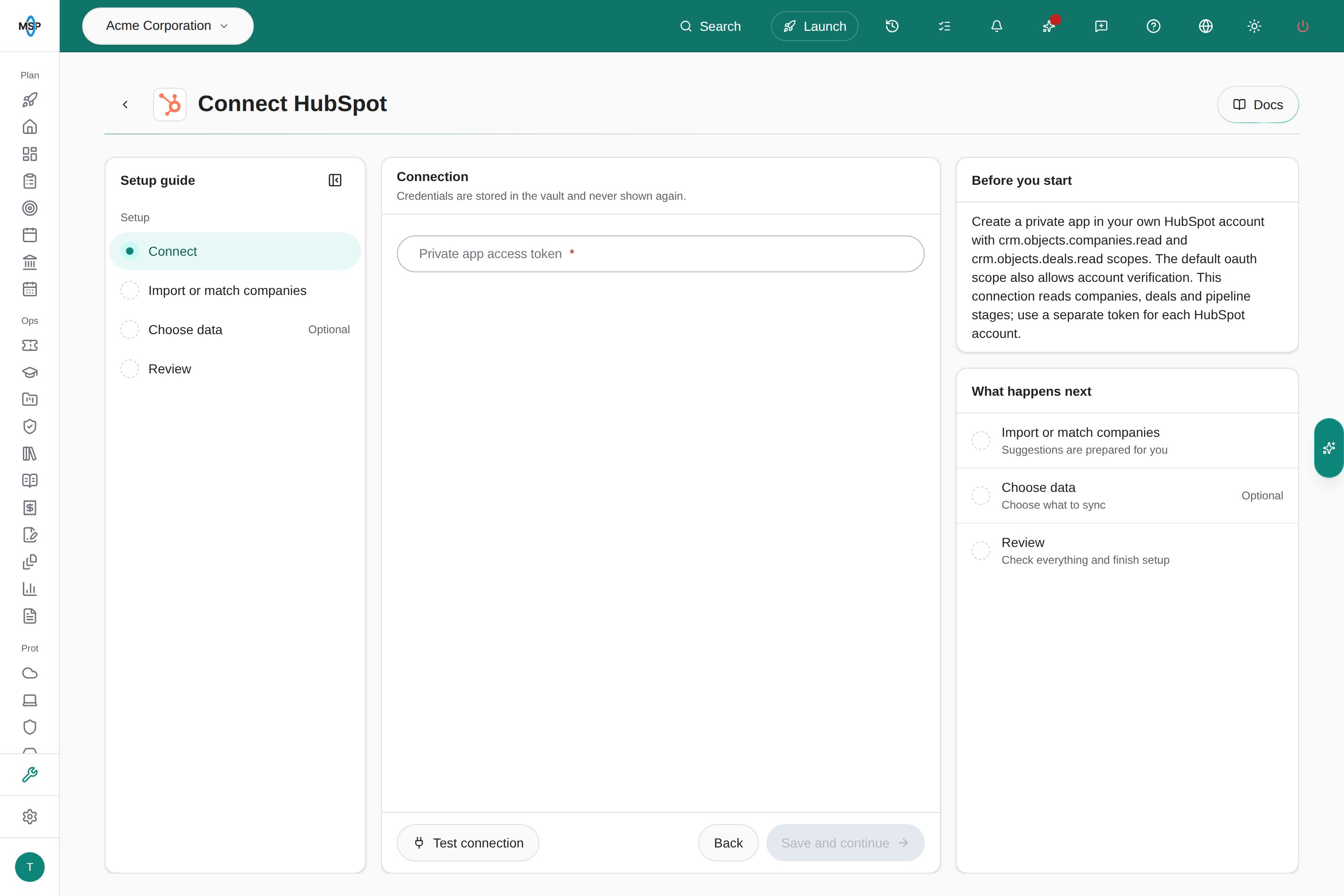
Branch preview on the Demo tenant: the Connect task for a new HubSpot connection.
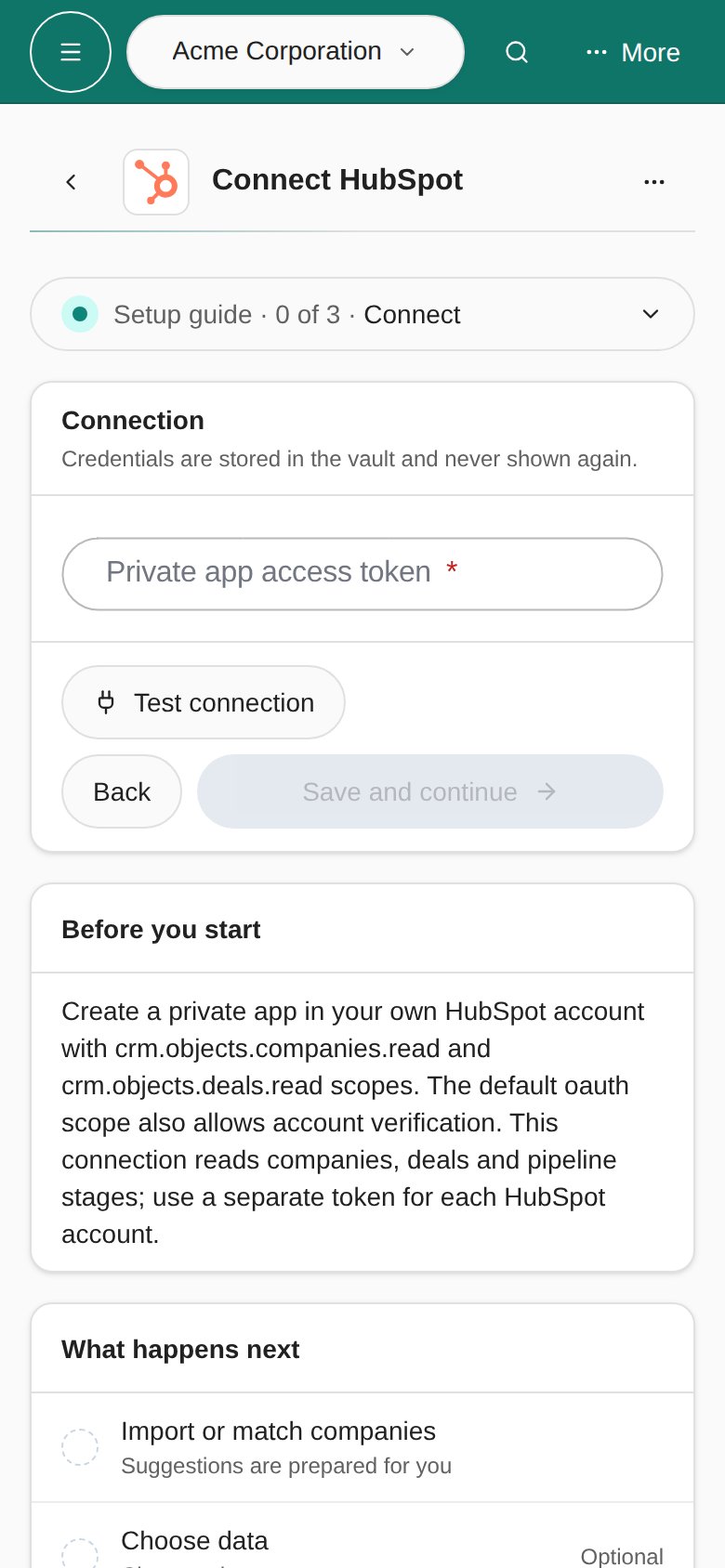
Branch preview on the Demo tenant: the same Connect task on a phone.
Task 2: Import or match companies
Link each HubSpot company to the matching MSPortal company.- The workspace opens on the Import view, which lists every HubSpot company that still needs a match. Suggested narrows it to proposed matches.
- Select Accept on a correct suggestion, choose an existing company, or select Import on the row to create a new MSPortal company from the HubSpot record.
- Each match saves immediately. There is no separate save step.
Task 3 (optional): Choose data
Choose data shows what MSPortal has synced:- Companies, Mapped companies and Deals counts
- Last complete sync, or Not synced yet
- Sync All Data, which starts a sync now. It needs integration manage permission.
- Open revenue forecast, which opens the forecast on MSP Tools > Client Success > Revenue Trends
Task 4: Review
Select Finish setup once the required tasks are complete.What gets synced
The forecast uses open new-business deals in your tenant currency, counted once in their expected close month and weighted by their current stage probability. Deals with a missing amount, close date or stage, or in another currency, are left out rather than estimated. The Assumptions dialog on the forecast shows how many deals were included and left out.
If a sync fails, MSPortal keeps the data from the last complete sync.
Managing the connection
- Open your HubSpot connection from the Active tab in Settings > Integrations. Use the Setup guide to return to any task.
- To replace the token, open Connect. The saved token is masked. Leave it unchanged to keep it, or paste a new token from the same HubSpot account. Select Test connection, then save. Saving starts a sync with the new token.
- To rename the connection, select More actions > Rename.
- To remove the integration, select More actions > Disconnect… and confirm. This removes the stored token and stops the hourly sync. It does not change anything in HubSpot.
Troubleshooting
Related resources
Financial Reporting
Read the 12-month revenue forecast
Integrations Overview
Manage all MSPortal integrations