

Before you start
- You need the write_budgets or manage_budgets permission. Approving a budget, and deleting saved lines or budgets, need manage_budgets. Changing a line’s Approval status needs Approve budget items, which Manage includes and Write does not.
- A budget belongs to one company.
- Only Draft and Pending Approval budgets can be edited. Approved and Archived budgets are locked. To change one, duplicate it.
- Choose the currency before you add costs. Changing it later does not convert any prices.
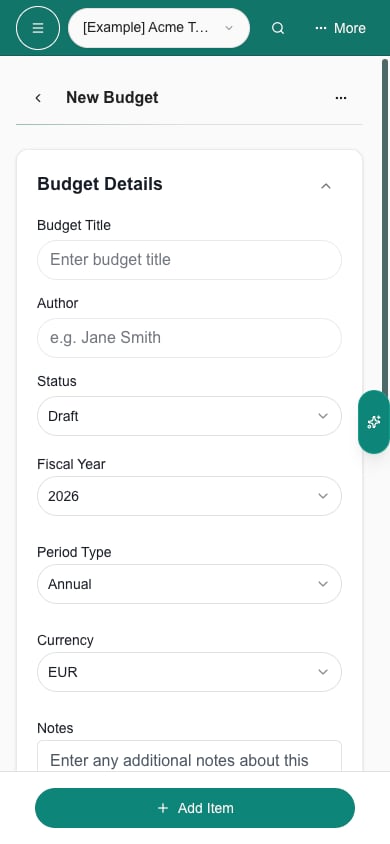
The editor uses the standard back arrow beside its title. On a phone, open Actions for Import, Export and Save. The arrow returns to the Budgets list.
- Desktop
- Phone
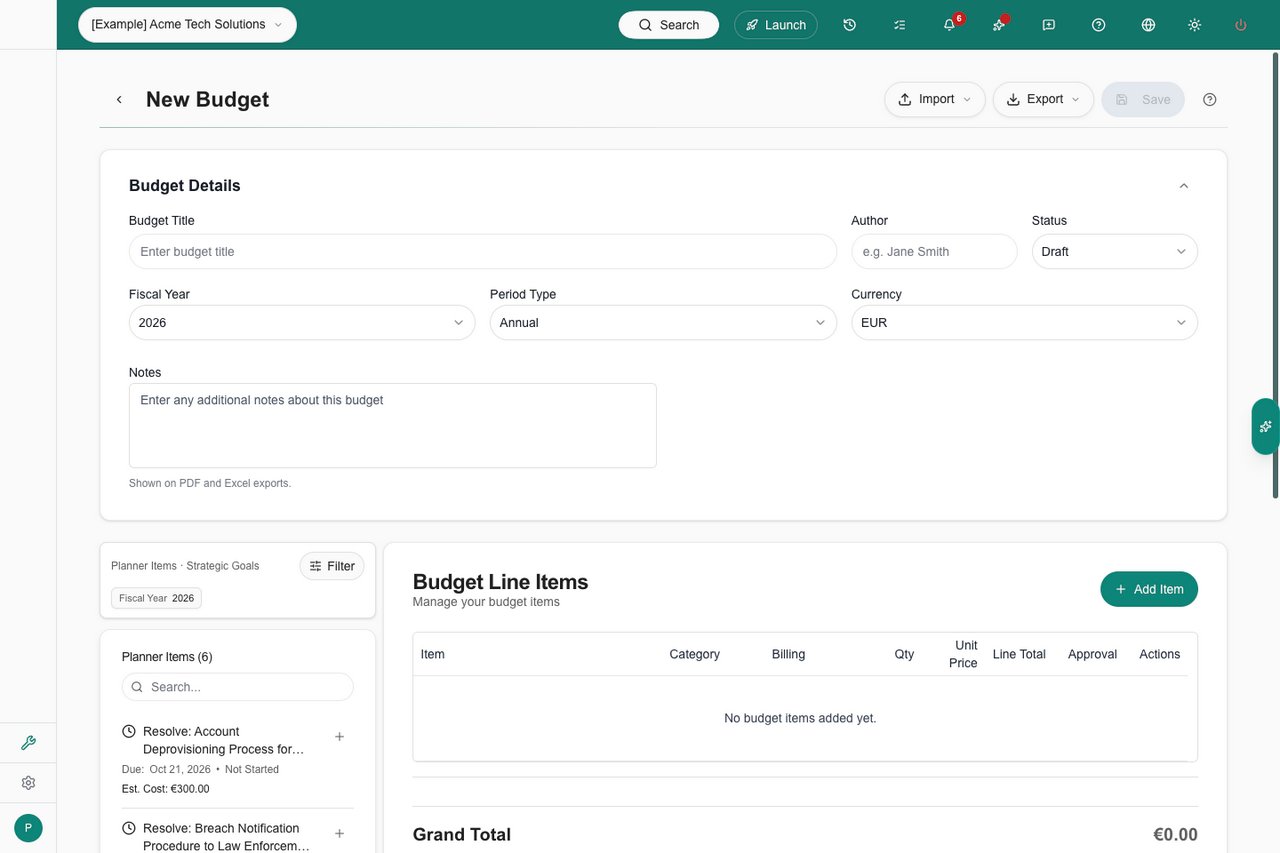
Budget editor with the standard back arrow and responsive header actions.
Create a budget
1
Open Budgets
Pick the company in the top bar if you want, then click Budgets in the sidebar.
2
Click Create New Budget
Click Create New Budget at the top right. If you are in Global View or have several companies selected, the page asks you to choose the company. Pick it in the Company list. This does not change the company selected in the top bar.
3
Fill in Budget Details
The new budget opens with Budget Details expanded.
- Budget Title: 2 to 120 characters.
- Author: a name, up to 120 characters. It starts empty.
- Status: leave it on Draft while you build the plan.
- Fiscal Year: starts on the current year. The list runs from two years back to seven years ahead.
- Period Type: Annual, Quarterly or Monthly.
- Currency: starts from the company’s or your MSP’s country, and falls back to USD.
- Notes: up to 2,000 characters. Notes appear on the budget page and in PDF and Excel exports, and the helper text under the box says so. Write them for every reader.
4
Add the costs
Click Add Item to type a cost, or add costs from the panels and the Import menu. See Add and edit budget line items.
5
Save
Click Save at the top right, or press Ctrl+S (Cmd+S on Mac). Budget saved successfully. appears and you return to the Budgets list.
6
Check the monthly plan
Open the budget with View and read Monthly Breakdown. A line’s Line Total is quantity times unit price for one charge. It is not the yearly cost of a recurring line.
Edit a saved budget
1
Open the editor
Click the budget’s title in the Budgets list, or click … then Edit. The page is named Edit Budget.
2
Open Budget Details
Click the Budget Details bar to expand or collapse the fields.
3
Change what you need
Edit the header fields, or edit lines with the pencil menu and Edit.
4
Save
Click Save. You stay on the page and a Last saved time appears.
What saves when
Bring in existing costs
Use the Import menu for Excel workbooks, earlier-year recurring services or Microsoft 365 licensing. Use the side panels for Planner items, goals and products. Each one adds rows to review. Click Save to keep them.Troubleshooting
Frequently asked questions
Can one budget cover several companies?
Can one budget cover several companies?
No. A budget belongs to one company. Create a budget for each company.
Can a company user create or edit budgets?
Can a company user create or edit budgets?
Only if their MSP gives them budget write access. Company users cannot grant it to themselves.
Does Period Type change each line's billing schedule?
Does Period Type change each line's billing schedule?
No. Period Type labels the budget. Each line has its own Recurrence and Start month. Monthly Breakdown always runs January to December.
Does changing the currency convert my prices?
Does changing the currency convert my prices?
No. The numbers stay the same. Check existing and imported prices after you change it.
Does Pending Approval approve the budget?
Does Pending Approval approve the budget?
No. It is another editable status. Only the Approved status, set by someone with manage_budgets, locks the budget.
Why did a line's status change when I did not click Save?
Why did a line's status change when I did not click Save?
The Approval list on a saved line saves at once. Other edits wait for Save.
Does Export save my changes?
Does Export save my changes?
No. Save first, then export.