Finalize a budget as an immutable baseline and prepare its line items for actual-spend matching
Approving a budget turns it into the fixed baseline MSPortal uses to compare planned costs with customer invoice spend. Approval also gives every line item a unique reference, so projects, purchases, licenses, labor and other costs can be traced back to the approved plan. Locking a budget from the editor needs the manage_budgets permission. Deciding individual lines needs the Approve budget items permission, described in Approve or reject budget lines.Approval is the client’s decision. A typical budget goes through three steps:
Submit for review (optional): colleagues at the MSP check the draft.
Submit for approval: the budget goes to the people at the client who decide it.
Sign off: a client approver approves the budget, line by line or all at once, and signs it with their typed name.
Approval is permanent. You cannot edit an approved budget or return it to Draft. Review the budget carefully before it is approved.
Ask colleagues at the MSP to check a draft before it goes to the client. The budget stays a Draft and you can keep editing it. Clients never see the review.
1
Open the budget
Open the Draft budget in View mode.
2
Click Submit for review
Click Submit for review in the Approval row.
3
Choose the reviewers
Under Reviewers, choose one or more MSP staff members. The list shows staff who can see budgets. Optionally add a message saying what they should check.
4
Send the request
Click Send for review. Each reviewer receives an email and an in-app notification. The Approval row shows who asked, when, and who the review is waiting on.
Reviewers open the budget, click Review in the Approval row and answer Looks good or Needs changes, optionally with a note. The person who asked receives an in-app notification, and each answer appears in the Approval row. A reviewer can change their answer until the budget is sent to the client.Click Change reviewers to ask different people (this clears the answers so far), or Cancel review to end the review. Submitting the budget for approval also ends the review; its answers stay in the history.
Send the budget to the people at the client who decide it. Approvers are always client users: people at the budget’s company, or at a parent company that manages it, who hold the Approve budget items permission. A parent company admin limited to selected child companies can approve only for those companies. MSP staff are not approvers; ask them for a review instead. MSPortal never sends the request to someone who cannot approve it.
1
Open the budget
Open the Draft budget in View mode. The Approval row in the budget summary shows that it has not been submitted yet.
2
Click Submit for approval
Click Submit for approval in the Approval row.
3
Choose the approvers
In the People at list, which names the client, choose one or more approvers. Under Company role, optionally choose a role: everyone at the client who holds that role and can approve budget items is asked too. Each role shows how many people would be asked; a role nobody can approve with is unavailable. People in the role who cannot approve budget items are not asked.
4
Add a message
Optionally add a message for the approvers, such as a deadline.
5
Send the request
Click Submit for approval. The budget moves to Pending Approval, lines still in Draft move to Pending, and each approver receives an email and an in-app notification linking to the budget. The Approval row shows who submitted the budget, when, and who it is waiting on.
Approvers open the budget from the email or notification and use each line’s status menu to approve or reject it, or Approve all pending to approve every pending line at once. Approvers who cannot edit budgets can decide lines only while the budget is Pending Approval.
While the budget is Pending Approval, budget editors can:
Click Change approvers to choose different people or a different role. Everyone chosen receives the request again.
Click Withdraw to return the budget to Draft. The approvers receive an in-app notice that the budget no longer needs their review. Submit it again when it is ready.
A budget set to Pending Approval from the budget editor records who submitted it, but no approvers are notified. Click Choose approvers in the Approval row to send the request.
A client approver signs off the budget to approve and lock it. They can decide each line first, or sign off straight away to approve the whole budget: lines still pending are approved by the sign-off.
1
Review the lines
The Approval row shows how many lines are decided. Reject any line the client does not want; lines left pending are approved when you sign off.
2
Click Sign off
Click Sign off in the Approval row. The dialog shows the approved and rejected lines with their totals, how many pending lines the sign-off approves, and the budget’s fingerprint.
3
Agree and type your name
Read the statement, tick the box to agree, and type your full name. Your typed name is your signature.
4
Sign
Click Sign off budget. The budget becomes Approved and locked. The submitter and the other approvers receive an email and an in-app notification.
Approvers the request was sent to can sign off. If the request named nobody, any client approver can. MSP staff cannot sign off, and you cannot sign off while viewing MSPortal as another user.The sign-off records:
Your typed name, your account name and email
The date and time, your IP address and browser
The statement you agreed to, including how many pending lines it approved
The budget’s fingerprint: a SHA-256 hash of the budget exactly as you approved it
If anyone changes the budget while you are reviewing it, the fingerprint no longer matches and the sign-off is refused. Review the updated budget and sign again.The exported PDF of a signed-off budget ends with a Sign-off certificate page listing these details. The signer’s email and IP address appear only in PDFs exported by MSP staff.
Click History in the Approval row to see every step, newest first: internal reviews and their answers (MSP staff only), submission, approval requests, each line approved or rejected, edits that returned a line to Pending, sign-off, approval and archiving. Each entry shows who acted and when. Names stay in the history after a user is deleted.Each approved or rejected line also shows who decided it and when, below its status.
Changing anything that defines an approved or rejected line, such as its quantity, price, recurrence or category, returns it to Pending so it is decided again. Editing only its notes does not.
Each line has its own status: Pending, Approved, Rejected or Draft. Changing a line’s status needs the Approve budget items permission. In Settings > Users & Roles > Roles, it sits under Budgets in the role editor. Manage access to Budgets includes it. Write access does not, so a role can edit budgets without deciding lines, or decide lines without editing budgets.
Your access
Where you can decide lines
Statuses you can set
Approve budget items without Write
Budgets in Pending Approval
Approved, Rejected, Pending
Approve budget items with Write or Manage
Budgets in Draft or Pending Approval
Approved, Rejected, Pending, Draft
Approved and Archived budgets are locked, so nobody can change their line statuses.
1
Open the budget
In Budgets, click … then View on the budget’s row.
2
Change a line
On the Overview tab, open the … menu next to a line’s status and choose Approve, Reject, Mark as pending or Mark as draft. The menu lists only the statuses you can set. The change saves at once.
3
Approve every pending line
To approve all Pending lines together, click Approve all pending above the line table. It shows the number of Pending lines and appears only when there are some. The confirmation shows how many lines and what total will be approved. Click Approve N items to confirm. You can still change individual lines until the budget is approved.
4
Check the totals
The summary shows Total, Approved, Pending and Rejected. Pending includes Draft lines.
Approving every line does not approve or lock the budget. To lock it, a client approver signs it off, or someone with manage_budgets follows Approve a budget. You can also change line statuses in the budget editor’s Approval column, or for several lines at once with Update Statuses in the Budgets list row menu. See Add and edit budget line items.
Click … then Edit on the budget’s row. Check the company, fiscal year, currency, period type, lines and totals. Rejected lines stay visible after approval. They are left out of the approved amount and cannot receive actual spend. Draft and Pending lines count toward the baseline.
2
Review matching links
For a project cost, open the Planner item and check that it links to the right PSA project under Relationships (Link to Project). For a recurring license or service cost, check the product link. MSPortal records the matching links it finds at the moment of approval.
3
Set the status to Approved
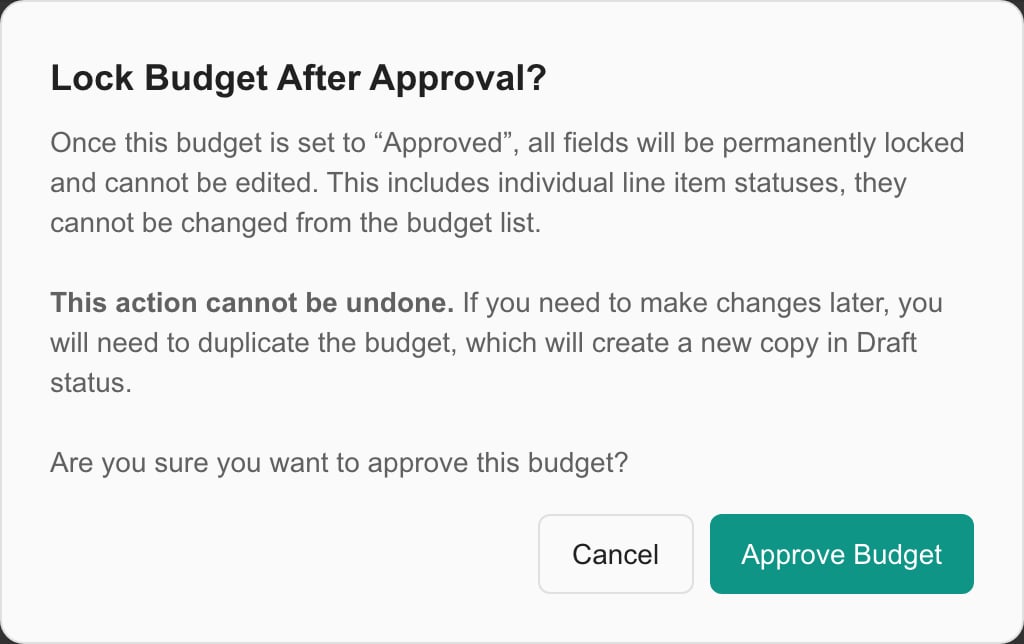
Click Budget Details to expand it if it is collapsed. Change Status to Approved. The Lock Budget After Approval? warning opens.
4
Confirm the lock
Read the warning and click Approve Budget. Click Cancel to back out.
The warning opens before you save. After you confirm it, you still need to click Save.
5
Save the approval
Click Save. The budget locks only when the save succeeds. If Your changes were saved, but the budget could not be approved. Reload the page and try again. appears, reload and approve again.
6
Open Actuals
Open the budget with View and click the Actuals tab. The approved period and the line references are ready.
Quantities, prices, recurrence and annualized costs
Read-only
Categories and line statuses
Read-only
Linked projects and products used for matching
Captured in the baseline
Line order and which lines exist
Read-only
Delete budget
Not allowed. Archive it instead.
Duplicate, print and export
Allowed
Actuals review and exception resolution
Allowed with the right permissions
The Actuals period is fixed at approval. It runs from January 1 to December 31 of the fiscal year. Choosing Quarterly or Monthly as the period type does not shorten it.
Budgets approved before actuals tracking existed keep their locked plan but have no references or matching links. Use manual allocations for them, or duplicate the budget and approve the copy to get references for future billing.
Each approved line gets a short reference such as BR-26-1A2B3C4D5E. MSPortal looks for it in synced invoice, purchase order, project, contract and related details. It is an internal reference. It is not purchase-order approval or three-way matching. Only details your PSA integration imports can be searched. There is no custom-field mapping screen for references, so check that your chosen field reaches the synced invoice.
1
Copy the reference
Open Budget Details > Actuals. In Line outcomes, click the value in the Reference column to copy it.
2
Add it to the PSA
Paste it into the PSA field your team uses for that cost, such as a project PO, customer PO, invoice reference or a custom field that flows to the invoice.
3
Keep it with the billed work
Make the reference part of your project, purchasing or billing routine so it ends up on the synced invoice.
4
Check the result
After the invoice sync finishes, open Actuals and confirm the event matched the right line.
Use one budget reference per invoice event. If one event holds more than one reference, MSPortal cannot pick an exact match.
MSPortal records the identifiers on each line when you approve. It then matches actual spend in this order.
Exact budget reference
Linked project
Linked product
Product identity, such as SKU or product name
An exact reference wins over the other methods. If the best method points to more than one line, the event goes to Unmatched exceptions. A reference that does not name an eligible line in this budget also goes there. It does not fall back to a project or product match.
Archiving retires an approved budget and keeps its baseline and history. Only the planned baseline is frozen. Actuals still change when invoices sync or when authorized users change reconciliation decisions, even on an archived budget.
1
Open the approved budget
Click … then Edit. The budget is read-only and a banner reads Read-only - budget approved.
2
Click Archive
Click Archive in the banner. You need the manage_budgets permission.
3
Confirm
The dialog asks Archive Budget Title? and says the budget becomes read-only and shows as Archived. Click Archive. The status changes to Archived and the Actuals history stays.
Project cost. Open the Planner item, link the correct PSA project under Relationships, and add the item to the budget before approval. After approval, copy the reference into a PSA field your integration imports.
License or service cost. Add it from the product catalog when you can. Check the product link, SKU, name, quantity, price and recurrence before approval. MSPortal uses the product link or identity when the invoice line has no reference.
You need manage_budgets, and the budget must be Draft or Pending Approval.
Submit for approval or Submit for review is missing
Your role must be able to edit budgets, and the budget must be Draft. Only MSP staff see Submit for review.
A person is missing from the approver list
Only client users who are active, can sign in, hold Approve budget items, and belong to this company or a parent company that manages it are listed. MSP staff are never approvers. Ask them for a review instead.
A colleague is missing from the reviewer list
Only MSP staff who are active, can sign in and can see budgets are listed. You cannot review your own request.
Nobody you chose can approve budget items
Nobody you chose can approve for this company. Grant Approve budget items to the people who should approve.
A company role is unavailable, or Nobody at … who holds this role can approve budget items
Nobody holding that role at this company can approve budget items. Choose another role, or grant Approve budget items to the role’s members.
This budget changed since you opened it
Someone saved the budget after you opened it. The page reloads. Review the change and submit again.
Sign off is unavailable
The budget has no lines, or you are viewing MSPortal as another user.
Sign off is missing
Only client approvers the request was sent to can sign off. MSP staff cannot.
This budget changed while you were reviewing it
The fingerprint changed. Review the updated budget and sign again.
A line has no status menu
You need Approve budget items. Without Write access, you can decide lines only while the budget is Pending Approval.
Mark as draft is missing
Only people who can also edit budgets can return a line to Draft.
Approval fails with a validation error
Complete the company, fiscal year, currency, categories and line data, then try again.
The budget cannot be edited after approval
That is expected. Duplicate it for an editable copy.
A line has no reference
An older locked budget has none. Use manual allocation. For a new budget, reload and confirm the save finished.
Your changes were saved, but the budget could not be approved.
Reload, check the saved budget, and approve again. A saved Draft is not a locked baseline.
A project or product link was wrong at approval
Duplicate and correct the copy. The original baseline does not change.
Archive is missing
The budget must be Approved, and you need manage_budgets.
Open the budget with Edit, expand Budget Details, set Status to Approved, click Approve Budget in the warning, then click Save.
Does Approve Budget in the warning save the approval?
No. It only sets the status in the editor. You must click Save.
Can a company administrator approve budgets?
The company administrator label alone does not grant approval. To decide lines or sign off a budget sent to them, their MSP gives their role Approve budget items. To lock the whole budget from the editor, they need manage_budgets.
Is a sign-off legally binding?
A sign-off records the signer’s typed name, account, time, IP address, browser and the exact budget they approved, identified by its fingerprint. Whether that meets the requirements of a particular contract or jurisdiction is for you and your client to decide.
Who receives the approval request?
Everyone at the client chosen by name, plus everyone at the client who holds the chosen company role and can approve budget items. The person who submits the budget is not notified about their own request.
Can MSP staff approve a budget for the client?
Not through a sign-off: approval requests and sign-offs are for client users. Staff who manage budgets can still set a budget to Approved in the editor, for example after the client approved it outside MSPortal. That is recorded as staff approval, not a client sign-off.
Can the client approve the whole budget at once?
Yes. An approver can sign off without deciding each line: every line still pending is approved by the sign-off. Reject any line the client does not want first.
Does the client see our internal review?
No. The review, its answers and its history entries are visible to MSP staff only.
Does approving every line lock the budget?
No. Line statuses and the budget status are separate. Only a client sign-off, or setting the budget’s Status to Approved, locks it.
Can I unlock an approved budget or change a rejected line?
No. Duplicate the budget, fix the Draft copy and approve it.
Does Monthly or Quarterly limit the Actuals dates?
No. Actuals always uses January 1 to December 31 of the fiscal year.
Can I approve a budget with more than 500 lines?
No. Approval allows at most 500 lines. Remove lines or split the plan.
What if someone changed the budget while I was approving it?
Reload, review the latest saved budget, and approve again only after you check it.
Does archiving freeze the Actuals?
No. The planned baseline stays fixed. Invoices and reconciliation decisions can still change Actuals.
Does copying a reference send it to the PSA?
No. It only copies the code to your clipboard. Add it in your PSA yourself.
{"docsConfig":{"theme":"mint","$schema":"https://mintlify.com/docs.json","name":"MSPortal.ai Documentation","colors":{"primary":"#16A34A","light":"#07C983","dark":"#15803D"},"logo":{"light":"https://mintcdn.com/msportal/KnbwIXtZSTlVJTt6/logo/light.svg?fit=max\u0026auto=format\u0026n=KnbwIXtZSTlVJTt6\u0026q=85\u0026s=eb69f6d6bf16b2c401770aef19ade1d2","dark":"https://mintcdn.com/msportal/KnbwIXtZSTlVJTt6/logo/dark.svg?fit=max\u0026auto=format\u0026n=KnbwIXtZSTlVJTt6\u0026q=85\u0026s=03f8df7191e7a8ea7da084df57f6107f"},"favicon":"https://mintcdn.com/msportal/KjsKytvp08K0bejm/favicon-16x16.png?fit=max\u0026auto=format\u0026n=KjsKytvp08K0bejm\u0026q=85\u0026s=378df7f039bbff7885231fec799d29ac","navbar":{"links":[{"href":"https://app.msportal.ai/product-roadmap","label":"Roadmap"},{"href":"mailto:support@msportal.ai","label":"Support"}],"primary":{"type":"button","label":"Dashboard","href":"https://app.msportal.ai"}},"footer":{"socials":{"linkedin":"https://linkedin.com/company/msportal"}},"styling":{"latex":true},"navigation":{"global":{"anchors":[{"anchor":"MSPortal.ai","icon":"globe","href":"https://msportal.ai"},{"anchor":"Support","icon":"life-ring","href":"mailto:support@msportal.ai"},{"anchor":"Status","icon":"signal","href":"https://status.msportal.ai"}]},"pages":[]}},"deployment":{"deploymentMetadataValue":{"subdomain":"msportal","hasAudioNarration":false,"actualSubdomain":"msportal","customDomains":["docs.msportal.ai"],"gitSource":{"type":"github","owner":"msportal-ai","repo":"mintlify-docs","deployBranch":"main","contentDirectory":"","isPrivate":false,"mountPath":"","label":""},"chroma":{"liveDeploymentHistoryId":"6ad7c07e329c0d94de85aca0","collectionId":"b0e4850c-a814-4047-9db8-b314067bd8de","schemaVersion":"v3","latestBuiltDeploymentHistoryId":"6ad7c07e329c0d94de85aca0"},"feedback":{"thumbs":true},"entitlements":{},"buildId":"6ad7e2551318cd729ae8d1ce","clientVersion":"0.0.3902","searchFilterCounts":[{"language":"default","tag":"MSP Guides","count":453},{"language":"default","tag":"Service Delivery","count":165},{"language":"default","tag":"API Reference","count":111},{"language":"default","tag":"Overview \u0026 Planning","count":109},{"language":"default","tag":"Connect your tools","count":87},{"language":"default","tag":"Integration setup","count":87},{"language":"default","tag":"Administration","count":38},{"language":"default","tag":"Settings","count":38},{"language":"default","tag":"Getting Started","count":36},{"language":"default","tag":"Budgets","count":36}]},"assistantConfig":{"enableAskAiButton":false,"enableStarterQuestions":false,"enableAskAiSearchBar":true},"hasChatPermissions":false,"hasWebMcpPermissions":false,"toggles":[{"name":"kill-isr","enabled":true,"variant":{"name":"disabled","enabled":false,"feature_enabled":true},"impressionData":false},{"name":"agent-mintlify-slack","enabled":true,"variant":{"name":"disabled","enabled":false,"feature_enabled":true},"impressionData":false},{"name":"editor-v7-file-tree","enabled":true,"variant":{"name":"disabled","enabled":false,"feature_enabled":true},"impressionData":false},{"name":"agent-integrations-settings","enabled":true,"variant":{"name":"disabled","enabled":false,"feature_enabled":true},"impressionData":false},{"name":"automations-pr-grouping","enabled":true,"variant":{"name":"disabled","enabled":false,"feature_enabled":true},"impressionData":false},{"name":"custom-prefix","enabled":true,"variant":{"name":"disabled","enabled":false,"feature_enabled":true},"impressionData":false},{"name":"analytics-v7","enabled":true,"variant":{"name":"disabled","enabled":false,"feature_enabled":true},"impressionData":false},{"name":"user-flows-analytics","enabled":true,"variant":{"name":"disabled","enabled":false,"feature_enabled":true},"impressionData":false},{"name":"no-publish-flow","enabled":true,"variant":{"name":"disabled","enabled":false,"feature_enabled":true},"impressionData":false},{"name":"workos-onboarding","enabled":true,"variant":{"name":"disabled","enabled":false,"feature_enabled":true},"impressionData":false},{"name":"llms-txt-v2","enabled":true,"variant":{"name":"disabled","enabled":false,"feature_enabled":true},"impressionData":false},{"name":"pause-universal-search-reconcile","enabled":true,"variant":{"name":"disabled","enabled":false,"feature_enabled":true},"impressionData":false},{"name":"snapshot-serving-live","enabled":true,"variant":{"name":"disabled","enabled":false,"feature_enabled":true},"impressionData":false},{"name":"stripTemperatureMiddleware","enabled":true,"variant":{"name":"disabled","enabled":false,"feature_enabled":true},"impressionData":false},{"name":"per-site-search-delta","enabled":true,"variant":{"name":"disabled","enabled":false,"feature_enabled":true},"impressionData":false},{"name":"support-platform-pylon-zendesk","enabled":true,"variant":{"name":"disabled","enabled":false,"feature_enabled":true},"impressionData":false},{"name":"editor-branches-v2-autocommit","enabled":true,"variant":{"name":"disabled","enabled":false,"feature_enabled":true},"impressionData":false},{"name":"editor-branches-v2","enabled":true,"variant":{"name":"disabled","enabled":false,"feature_enabled":true},"impressionData":false},{"name":"snapshot-serving","enabled":true,"variant":{"name":"disabled","enabled":false,"feature_enabled":true},"impressionData":false},{"name":"instant-rollback","enabled":true,"variant":{"name":"disabled","enabled":false,"feature_enabled":true},"impressionData":false},{"name":"granular-notifications-server","enabled":true,"variant":{"name":"disabled","enabled":false,"feature_enabled":true},"impressionData":false},{"name":"granular-notifications","enabled":true,"variant":{"name":"disabled","enabled":false,"feature_enabled":true},"impressionData":false},{"name":"editor-private-page-search","enabled":true,"variant":{"name":"disabled","enabled":false,"feature_enabled":true},"impressionData":false},{"name":"automations-fable","enabled":true,"variant":{"name":"disabled","enabled":false,"feature_enabled":true},"impressionData":false},{"name":"fixed-ai-action-pricing","enabled":true,"variant":{"name":"disabled","enabled":false,"feature_enabled":true},"impressionData":false},{"name":"automation-resolve-merge-conflict","enabled":true,"variant":{"name":"disabled","enabled":false,"feature_enabled":true},"impressionData":false},{"name":"scoped-publishing","enabled":true,"variant":{"name":"disabled","enabled":false,"feature_enabled":true},"impressionData":false},{"name":"mintql","enabled":true,"variant":{"name":"disabled","enabled":false,"feature_enabled":true},"impressionData":false},{"name":"page-level-analytics","enabled":true,"variant":{"name":"disabled","enabled":false,"feature_enabled":true},"impressionData":false},{"name":"teamspace","enabled":true,"variant":{"name":"disabled","enabled":false,"feature_enabled":true},"impressionData":false},{"name":"editor-version-history-v2","enabled":true,"variant":{"name":"disabled","enabled":false,"feature_enabled":true},"impressionData":false},{"name":"vite-origin","enabled":true,"variant":{"name":"disabled","enabled":false,"feature_enabled":true},"impressionData":false},{"name":"editor-nav-generations","enabled":true,"variant":{"name":"disabled","enabled":false,"feature_enabled":true},"impressionData":false},{"name":"workspace-projects","enabled":true,"variant":{"name":"disabled","enabled":false,"feature_enabled":true},"impressionData":false},{"name":"assistant-v5","enabled":true,"variant":{"name":"disabled","enabled":false,"feature_enabled":true},"impressionData":false},{"name":"byok-sep-25","enabled":true,"variant":{"name":"disabled","enabled":false,"feature_enabled":true},"impressionData":false},{"name":"revalidation-jwt","enabled":true,"variant":{"name":"disabled","enabled":false,"feature_enabled":true},"impressionData":false},{"name":"editor-agent-model-picker","enabled":true,"variant":{"name":"disabled","enabled":false,"feature_enabled":true},"impressionData":false},{"name":"client-snapshot-docs-config","enabled":true,"variant":{"name":"disabled","enabled":false,"feature_enabled":true},"impressionData":false},{"name":"hobby-abuse-scan","enabled":true,"variant":{"name":"disabled","enabled":false,"feature_enabled":true},"impressionData":false},{"name":"dashboard-inbox","enabled":true,"variant":{"name":"disabled","enabled":false,"feature_enabled":true},"impressionData":false}],"isAtlas":false,"googleFontsInlined":false},"customCss":[],"page":{"pagePath":"user-guides/budgets/approving-and-locking-budgets","slug":"/user-guides/budgets/approving-and-locking-budgets","pageMetadata":{"title":"Approve and Lock a Budget","description":"Finalize a budget as an immutable baseline and prepare its line items for actual-spend matching","icon":"lock","href":"/user-guides/budgets/approving-and-locking-budgets"},"description":{"compiledSource":"\"use strict\";\nconst {jsx: _jsx} = arguments[0];\nconst {useMDXComponents: _provideComponents} = arguments[0];\nfunction _createMdxContent(props) {\n const _components = {\n p: \"p\",\n ..._provideComponents(),\n ...props.components\n };\n return _jsx(_components.p, {\n children: \"Finalize a budget as an immutable baseline and prepare its line items for actual-spend matching\"\n });\n}\nfunction MDXContent(props = {}) {\n const {wrapper: MDXLayout} = {\n ..._provideComponents(),\n ...props.components\n };\n return MDXLayout ? _jsx(MDXLayout, {\n ...props,\n children: _jsx(_createMdxContent, {\n ...props\n })\n }) : _createMdxContent(props);\n}\nreturn {\n default: MDXContent\n};\n","frontmatter":{},"scope":{}},"pageType":"default","mdx":{"mdxSource":{"compiledSource":"\"use strict\";const{Fragment:_Fragment,jsx:_jsx,jsxs:_jsxs}=arguments[0];const{useMDXComponents:_provideComponents}=arguments[0];function _createMdxContent(props){const _components={a:`a`,code:`code`,em:`em`,li:`li`,ol:`ol`,p:`p`,strong:`strong`,tbody:`tbody`,td:`td`,th:`th`,thead:`thead`,tr:`tr`,ul:`ul`,..._provideComponents(),...props.components},{Accordion,AccordionGroup,Frame,Heading,Note,OptimizedImage,Step,Steps,Table,Tip,Warning}=_components;if(!Accordion)_missingMdxReference(`Accordion`,true);if(!AccordionGroup)_missingMdxReference(`AccordionGroup`,true);if(!Frame)_missingMdxReference(`Frame`,true);if(!Heading)_missingMdxReference(`Heading`,true);if(!Note)_missingMdxReference(`Note`,true);if(!OptimizedImage)_missingMdxReference(`OptimizedImage`,true);if(!Step)_missingMdxReference(`Step`,true);if(!Steps)_missingMdxReference(`Steps`,true);if(!Table)_missingMdxReference(`Table`,true);if(!Tip)_missingMdxReference(`Tip`,true);if(!Warning)_missingMdxReference(`Warning`,true);return _jsxs(_Fragment,{children:[_jsxs(_components.p,{children:[`Approving a budget turns it into the fixed baseline MSPortal uses to compare planned costs with customer invoice spend. Approval also gives every line item a unique reference, so projects, purchases, licenses, labor and other costs can be traced back to the approved plan. Locking a budget from the editor needs the `,_jsx(_components.strong,{children:`manage_budgets`}),` permission. Deciding individual lines needs the `,_jsx(_components.strong,{children:`Approve budget items`}),` permission, described in `,_jsx(_components.a,{href:`#approve-or-reject-budget-lines`,children:`Approve or reject budget lines`}),`.`]}),`\n`,_jsx(_components.p,{children:`Approval is the client’s decision. A typical budget goes through three steps:`}),`\n`,_jsxs(_components.ol,{children:[`\n`,_jsxs(_components.li,{children:[_jsx(_components.strong,{children:`Submit for review`}),` (optional): colleagues at the MSP check the draft.`]}),`\n`,_jsxs(_components.li,{children:[_jsx(_components.strong,{children:`Submit for approval`}),`: the budget goes to the people at the client who decide it.`]}),`\n`,_jsxs(_components.li,{children:[_jsx(_components.strong,{children:`Sign off`}),`: a client approver approves the budget, line by line or all at once, and signs it with their typed name.`]}),`\n`]}),`\n`,_jsx(Warning,{children:_jsx(_components.p,{children:`Approval is permanent. You cannot edit an approved budget or return it to Draft. Review the budget carefully before it is approved.`})}),`\n`,_jsx(Heading,{level:`2`,id:`submit-a-budget-for-review`,children:`Submit a budget for review`}),`\n`,_jsx(_components.p,{children:`Ask colleagues at the MSP to check a draft before it goes to the client. The budget stays a Draft and you can keep editing it. Clients never see the review.`}),`\n`,_jsxs(Steps,{children:[_jsx(Step,{title:`Open the budget`,children:_jsx(_components.p,{children:`Open the Draft budget in View mode.`})}),_jsx(Step,{title:`Click Submit for review`,children:_jsxs(_components.p,{children:[`Click `,_jsx(_components.strong,{children:`Submit for review`}),` in the `,_jsx(_components.strong,{children:`Approval`}),` row.`]})}),_jsx(Step,{title:`Choose the reviewers`,children:_jsxs(_components.p,{children:[`Under `,_jsx(_components.strong,{children:`Reviewers`}),`, choose one or more MSP staff members. The list shows staff who can see budgets. Optionally add a message saying what they should check.`]})}),_jsx(Step,{title:`Send the request`,children:_jsxs(_components.p,{children:[`Click `,_jsx(_components.strong,{children:`Send for review`}),`. Each reviewer receives an email and an in-app notification. The `,_jsx(_components.strong,{children:`Approval`}),` row shows who asked, when, and who the review is waiting on.`]})})]}),`\n`,_jsxs(_components.p,{children:[`Reviewers open the budget, click `,_jsx(_components.strong,{children:`Review`}),` in the `,_jsx(_components.strong,{children:`Approval`}),` row and answer `,_jsx(_components.strong,{children:`Looks good`}),` or `,_jsx(_components.strong,{children:`Needs changes`}),`, optionally with a note. The person who asked receives an in-app notification, and each answer appears in the `,_jsx(_components.strong,{children:`Approval`}),` row. A reviewer can change their answer until the budget is sent to the client.`]}),`\n`,_jsxs(_components.p,{children:[`Click `,_jsx(_components.strong,{children:`Change reviewers`}),` to ask different people (this clears the answers so far), or `,_jsx(_components.strong,{children:`Cancel review`}),` to end the review. Submitting the budget for approval also ends the review; its answers stay in the history.`]}),`\n`,_jsx(Heading,{level:`2`,id:`submit-a-budget-for-approval`,children:`Submit a budget for approval`}),`\n`,_jsxs(_components.p,{children:[`Send the budget to the people at the client who decide it. Approvers are always client users: people at the budget’s company, or at a parent company that manages it, who hold the `,_jsx(_components.strong,{children:`Approve budget items`}),` permission. A parent company admin limited to selected child companies can approve only for those companies. MSP staff are not approvers; ask them for a review instead. MSPortal never sends the request to someone who cannot approve it.`]}),`\n`,_jsxs(Steps,{children:[_jsx(Step,{title:`Open the budget`,children:_jsxs(_components.p,{children:[`Open the Draft budget in View mode. The `,_jsx(_components.strong,{children:`Approval`}),` row in the budget summary shows that it has not been submitted yet.`]})}),_jsx(Step,{title:`Click Submit for approval`,children:_jsxs(_components.p,{children:[`Click `,_jsx(_components.strong,{children:`Submit for approval`}),` in the `,_jsx(_components.strong,{children:`Approval`}),` row.`]})}),_jsx(Step,{title:`Choose the approvers`,children:_jsxs(_components.p,{children:[`In the `,_jsx(_components.strong,{children:`People at`}),` list, which names the client, choose one or more approvers. Under `,_jsx(_components.strong,{children:`Company role`}),`, optionally choose a role: everyone at the client who holds that role and can approve budget items is asked too. Each role shows how many people would be asked; a role nobody can approve with is unavailable. People in the role who cannot approve budget items are not asked.`]})}),_jsx(Step,{title:`Add a message`,children:_jsx(_components.p,{children:`Optionally add a message for the approvers, such as a deadline.`})}),_jsx(Step,{title:`Send the request`,children:_jsxs(_components.p,{children:[`Click `,_jsx(_components.strong,{children:`Submit for approval`}),`. The budget moves to `,_jsx(_components.strong,{children:`Pending Approval`}),`, lines still in Draft move to Pending, and each approver receives an email and an in-app notification linking to the budget. The `,_jsx(_components.strong,{children:`Approval`}),` row shows who submitted the budget, when, and who it is waiting on.`]})})]}),`\n`,_jsx(Heading,{level:`3`,id:`decide-each-line`,children:`Decide each line`}),`\n`,_jsxs(_components.p,{children:[`Approvers open the budget from the email or notification and use each line’s status menu to approve or reject it, or `,_jsx(_components.strong,{children:`Approve all pending`}),` to approve every pending line at once. Approvers who cannot edit budgets can decide lines only while the budget is Pending Approval.`]}),`\n`,_jsx(Heading,{level:`3`,id:`change-approvers-or-withdraw`,children:`Change approvers or withdraw`}),`\n`,_jsx(_components.p,{children:`While the budget is Pending Approval, budget editors can:`}),`\n`,_jsxs(_components.ul,{children:[`\n`,_jsxs(_components.li,{children:[`Click `,_jsx(_components.strong,{children:`Change approvers`}),` to choose different people or a different role. Everyone chosen receives the request again.`]}),`\n`,_jsxs(_components.li,{children:[`Click `,_jsx(_components.strong,{children:`Withdraw`}),` to return the budget to Draft. The approvers receive an in-app notice that the budget no longer needs their review. Submit it again when it is ready.`]}),`\n`]}),`\n`,_jsx(Note,{children:_jsxs(_components.p,{children:[`A budget set to Pending Approval from the budget editor records who submitted it, but no approvers are notified. Click `,_jsx(_components.strong,{children:`Choose approvers`}),` in the `,_jsx(_components.strong,{children:`Approval`}),` row to send the request.`]})}),`\n`,_jsx(Heading,{level:`3`,id:`sign-off-the-budget`,children:`Sign off the budget`}),`\n`,_jsx(_components.p,{children:`A client approver signs off the budget to approve and lock it. They can decide each line first, or sign off straight away to approve the whole budget: lines still pending are approved by the sign-off.`}),`\n`,_jsxs(Steps,{children:[_jsx(Step,{title:`Review the lines`,children:_jsxs(_components.p,{children:[`The `,_jsx(_components.strong,{children:`Approval`}),` row shows how many lines are decided. Reject any line the client does not want; lines left pending are approved when you sign off.`]})}),_jsx(Step,{title:`Click Sign off`,children:_jsxs(_components.p,{children:[`Click `,_jsx(_components.strong,{children:`Sign off`}),` in the `,_jsx(_components.strong,{children:`Approval`}),` row. The dialog shows the approved and rejected lines with their totals, how many pending lines the sign-off approves, and the budget’s fingerprint.`]})}),_jsx(Step,{title:`Agree and type your name`,children:_jsx(_components.p,{children:`Read the statement, tick the box to agree, and type your full name. Your typed name is your signature.`})}),_jsx(Step,{title:`Sign`,children:_jsxs(_components.p,{children:[`Click `,_jsx(_components.strong,{children:`Sign off budget`}),`. The budget becomes `,_jsx(_components.strong,{children:`Approved`}),` and locked. The submitter and the other approvers receive an email and an in-app notification.`]})})]}),`\n`,_jsx(_components.p,{children:`Approvers the request was sent to can sign off. If the request named nobody, any client approver can. MSP staff cannot sign off, and you cannot sign off while viewing MSPortal as another user.`}),`\n`,_jsx(_components.p,{children:`The sign-off records:`}),`\n`,_jsxs(_components.ul,{children:[`\n`,_jsx(_components.li,{children:`Your typed name, your account name and email`}),`\n`,_jsx(_components.li,{children:`The date and time, your IP address and browser`}),`\n`,_jsx(_components.li,{children:`The statement you agreed to, including how many pending lines it approved`}),`\n`,_jsxs(_components.li,{children:[`The budget’s `,_jsx(_components.strong,{children:`fingerprint`}),`: a SHA-256 hash of the budget exactly as you approved it`]}),`\n`]}),`\n`,_jsx(_components.p,{children:`If anyone changes the budget while you are reviewing it, the fingerprint no longer matches and the sign-off is refused. Review the updated budget and sign again.`}),`\n`,_jsxs(_components.p,{children:[`The exported PDF of a signed-off budget ends with a `,_jsx(_components.strong,{children:`Sign-off certificate`}),` page listing these details. The signer’s email and IP address appear only in PDFs exported by MSP staff.`]}),`\n`,_jsx(Heading,{level:`3`,id:`review-the-approval-history`,children:`Review the approval history`}),`\n`,_jsxs(_components.p,{children:[`Click `,_jsx(_components.strong,{children:`History`}),` in the `,_jsx(_components.strong,{children:`Approval`}),` row to see every step, newest first: internal reviews and their answers (MSP staff only), submission, approval requests, each line approved or rejected, edits that returned a line to Pending, sign-off, approval and archiving. Each entry shows who acted and when. Names stay in the history after a user is deleted.`]}),`\n`,_jsx(_components.p,{children:`Each approved or rejected line also shows who decided it and when, below its status.`}),`\n`,_jsx(Note,{children:_jsxs(_components.p,{children:[`Changing anything that defines an approved or rejected line, such as its quantity, price, recurrence or category, returns it to `,_jsx(_components.strong,{children:`Pending`}),` so it is decided again. Editing only its notes does not.`]})}),`\n`,_jsx(Heading,{level:`2`,id:`before-you-lock-a-budget-from-the-editor`,children:`Before you lock a budget from the editor`}),`\n`,_jsxs(_components.ul,{children:[`\n`,_jsxs(_components.li,{children:[`The budget is `,_jsx(_components.strong,{children:`Draft`}),` or `,_jsx(_components.strong,{children:`Pending Approval`}),`, and it has no more than 500 lines.`]}),`\n`,_jsxs(_components.li,{children:[`You have the `,_jsx(_components.strong,{children:`manage_budgets`}),` permission. Without it, `,_jsx(_components.strong,{children:`Approved`}),` is missing from the `,_jsx(_components.strong,{children:`Status`}),` list.`]}),`\n`,_jsx(_components.li,{children:`The budget has a company, fiscal year, currency and a complete set of lines.`}),`\n`,_jsx(_components.li,{children:`Quantities, prices, recurrence, categories, line statuses and linked projects or products are final.`}),`\n`,_jsx(_components.li,{children:`A supported PSA integration with invoice sync is on, if you plan to track actual spend.`}),`\n`]}),`\n`,_jsx(Heading,{level:`2`,id:`approve-or-reject-budget-lines`,children:`Approve or reject budget lines`}),`\n`,_jsxs(_components.p,{children:[`Each line has its own status: `,_jsx(_components.strong,{children:`Pending`}),`, `,_jsx(_components.strong,{children:`Approved`}),`, `,_jsx(_components.strong,{children:`Rejected`}),` or `,_jsx(_components.strong,{children:`Draft`}),`. Changing a line’s status needs the `,_jsx(_components.strong,{children:`Approve budget items`}),` permission. In `,_jsx(_components.strong,{children:`Settings > Users \u0026 Roles > Roles`}),`, it sits under `,_jsx(_components.strong,{children:`Budgets`}),` in the role editor. `,_jsx(_components.strong,{children:`Manage`}),` access to Budgets includes it. `,_jsx(_components.strong,{children:`Write`}),` access does not, so a role can edit budgets without deciding lines, or decide lines without editing budgets.`]}),`\n`,_jsxs(Table,{children:[_jsx(_components.thead,{children:_jsxs(_components.tr,{children:[_jsx(_components.th,{children:`Your access`}),_jsx(_components.th,{children:`Where you can decide lines`}),_jsx(_components.th,{children:`Statuses you can set`})]})}),_jsxs(_components.tbody,{children:[_jsxs(_components.tr,{children:[_jsxs(_components.td,{children:[_jsx(_components.strong,{children:`Approve budget items`}),` without Write`]}),_jsxs(_components.td,{children:[`Budgets in `,_jsx(_components.strong,{children:`Pending Approval`})]}),_jsx(_components.td,{children:`Approved, Rejected, Pending`})]}),_jsxs(_components.tr,{children:[_jsxs(_components.td,{children:[_jsx(_components.strong,{children:`Approve budget items`}),` with Write or Manage`]}),_jsxs(_components.td,{children:[`Budgets in `,_jsx(_components.strong,{children:`Draft`}),` or `,_jsx(_components.strong,{children:`Pending Approval`})]}),_jsx(_components.td,{children:`Approved, Rejected, Pending, Draft`})]})]})]}),`\n`,_jsx(_components.p,{children:`Approved and Archived budgets are locked, so nobody can change their line statuses.`}),`\n`,_jsxs(Steps,{children:[_jsx(Step,{title:`Open the budget`,children:_jsxs(_components.p,{children:[`In `,_jsx(_components.strong,{children:`Budgets`}),`, click `,_jsx(_components.strong,{children:`…`}),` then `,_jsx(_components.strong,{children:`View`}),` on the budget’s row.`]})}),_jsx(Step,{title:`Change a line`,children:_jsxs(_components.p,{children:[`On the `,_jsx(_components.strong,{children:`Overview`}),` tab, open the `,_jsx(_components.strong,{children:`…`}),` menu next to a line’s status and choose `,_jsx(_components.strong,{children:`Approve`}),`, `,_jsx(_components.strong,{children:`Reject`}),`, `,_jsx(_components.strong,{children:`Mark as pending`}),` or `,_jsx(_components.strong,{children:`Mark as draft`}),`. The menu lists only the statuses you can set. The change saves at once.`]})}),_jsx(Step,{title:`Approve every pending line`,children:_jsxs(_components.p,{children:[`To approve all Pending lines together, click `,_jsx(_components.strong,{children:`Approve all pending`}),` above the line table. It shows the number of Pending lines and appears only when there are some. The confirmation shows how many lines and what total will be approved. Click `,_jsxs(_components.strong,{children:[`Approve `,_jsx(_components.em,{children:`N`}),` items`]}),` to confirm. You can still change individual lines until the budget is approved.`]})}),_jsx(Step,{title:`Check the totals`,children:_jsxs(_components.p,{children:[`The summary shows `,_jsx(_components.strong,{children:`Total`}),`, `,_jsx(_components.strong,{children:`Approved`}),`, `,_jsx(_components.strong,{children:`Pending`}),` and `,_jsx(_components.strong,{children:`Rejected`}),`. `,_jsx(_components.strong,{children:`Pending`}),` includes Draft lines.`]})})]}),`\n`,_jsxs(_components.p,{children:[`Approving every line does not approve or lock the budget. To lock it, a client approver `,_jsx(_components.a,{href:`#sign-off-the-budget`,children:`signs it off`}),`, or someone with `,_jsx(_components.strong,{children:`manage_budgets`}),` follows `,_jsx(_components.a,{href:`#approve-a-budget`,children:`Approve a budget`}),`. You can also change line statuses in the budget editor’s `,_jsx(_components.strong,{children:`Approval`}),` column, or for several lines at once with `,_jsx(_components.strong,{children:`Update Statuses`}),` in the Budgets list row menu. See `,_jsx(_components.a,{href:`/user-guides/budgets/edit-line-items#change-a-lines-approval-status`,children:`Add and edit budget line items`}),`.`]}),`\n`,_jsx(Heading,{level:`2`,id:`approve-a-budget`,children:`Approve a budget`}),`\n`,_jsxs(Steps,{children:[_jsx(Step,{title:`Review the budget`,children:_jsxs(_components.p,{children:[`Click `,_jsx(_components.strong,{children:`…`}),` then `,_jsx(_components.strong,{children:`Edit`}),` on the budget’s row. Check the company, fiscal year, currency, period type, lines and totals. Rejected lines stay visible after approval. They are left out of the approved amount and cannot receive actual spend. Draft and Pending lines count toward the baseline.`]})}),_jsx(Step,{title:`Review matching links`,children:_jsxs(_components.p,{children:[`For a project cost, open the Planner item and check that it links to the right PSA project under `,_jsx(_components.strong,{children:`Relationships`}),` (`,_jsx(_components.strong,{children:`Link to Project`}),`). For a recurring license or service cost, check the product link. MSPortal records the matching links it finds at the moment of approval.`]})}),_jsx(Step,{title:`Set the status to Approved`,children:_jsxs(_components.p,{children:[`Click `,_jsx(_components.strong,{children:`Budget Details`}),` to expand it if it is collapsed. Change `,_jsx(_components.strong,{children:`Status`}),` to `,_jsx(_components.strong,{children:`Approved`}),`. The `,_jsx(_components.strong,{children:`Lock Budget After Approval?`}),` warning opens.`]})}),_jsxs(Step,{title:`Confirm the lock`,children:[_jsxs(_components.p,{children:[`Read the warning and click `,_jsx(_components.strong,{children:`Approve Budget`}),`. Click `,_jsx(_components.strong,{children:`Cancel`}),` to back out.`]}),_jsx(Frame,{caption:`The warning opens before you save. After you confirm it, you still need to click Save.`,children:_jsx(OptimizedImage,{src:`https://mintcdn.com/msportal/CuJu_16D8ZGdquKW/images/product/budget-approval-warning.png?fit=max\u0026auto=format\u0026n=CuJu_16D8ZGdquKW\u0026q=85\u0026s=79ef793cc6ac13116af485be7523b304`,alt:`Lock Budget After Approval warning explaining permanent locking, with Cancel and Approve Budget buttons.`,width:`1024`,height:`644`,\"data-og-width\":`1024`,\"data-og-height\":`644`,\"data-path\":`images/product/budget-approval-warning.png`,\"data-optimize\":`true`,\"data-opv\":`3`,srcset:`https://mintcdn.com/msportal/CuJu_16D8ZGdquKW/images/product/budget-approval-warning.png?w=280\u0026fit=max\u0026auto=format\u0026n=CuJu_16D8ZGdquKW\u0026q=85\u0026s=3fccf57e4d9c906bb0aec43495bfb180 280w, https://mintcdn.com/msportal/CuJu_16D8ZGdquKW/images/product/budget-approval-warning.png?w=560\u0026fit=max\u0026auto=format\u0026n=CuJu_16D8ZGdquKW\u0026q=85\u0026s=bf174935112902033981c318dfc98f9c 560w, https://mintcdn.com/msportal/CuJu_16D8ZGdquKW/images/product/budget-approval-warning.png?w=840\u0026fit=max\u0026auto=format\u0026n=CuJu_16D8ZGdquKW\u0026q=85\u0026s=2de092b7c967a7990c9e18dbd7fa0dda 840w, https://mintcdn.com/msportal/CuJu_16D8ZGdquKW/images/product/budget-approval-warning.png?w=1100\u0026fit=max\u0026auto=format\u0026n=CuJu_16D8ZGdquKW\u0026q=85\u0026s=34817120b37b57a73a0f91a2aaba5606 1100w, https://mintcdn.com/msportal/CuJu_16D8ZGdquKW/images/product/budget-approval-warning.png?w=1650\u0026fit=max\u0026auto=format\u0026n=CuJu_16D8ZGdquKW\u0026q=85\u0026s=611bb8b891a2e4f210e503097624ef27 1650w, https://mintcdn.com/msportal/CuJu_16D8ZGdquKW/images/product/budget-approval-warning.png?w=2500\u0026fit=max\u0026auto=format\u0026n=CuJu_16D8ZGdquKW\u0026q=85\u0026s=f52883d092c3806a2d3693c78099835c 2500w`})})]}),_jsx(Step,{title:`Save the approval`,children:_jsxs(_components.p,{children:[`Click `,_jsx(_components.strong,{children:`Save`}),`. The budget locks only when the save succeeds. If `,_jsx(_components.strong,{children:`Your changes were saved, but the budget could not be approved. Reload the page and try again.`}),` appears, reload and approve again.`]})}),_jsx(Step,{title:`Open Actuals`,children:_jsxs(_components.p,{children:[`Open the budget with `,_jsx(_components.strong,{children:`View`}),` and click the `,_jsx(_components.strong,{children:`Actuals`}),` tab. The approved period and the line references are ready.`]})})]}),`\n`,_jsx(Heading,{level:`2`,id:`what-approval-locks`,children:`What approval locks`}),`\n`,_jsxs(Table,{children:[_jsx(_components.thead,{children:_jsxs(_components.tr,{children:[_jsx(_components.th,{children:`Budget data`}),_jsx(_components.th,{children:`After approval`})]})}),_jsxs(_components.tbody,{children:[_jsxs(_components.tr,{children:[_jsx(_components.td,{children:`Title, company, fiscal year, currency and notes`}),_jsx(_components.td,{children:`Read-only`})]}),_jsxs(_components.tr,{children:[_jsx(_components.td,{children:`Quantities, prices, recurrence and annualized costs`}),_jsx(_components.td,{children:`Read-only`})]}),_jsxs(_components.tr,{children:[_jsx(_components.td,{children:`Categories and line statuses`}),_jsx(_components.td,{children:`Read-only`})]}),_jsxs(_components.tr,{children:[_jsx(_components.td,{children:`Linked projects and products used for matching`}),_jsx(_components.td,{children:`Captured in the baseline`})]}),_jsxs(_components.tr,{children:[_jsx(_components.td,{children:`Line order and which lines exist`}),_jsx(_components.td,{children:`Read-only`})]}),_jsxs(_components.tr,{children:[_jsx(_components.td,{children:`Delete budget`}),_jsx(_components.td,{children:`Not allowed. Archive it instead.`})]}),_jsxs(_components.tr,{children:[_jsx(_components.td,{children:`Duplicate, print and export`}),_jsx(_components.td,{children:`Allowed`})]}),_jsxs(_components.tr,{children:[_jsx(_components.td,{children:`Actuals review and exception resolution`}),_jsx(_components.td,{children:`Allowed with the right permissions`})]})]})]}),`\n`,_jsxs(_components.p,{children:[`The Actuals period is fixed at approval. It runs from January 1 to December 31 of the fiscal year. Choosing `,_jsx(_components.strong,{children:`Quarterly`}),` or `,_jsx(_components.strong,{children:`Monthly`}),` as the period type does not shorten it.`]}),`\n`,_jsx(Note,{children:_jsx(_components.p,{children:`Budgets approved before actuals tracking existed keep their locked plan but have no references or matching links. Use manual allocations for them, or duplicate the budget and approve the copy to get references for future billing.`})}),`\n`,_jsx(Heading,{level:`2`,id:`use-budget-references-in-your-psa`,children:`Use budget references in your PSA`}),`\n`,_jsxs(_components.p,{children:[`Each approved line gets a short reference such as `,_jsx(_components.code,{children:`BR-26-1A2B3C4D5E`}),`. MSPortal looks for it in synced invoice, purchase order, project, contract and related details. It is an internal reference. It is not purchase-order approval or three-way matching. Only details your PSA integration imports can be searched. There is no custom-field mapping screen for references, so check that your chosen field reaches the synced invoice.`]}),`\n`,_jsxs(Steps,{children:[_jsx(Step,{title:`Copy the reference`,children:_jsxs(_components.p,{children:[`Open `,_jsx(_components.strong,{children:`Budget Details > Actuals`}),`. In `,_jsx(_components.strong,{children:`Line outcomes`}),`, click the value in the `,_jsx(_components.strong,{children:`Reference`}),` column to copy it.`]})}),_jsx(Step,{title:`Add it to the PSA`,children:_jsx(_components.p,{children:`Paste it into the PSA field your team uses for that cost, such as a project PO, customer PO, invoice reference or a custom field that flows to the invoice.`})}),_jsx(Step,{title:`Keep it with the billed work`,children:_jsx(_components.p,{children:`Make the reference part of your project, purchasing or billing routine so it ends up on the synced invoice.`})}),_jsx(Step,{title:`Check the result`,children:_jsxs(_components.p,{children:[`After the invoice sync finishes, open `,_jsx(_components.strong,{children:`Actuals`}),` and confirm the event matched the right line.`]})})]}),`\n`,_jsx(Tip,{children:_jsx(_components.p,{children:`Use one budget reference per invoice event. If one event holds more than one reference, MSPortal cannot pick an exact match.`})}),`\n`,_jsx(Heading,{level:`2`,id:`how-automatic-matching-works`,children:`How automatic matching works`}),`\n`,_jsx(_components.p,{children:`MSPortal records the identifiers on each line when you approve. It then matches actual spend in this order.`}),`\n`,_jsxs(_components.ol,{children:[`\n`,_jsx(_components.li,{children:`Exact budget reference`}),`\n`,_jsx(_components.li,{children:`Linked project`}),`\n`,_jsx(_components.li,{children:`Linked product`}),`\n`,_jsx(_components.li,{children:`Product identity, such as SKU or product name`}),`\n`]}),`\n`,_jsxs(_components.p,{children:[`An exact reference wins over the other methods. If the best method points to more than one line, the event goes to `,_jsx(_components.strong,{children:`Unmatched exceptions`}),`. A reference that does not name an eligible line in this budget also goes there. It does not fall back to a project or product match.`]}),`\n`,_jsx(Heading,{level:`2`,id:`archive-a-superseded-budget`,children:`Archive a superseded budget`}),`\n`,_jsx(_components.p,{children:`Archiving retires an approved budget and keeps its baseline and history. Only the planned baseline is frozen. Actuals still change when invoices sync or when authorized users change reconciliation decisions, even on an archived budget.`}),`\n`,_jsxs(Steps,{children:[_jsx(Step,{title:`Open the approved budget`,children:_jsxs(_components.p,{children:[`Click `,_jsx(_components.strong,{children:`…`}),` then `,_jsx(_components.strong,{children:`Edit`}),`. The budget is read-only and a banner reads `,_jsx(_components.strong,{children:`Read-only - budget approved`}),`.`]})}),_jsx(Step,{title:`Click Archive`,children:_jsxs(_components.p,{children:[`Click `,_jsx(_components.strong,{children:`Archive`}),` in the banner. You need the `,_jsx(_components.strong,{children:`manage_budgets`}),` permission.`]})}),_jsx(Step,{title:`Confirm`,children:_jsxs(_components.p,{children:[`The dialog asks `,_jsx(_components.strong,{children:`Archive Budget Title?`}),` and says the budget becomes read-only and shows as Archived. Click `,_jsx(_components.strong,{children:`Archive`}),`. The status changes to `,_jsx(_components.strong,{children:`Archived`}),` and the Actuals history stays.`]})})]}),`\n`,_jsx(Heading,{level:`2`,id:`replace-an-approved-budget`,children:`Replace an approved budget`}),`\n`,_jsxs(Steps,{children:[_jsx(Step,{title:`Duplicate it`,children:_jsxs(_components.p,{children:[`Click `,_jsx(_components.strong,{children:`…`}),` then `,_jsx(_components.strong,{children:`Duplicate`}),` on the approved budget’s row. The Draft copy is created right away.`]})}),_jsx(Step,{title:`Review every line`,children:_jsxs(_components.p,{children:[`Copied lines start `,_jsx(_components.strong,{children:`Pending`}),`, including lines that were Rejected in the original. Check each line’s status.`]})}),_jsx(Step,{title:`Approve the copy`,children:_jsx(_components.p,{children:`Follow the steps above on the copy.`})}),_jsx(Step,{title:`Archive the original`,children:_jsx(_components.p,{children:`Archive the old budget so both baselines stay for audit.`})})]}),`\n`,_jsx(Heading,{level:`2`,id:`prepare-a-line-for-matching`,children:`Prepare a line for matching`}),`\n`,_jsxs(_components.ul,{children:[`\n`,_jsxs(_components.li,{children:[_jsx(_components.strong,{children:`Project cost.`}),` Open the Planner item, link the correct PSA project under `,_jsx(_components.strong,{children:`Relationships`}),`, and add the item to the budget before approval. After approval, copy the reference into a PSA field your integration imports.`]}),`\n`,_jsxs(_components.li,{children:[_jsx(_components.strong,{children:`License or service cost.`}),` Add it from the product catalog when you can. Check the product link, SKU, name, quantity, price and recurrence before approval. MSPortal uses the product link or identity when the invoice line has no reference.`]}),`\n`]}),`\n`,_jsx(Heading,{level:`2`,id:`troubleshooting`,children:`Troubleshooting`}),`\n`,_jsxs(Table,{children:[_jsx(_components.thead,{children:_jsxs(_components.tr,{children:[_jsx(_components.th,{children:`Issue`}),_jsx(_components.th,{children:`What to do`})]})}),_jsxs(_components.tbody,{children:[_jsxs(_components.tr,{children:[_jsxs(_components.td,{children:[_jsx(_components.strong,{children:`Approved`}),` is missing from `,_jsx(_components.strong,{children:`Status`})]}),_jsxs(_components.td,{children:[`You need `,_jsx(_components.strong,{children:`manage_budgets`}),`, and the budget must be Draft or Pending Approval.`]})]}),_jsxs(_components.tr,{children:[_jsxs(_components.td,{children:[_jsx(_components.strong,{children:`Submit for approval`}),` or `,_jsx(_components.strong,{children:`Submit for review`}),` is missing`]}),_jsxs(_components.td,{children:[`Your role must be able to edit budgets, and the budget must be Draft. Only MSP staff see `,_jsx(_components.strong,{children:`Submit for review`}),`.`]})]}),_jsxs(_components.tr,{children:[_jsx(_components.td,{children:`A person is missing from the approver list`}),_jsxs(_components.td,{children:[`Only client users who are active, can sign in, hold `,_jsx(_components.strong,{children:`Approve budget items`}),`, and belong to this company or a parent company that manages it are listed. MSP staff are never approvers. Ask them for a review instead.`]})]}),_jsxs(_components.tr,{children:[_jsx(_components.td,{children:`A colleague is missing from the reviewer list`}),_jsx(_components.td,{children:`Only MSP staff who are active, can sign in and can see budgets are listed. You cannot review your own request.`})]}),_jsxs(_components.tr,{children:[_jsx(_components.td,{children:_jsx(_components.strong,{children:`Nobody you chose can approve budget items`})}),_jsxs(_components.td,{children:[`Nobody you chose can approve for this company. Grant `,_jsx(_components.strong,{children:`Approve budget items`}),` to the people who should approve.`]})]}),_jsxs(_components.tr,{children:[_jsxs(_components.td,{children:[`A company role is unavailable, or `,_jsx(_components.strong,{children:`Nobody at … who holds this role can approve budget items`})]}),_jsxs(_components.td,{children:[`Nobody holding that role at this company can approve budget items. Choose another role, or grant `,_jsx(_components.strong,{children:`Approve budget items`}),` to the role’s members.`]})]}),_jsxs(_components.tr,{children:[_jsx(_components.td,{children:_jsx(_components.strong,{children:`This budget changed since you opened it`})}),_jsx(_components.td,{children:`Someone saved the budget after you opened it. The page reloads. Review the change and submit again.`})]}),_jsxs(_components.tr,{children:[_jsxs(_components.td,{children:[_jsx(_components.strong,{children:`Sign off`}),` is unavailable`]}),_jsx(_components.td,{children:`The budget has no lines, or you are viewing MSPortal as another user.`})]}),_jsxs(_components.tr,{children:[_jsxs(_components.td,{children:[_jsx(_components.strong,{children:`Sign off`}),` is missing`]}),_jsx(_components.td,{children:`Only client approvers the request was sent to can sign off. MSP staff cannot.`})]}),_jsxs(_components.tr,{children:[_jsx(_components.td,{children:_jsx(_components.strong,{children:`This budget changed while you were reviewing it`})}),_jsx(_components.td,{children:`The fingerprint changed. Review the updated budget and sign again.`})]}),_jsxs(_components.tr,{children:[_jsx(_components.td,{children:`A line has no status menu`}),_jsxs(_components.td,{children:[`You need `,_jsx(_components.strong,{children:`Approve budget items`}),`. Without Write access, you can decide lines only while the budget is Pending Approval.`]})]}),_jsxs(_components.tr,{children:[_jsxs(_components.td,{children:[_jsx(_components.strong,{children:`Mark as draft`}),` is missing`]}),_jsx(_components.td,{children:`Only people who can also edit budgets can return a line to Draft.`})]}),_jsxs(_components.tr,{children:[_jsx(_components.td,{children:`Approval fails with a validation error`}),_jsx(_components.td,{children:`Complete the company, fiscal year, currency, categories and line data, then try again.`})]}),_jsxs(_components.tr,{children:[_jsx(_components.td,{children:`The budget cannot be edited after approval`}),_jsx(_components.td,{children:`That is expected. Duplicate it for an editable copy.`})]}),_jsxs(_components.tr,{children:[_jsx(_components.td,{children:`A line has no reference`}),_jsx(_components.td,{children:`An older locked budget has none. Use manual allocation. For a new budget, reload and confirm the save finished.`})]}),_jsxs(_components.tr,{children:[_jsx(_components.td,{children:_jsx(_components.strong,{children:`Your changes were saved, but the budget could not be approved.`})}),_jsx(_components.td,{children:`Reload, check the saved budget, and approve again. A saved Draft is not a locked baseline.`})]}),_jsxs(_components.tr,{children:[_jsx(_components.td,{children:`A project or product link was wrong at approval`}),_jsx(_components.td,{children:`Duplicate and correct the copy. The original baseline does not change.`})]}),_jsxs(_components.tr,{children:[_jsxs(_components.td,{children:[_jsx(_components.strong,{children:`Archive`}),` is missing`]}),_jsxs(_components.td,{children:[`The budget must be Approved, and you need `,_jsx(_components.strong,{children:`manage_budgets`}),`.`]})]})]})]}),`\n`,_jsx(Heading,{level:`2`,id:`best-practices`,children:`Best practices`}),`\n`,_jsxs(_components.ul,{children:[`\n`,_jsx(_components.li,{children:`Treat approval as the handoff from planning to measuring.`}),`\n`,_jsx(_components.li,{children:`Set line statuses before approval. Only Rejected lines are left out of the baseline.`}),`\n`,_jsx(_components.li,{children:`Link projects and products before approval so MSPortal records stable matching keys.`}),`\n`,_jsx(_components.li,{children:`Add the generated reference to the PSA early in the purchase or project workflow.`}),`\n`,_jsx(_components.li,{children:`Pick one PSA field for budget references and train billing staff to keep it on invoices.`}),`\n`,_jsx(_components.li,{children:`Duplicate and replace approved budgets. Do not delete old baselines.`}),`\n`]}),`\n`,_jsx(Heading,{level:`2`,id:`frequently-asked-questions`,children:`Frequently asked questions`}),`\n`,_jsxs(AccordionGroup,{children:[_jsx(Accordion,{title:`Where do I approve a budget?`,id:`where-do-i-approve-a-budget`,children:_jsxs(_components.p,{children:[`Open the budget with `,_jsx(_components.strong,{children:`Edit`}),`, expand `,_jsx(_components.strong,{children:`Budget Details`}),`, set `,_jsx(_components.strong,{children:`Status`}),` to `,_jsx(_components.strong,{children:`Approved`}),`, click `,_jsx(_components.strong,{children:`Approve Budget`}),` in the warning, then click `,_jsx(_components.strong,{children:`Save`}),`.`]})}),_jsx(Accordion,{title:`Does Approve Budget in the warning save the approval?`,id:`does-approve-budget-in-the-warning-save-the-approval`,children:_jsxs(_components.p,{children:[`No. It only sets the status in the editor. You must click `,_jsx(_components.strong,{children:`Save`}),`.`]})}),_jsx(Accordion,{title:`Can a company administrator approve budgets?`,id:`can-a-company-administrator-approve-budgets`,children:_jsxs(_components.p,{children:[`The company administrator label alone does not grant approval. To decide lines or sign off a budget sent to them, their MSP gives their role `,_jsx(_components.strong,{children:`Approve budget items`}),`. To lock the whole budget from the editor, they need `,_jsx(_components.strong,{children:`manage_budgets`}),`.`]})}),_jsx(Accordion,{title:`Is a sign-off legally binding?`,id:`is-a-sign-off-legally-binding`,children:_jsx(_components.p,{children:`A sign-off records the signer’s typed name, account, time, IP address, browser and the exact budget they approved, identified by its fingerprint. Whether that meets the requirements of a particular contract or jurisdiction is for you and your client to decide.`})}),_jsx(Accordion,{title:`Who receives the approval request?`,id:`who-receives-the-approval-request`,children:_jsx(_components.p,{children:`Everyone at the client chosen by name, plus everyone at the client who holds the chosen company role and can approve budget items. The person who submits the budget is not notified about their own request.`})}),_jsx(Accordion,{title:`Can MSP staff approve a budget for the client?`,id:`can-msp-staff-approve-a-budget-for-the-client`,children:_jsxs(_components.p,{children:[`Not through a sign-off: approval requests and sign-offs are for client users. Staff who manage budgets can still set a budget to `,_jsx(_components.strong,{children:`Approved`}),` in the editor, for example after the client approved it outside MSPortal. That is recorded as staff approval, not a client sign-off.`]})}),_jsx(Accordion,{title:`Can the client approve the whole budget at once?`,id:`can-the-client-approve-the-whole-budget-at-once`,children:_jsx(_components.p,{children:`Yes. An approver can sign off without deciding each line: every line still pending is approved by the sign-off. Reject any line the client does not want first.`})}),_jsx(Accordion,{title:`Does the client see our internal review?`,id:`does-the-client-see-our-internal-review`,children:_jsx(_components.p,{children:`No. The review, its answers and its history entries are visible to MSP staff only.`})}),_jsx(Accordion,{title:`Does approving every line lock the budget?`,id:`does-approving-every-line-lock-the-budget`,children:_jsxs(_components.p,{children:[`No. Line statuses and the budget status are separate. Only a client sign-off, or setting the budget’s `,_jsx(_components.strong,{children:`Status`}),` to `,_jsx(_components.strong,{children:`Approved`}),`, locks it.`]})}),_jsx(Accordion,{title:`Can I unlock an approved budget or change a rejected line?`,id:`can-i-unlock-an-approved-budget-or-change-a-rejected-line`,children:_jsx(_components.p,{children:`No. Duplicate the budget, fix the Draft copy and approve it.`})}),_jsx(Accordion,{title:`Does Monthly or Quarterly limit the Actuals dates?`,id:`does-monthly-or-quarterly-limit-the-actuals-dates`,children:_jsx(_components.p,{children:`No. Actuals always uses January 1 to December 31 of the fiscal year.`})}),_jsx(Accordion,{title:`Can I approve a budget with more than 500 lines?`,id:`can-i-approve-a-budget-with-more-than-500-lines`,children:_jsx(_components.p,{children:`No. Approval allows at most 500 lines. Remove lines or split the plan.`})}),_jsx(Accordion,{title:`What if someone changed the budget while I was approving it?`,id:`what-if-someone-changed-the-budget-while-i-was-approving-it`,children:_jsx(_components.p,{children:`Reload, review the latest saved budget, and approve again only after you check it.`})}),_jsx(Accordion,{title:`Does archiving freeze the Actuals?`,id:`does-archiving-freeze-the-actuals`,children:_jsx(_components.p,{children:`No. The planned baseline stays fixed. Invoices and reconciliation decisions can still change Actuals.`})}),_jsx(Accordion,{title:`Does copying a reference send it to the PSA?`,id:`does-copying-a-reference-send-it-to-the-psa`,children:_jsx(_components.p,{children:`No. It only copies the code to your clipboard. Add it in your PSA yourself.`})})]}),`\n`,_jsx(Heading,{level:`2`,id:`related-guides`,children:`Related guides`}),`\n`,_jsxs(_components.ul,{children:[`\n`,_jsx(_components.li,{children:_jsx(_components.a,{href:`/user-guides/budgets/index`,children:`Budgets overview`})}),`\n`,_jsx(_components.li,{children:_jsx(_components.a,{href:`/user-guides/budgets/tracking-budget-actuals`,children:`Track budget actuals`})}),`\n`,_jsx(_components.li,{children:_jsx(_components.a,{href:`/user-guides/budgets/resolving-actuals-exceptions`,children:`Resolve actuals exceptions`})}),`\n`,_jsx(_components.li,{children:_jsx(_components.a,{href:`/user-guides/budgets/duplicate-budget`,children:`Duplicate a budget`})}),`\n`,_jsx(_components.li,{children:_jsx(_components.a,{href:`/user-guides/budgets/delete-budgets`,children:`Delete unwanted draft budgets`})}),`\n`,_jsx(_components.li,{children:_jsx(_components.a,{href:`/user-guides/invoices/index`,children:`Invoices`})}),`\n`]})]})}function MDXContent(props={}){const{wrapper:MDXLayout}={..._provideComponents(),...props.components};return MDXLayout?_jsx(MDXLayout,{...props,children:_jsx(_createMdxContent,{...props})}):_createMdxContent(props)}return{default:MDXContent};function _missingMdxReference(id,component){throw new Error(`Expected `+(component?`component`:`object`)+\" `\"+id+\"` to be defined: you likely forgot to import, pass, or provide it.\")}","frontmatter":{},"scope":{"config":{},"pageMetadata":{"title":"Approve and Lock a Budget","description":"Finalize a budget as an immutable baseline and prepare its line items for actual-spend matching","icon":"lock","href":"/user-guides/budgets/approving-and-locking-budgets"}}},"mdxSourceWithNoJs":null},"mdxExtracts":{"tableOfContents":[{"title":"Submit a budget for review","slug":"submit-a-budget-for-review","depth":2,"children":[]},{"title":"Submit a budget for approval","slug":"submit-a-budget-for-approval","depth":2,"children":[{"title":"Decide each line","slug":"decide-each-line","depth":3,"children":[]},{"title":"Change approvers or withdraw","slug":"change-approvers-or-withdraw","depth":3,"children":[]},{"title":"Sign off the budget","slug":"sign-off-the-budget","depth":3,"children":[]},{"title":"Review the approval history","slug":"review-the-approval-history","depth":3,"children":[]}]},{"title":"Before you lock a budget from the editor","slug":"before-you-lock-a-budget-from-the-editor","depth":2,"children":[]},{"title":"Approve or reject budget lines","slug":"approve-or-reject-budget-lines","depth":2,"children":[]},{"title":"Approve a budget","slug":"approve-a-budget","depth":2,"children":[]},{"title":"What approval locks","slug":"what-approval-locks","depth":2,"children":[]},{"title":"Use budget references in your PSA","slug":"use-budget-references-in-your-psa","depth":2,"children":[]},{"title":"How automatic matching works","slug":"how-automatic-matching-works","depth":2,"children":[]},{"title":"Archive a superseded budget","slug":"archive-a-superseded-budget","depth":2,"children":[]},{"title":"Replace an approved budget","slug":"replace-an-approved-budget","depth":2,"children":[]},{"title":"Prepare a line for matching","slug":"prepare-a-line-for-matching","depth":2,"children":[]},{"title":"Troubleshooting","slug":"troubleshooting","depth":2,"children":[]},{"title":"Best practices","slug":"best-practices","depth":2,"children":[]},{"title":"Frequently asked questions","slug":"frequently-asked-questions","depth":2,"children":[]},{"title":"Related guides","slug":"related-guides","depth":2,"children":[]}],"codeExamples":{}},"jsLinks":[],"subdomain":"msportal","siteName":"MSPortal.ai Documentation","title":"Approve and Lock a Budget - MSPortal.ai Documentation","navMaps":{"firstHrefInVersion":{},"firstHrefInLanguage":{}},"lastModified":"2026-10-15T00:13:17.348Z","originalFileLocation":"user-guides/budgets/approving-and-locking-budgets.mdx"},"headHtml":"\u003cscript data-mint-head>(function(){var d=document.documentElement,p=null;if(!p){try{p=localStorage.getItem(\"isDarkMode\")}catch(e){}if(p==='true')p='dark';else if(p==='false')p='light';if(p!=='light'\u0026\u0026p!=='dark'\u0026\u0026p!=='system')p=\"system\"}var r=p==='system'?(matchMedia(\"(prefers-color-scheme: dark)\").matches?'dark':'light'):p;d.classList.remove(r==='dark'?'light':'dark');d.classList.add(r);d.setAttribute(\"data-theme-preference\",p)})();\u003c/script>\u003cmeta data-mint-head name=\"description\" content=\"Finalize a budget as an immutable baseline and prepare its line items for actual-spend matching\">\u003cmeta data-mint-head name=\"application-name\" content=\"MSPortal.ai Documentation\">\u003cmeta data-mint-head name=\"generator\" content=\"Mintlify\">\u003clink data-mint-head rel=\"icon\" type=\"image/png\" sizes=\"192x192\" href=\"/mintlify-assets/_mintlify/favicons/msportal/MdEo74vho503Sp8Y/_generated/favicon/android-chrome-192x192.png\" media=\"(prefers-color-scheme: light)\">\u003clink data-mint-head rel=\"apple-touch-icon\" type=\"image/png\" sizes=\"180x180\" href=\"/mintlify-assets/_mintlify/favicons/msportal/MdEo74vho503Sp8Y/_generated/favicon/apple-touch-icon.png\">\u003clink data-mint-head rel=\"icon\" type=\"image/png\" sizes=\"16x16\" href=\"/mintlify-assets/_mintlify/favicons/msportal/MdEo74vho503Sp8Y/_generated/favicon/favicon-16x16.png\" media=\"(prefers-color-scheme: light)\">\u003clink data-mint-head rel=\"icon\" type=\"image/png\" sizes=\"32x32\" href=\"/mintlify-assets/_mintlify/favicons/msportal/MdEo74vho503Sp8Y/_generated/favicon/favicon-32x32.png\" media=\"(prefers-color-scheme: light)\">\u003clink data-mint-head rel=\"shortcut icon\" type=\"image/x-icon\" href=\"/mintlify-assets/_mintlify/favicons/msportal/MdEo74vho503Sp8Y/_generated/favicon/favicon.ico\" media=\"(prefers-color-scheme: light)\">\u003clink data-mint-head rel=\"icon\" type=\"image/png\" sizes=\"192x192\" href=\"/mintlify-assets/_mintlify/favicons/msportal/MdEo74vho503Sp8Y/_generated/favicon-dark/android-chrome-192x192.png\" media=\"(prefers-color-scheme: dark)\">\u003clink data-mint-head rel=\"icon\" type=\"image/png\" sizes=\"16x16\" href=\"/mintlify-assets/_mintlify/favicons/msportal/MdEo74vho503Sp8Y/_generated/favicon-dark/favicon-16x16.png\" media=\"(prefers-color-scheme: dark)\">\u003clink data-mint-head rel=\"icon\" type=\"image/png\" sizes=\"32x32\" href=\"/mintlify-assets/_mintlify/favicons/msportal/MdEo74vho503Sp8Y/_generated/favicon-dark/favicon-32x32.png\" media=\"(prefers-color-scheme: dark)\">\u003clink data-mint-head rel=\"shortcut icon\" type=\"image/x-icon\" href=\"/mintlify-assets/_mintlify/favicons/msportal/MdEo74vho503Sp8Y/_generated/favicon-dark/favicon.ico\" media=\"(prefers-color-scheme: dark)\">\u003cmeta data-mint-head property=\"og:title\" content=\"Approve and Lock a Budget - MSPortal.ai Documentation\">\u003cmeta data-mint-head property=\"og:description\" content=\"Finalize a budget as an immutable baseline and prepare its line items for actual-spend matching\">\u003cmeta data-mint-head property=\"og:site_name\" content=\"MSPortal.ai Documentation\">\u003cmeta data-mint-head property=\"og:url\" content=\"https://docs.msportal.ai/user-guides/budgets/approving-and-locking-budgets\">\u003cmeta data-mint-head property=\"og:type\" content=\"website\">\u003cmeta data-mint-head name=\"twitter:card\" content=\"summary_large_image\">\u003cmeta data-mint-head name=\"twitter:title\" content=\"Approve and Lock a Budget - MSPortal.ai Documentation\">\u003cmeta data-mint-head name=\"twitter:description\" content=\"Finalize a budget as an immutable baseline and prepare its line items for actual-spend matching\">\u003cmeta data-mint-head name=\"msapplication-config\" content=\"/mintlify-assets/_mintlify/favicons/msportal/MdEo74vho503Sp8Y/_generated/favicon/browserconfig.xml\">\u003cmeta data-mint-head name=\"apple-mobile-web-app-title\" content=\"MSPortal.ai Documentation\">\u003cmeta data-mint-head name=\"msapplication-TileColor\" content=\"#16A34A\">\u003clink data-mint-head rel=\"canonical\" href=\"https://docs.msportal.ai/user-guides/budgets/approving-and-locking-budgets\">\u003clink data-mint-head rel=\"alternate\" type=\"application/xml\" href=\"/sitemap.xml\">\u003clink data-mint-head rel=\"alternate\" type=\"text/markdown\" href=\"/user-guides/budgets/approving-and-locking-budgets.md\">\u003cscript data-mint-head type=\"application/ld+json\">{\"@context\":\"https://schema.org\",\"@graph\":[{\"@type\":\"Organization\",\"@id\":\"https://docs.msportal.ai/#organization\",\"name\":\"MSPortal.ai Documentation\",\"url\":\"https://docs.msportal.ai\",\"logo\":{\"@type\":\"ImageObject\",\"url\":\"https://mintcdn.com/msportal/KnbwIXtZSTlVJTt6/logo/light.svg?fit=max\u0026auto=format\u0026n=KnbwIXtZSTlVJTt6\u0026q=85\u0026s=eb69f6d6bf16b2c401770aef19ade1d2\"}},{\"@type\":\"WebSite\",\"@id\":\"https://docs.msportal.ai#website\",\"name\":\"MSPortal.ai Documentation\",\"url\":\"https://docs.msportal.ai\",\"publisher\":{\"@id\":\"https://docs.msportal.ai/#organization\"}},{\"@type\":\"WebPage\",\"@id\":\"https://docs.msportal.ai/user-guides/budgets/approving-and-locking-budgets#webpage\",\"url\":\"https://docs.msportal.ai/user-guides/budgets/approving-and-locking-budgets\",\"name\":\"Approve and Lock a Budget\",\"description\":\"Finalize a budget as an immutable baseline and prepare its line items for actual-spend matching\",\"dateModified\":\"2026-10-15T00:13:17.348Z\",\"isPartOf\":{\"@id\":\"https://docs.msportal.ai#website\"},\"breadcrumb\":{\"@id\":\"https://docs.msportal.ai/user-guides/budgets/approving-and-locking-budgets#breadcrumb\"}},{\"@type\":\"BreadcrumbList\",\"@id\":\"https://docs.msportal.ai/user-guides/budgets/approving-and-locking-budgets#breadcrumb\",\"itemListElement\":[{\"@type\":\"ListItem\",\"position\":1,\"name\":\"Budgets\",\"item\":\"https://docs.msportal.ai/user-guides/budgets/find-budgets\"},{\"@type\":\"ListItem\",\"position\":2,\"name\":\"Approve and Lock a Budget\",\"item\":\"https://docs.msportal.ai/user-guides/budgets/approving-and-locking-budgets\"}]},{\"@type\":[\"Article\",\"TechArticle\"],\"@id\":\"https://docs.msportal.ai/user-guides/budgets/approving-and-locking-budgets#article\",\"headline\":\"Approve and Lock a Budget\",\"name\":\"Approve and Lock a Budget\",\"description\":\"Finalize a budget as an immutable baseline and prepare its line items for actual-spend matching\",\"url\":\"https://docs.msportal.ai/user-guides/budgets/approving-and-locking-budgets\",\"mainEntityOfPage\":{\"@id\":\"https://docs.msportal.ai/user-guides/budgets/approving-and-locking-budgets#webpage\"},\"dateModified\":\"2026-10-15T00:13:17.348Z\",\"publisher\":{\"@id\":\"https://docs.msportal.ai/#organization\"},\"isPartOf\":{\"@id\":\"https://docs.msportal.ai#website\"}}]}\u003c/script>\u003cscript data-mint-head type=\"application/ld+json\">{\"@context\":\"https://schema.org\",\"@type\":\"WebSite\",\"name\":\"MSPortal.ai Documentation\",\"creator\":{\"@type\":\"Organization\",\"name\":\"Mintlify\",\"url\":\"https://mintlify.com\"}}\u003c/script>","siteName":"MSPortal.ai Documentation","nav":{"global":{"anchors":[{"anchor":"MSPortal.ai","icon":"globe","href":"https://msportal.ai"},{"anchor":"Support","icon":"life-ring","href":"mailto:support@msportal.ai"},{"anchor":"Status","icon":"signal","href":"https://status.msportal.ai"}]},"tabs":[{"tab":"Company Guides","groups":[{"group":"Your account","pages":[{"title":"Manage your profile and email preferences","icon":"user-gear","href":"/user-guides/account/manage-your-profile"},{"title":"Understand your role and company access","icon":"shield-halved","href":"/user-guides/account/understand-your-access"},{"title":"Arrange your personal sidebar","icon":"table-columns","href":"/user-guides/account/arrange-your-sidebar"},{"title":"Use the Home AI Assistant","icon":"sparkles","href":"/user-guides/ai-assistant/use-home-assistant"}]},{"group":"Support requests","pages":[{"title":"How to open a ticket","icon":"ticket","href":"/user-guides/ticketing/open-a-ticket"},{"title":"Find and follow up on a ticket","icon":"comments","href":"/user-guides/ticketing/follow-up-on-a-ticket"},{"title":"Create a ticket with AI assistance","icon":"wand-magic-sparkles","href":"/user-guides/ticketing/open-a-ticket-with-ai"},{"title":"Understand your available request templates","icon":"file-lines","href":"/user-guides/ticketing/understand-request-templates"},{"title":"Approve a request","icon":"circle-check","href":"/user-guides/ticketing/approve-a-request"}]},{"group":"Your training","pages":[{"title":"Training","icon":"graduation-cap","href":"/user-guides/training/index"},{"title":"Find and enroll in a training course","icon":"book-open","href":"/user-guides/training/find-and-enroll"},{"title":"Take a course and track progress","icon":"graduation-cap","href":"/user-guides/training/take-a-course"},{"title":"View and share a training certificate","icon":"award","href":"/user-guides/training/certificates"},{"title":"Open your Huntress training","icon":"shield-check","href":"/user-guides/training/open-huntress-training"},{"title":"Find Huntress training assignments","icon":"graduation-cap","href":"/user-guides/training/read-huntress-assignments"},{"title":"Read a Huntress curriculum and preview episodes","icon":"book-open","href":"/user-guides/training/read-huntress-curriculum"}]},{"group":"Documentation","pages":[{"title":"Documentation","icon":"book","href":"/user-guides/documentation/index"},{"title":"Find and read shared documents","icon":"file-lines","href":"/user-guides/documentation/find-shared-documents"},{"title":"Use the Documentation Hub","icon":"grid-2","href":"/user-guides/documentation/resource-hub"},{"title":"Use shared passwords","icon":"key","href":"/user-guides/documentation/shared-passwords"},{"title":"View shared IT records and procedures","icon":"server","href":"/user-guides/documentation/view-it-records"}]},{"group":"Notifications","pages":[{"title":"Notifications","icon":"bell","href":"/user-guides/notifications/index"},{"title":"Read and manage notifications","icon":"bell","href":"/user-guides/notifications/read-notifications"},{"title":"Review automation approvals","icon":"check-to-slot","href":"/user-guides/notifications/review-approvals"}]},{"group":"Your onboarding","pages":[{"title":"Open your onboarding portal","icon":"door-open","href":"/user-guides/client-onboarding/open-your-onboarding"},{"title":"Complete onboarding tasks and forms","icon":"list-check","href":"/user-guides/client-onboarding/complete-tasks-and-forms"},{"title":"Upload onboarding documents and secure files","icon":"file-arrow-up","href":"/user-guides/client-onboarding/upload-files"},{"title":"Hand over credentials during onboarding","icon":"key","href":"/user-guides/client-onboarding/hand-over-credentials"},{"title":"Review onboarding approvals and sign documents","icon":"signature","href":"/user-guides/client-onboarding/review-and-sign"},{"title":"Use onboarding meetings, training, surveys, and reference pages","icon":"clipboard-list","href":"/user-guides/client-onboarding/meetings-training-and-surveys"}]},{"group":"Devices","pages":[{"title":"Devices","icon":"computer","href":"/user-guides/devices/index"},{"title":"Find and export your devices","icon":"laptop","href":"/user-guides/devices/find-devices"},{"title":"Understand device details","icon":"computer","href":"/user-guides/devices/understand-device-details"},{"title":"Add and edit device records","icon":"laptop-medical","href":"/user-guides/devices/add-and-edit-devices"},{"title":"View networks and configurations","icon":"network-wired","href":"/user-guides/devices/view-networks-and-configurations"},{"title":"Track installed software","icon":"box-open","href":"/user-guides/devices/track-software"}]},{"group":"Surveys and feedback","pages":[{"title":"Complete a questionnaire","icon":"clipboard-question","href":"/user-guides/surveys/complete-a-survey"},{"title":"Respond to an NPS survey","icon":"star","href":"/user-guides/surveys/respond-to-nps"},{"title":"Rate a support experience","icon":"comment-smile","href":"/user-guides/surveys/rate-your-support"},{"title":"Find surveys and read questionnaire results","icon":"clipboard-list","href":"/user-guides/surveys/view-survey-results"},{"title":"Read NPS analytics","icon":"chart-column","href":"/user-guides/surveys/read-nps-analytics"},{"title":"Read and export support satisfaction feedback","icon":"face-smile","href":"/user-guides/surveys/read-csat-feedback"}]},{"group":"Invoices","pages":[{"title":"Invoices","icon":"file-invoice-dollar","href":"/user-guides/invoices/index"},{"title":"Find and review invoices","icon":"file-invoice","href":"/user-guides/invoices/view-invoices"},{"title":"Download and export invoices","icon":"download","href":"/user-guides/invoices/download-invoices"},{"title":"Use an invoice payment link","icon":"credit-card","href":"/user-guides/invoices/pay-an-invoice"}]},{"group":"Quotes","pages":[{"title":"Quotes","icon":"file-contract","href":"/user-guides/quotes/index"},{"title":"Find and open a quote","icon":"file-contract","href":"/user-guides/quotes/view-quotes"},{"title":"Read a quote’s details","icon":"file-invoice-dollar","href":"/user-guides/quotes/read-quote-details"},{"title":"Download quote documents and export the list","icon":"file-arrow-down","href":"/user-guides/quotes/download-quotes"},{"title":"Troubleshoot missing Quoter quotes and company links","icon":"magnifying-glass","href":"/user-guides/quotes/troubleshoot-quoter-quotes"},{"title":"Troubleshoot QuoteWerks quotes and QuoteValet links","icon":"file-invoice-dollar","href":"/user-guides/quotes/troubleshoot-quotewerks-quotes"},{"title":"Troubleshoot Salesbuildr quotes and PDFs","icon":"file-invoice-dollar","href":"/user-guides/quotes/troubleshoot-salesbuildr-quotes"}]},{"group":"Agreements and contracts","pages":[{"title":"Agreements and contracts","icon":"file-signature","href":"/user-guides/agreements/index"},{"title":"Find and review an agreement","icon":"file-contract","href":"/user-guides/agreements/view-agreements"},{"title":"Understand agreement balances","icon":"clock","href":"/user-guides/agreements/read-balances"},{"title":"Open an agreement PDF","icon":"file-pdf","href":"/user-guides/agreements/download-documents"}]},{"group":"Storefront","pages":[{"title":"Storefront","icon":"store","href":"/user-guides/storefront/index"},{"title":"Review your subscriptions","icon":"layer-group","href":"/user-guides/storefront/view-subscriptions"},{"title":"Review Azure usage","icon":"cloud","href":"/user-guides/storefront/view-azure-usage"}]},{"group":"Company overview","pages":[{"title":"Company overview","icon":"buildings","href":"/user-guides/company-overview/index"},{"title":"Read the Company overview","icon":"chart-simple","href":"/user-guides/company-overview/read-company-overview"}]},{"group":"Planner","pages":[{"title":"Read the Planner timeline","icon":"calendar-days","href":"/user-guides/planner/read-timeline"},{"title":"Filter the Planner timeline","icon":"filter","href":"/user-guides/planner/filter-timeline"},{"title":"Find Planner items in List View","icon":"list","href":"/user-guides/planner/find-planner-items"},{"title":"Find archived Planner work","icon":"box-archive","href":"/user-guides/planner/find-archived-items"},{"title":"Read a Planner item","icon":"clipboard-list","href":"/user-guides/planner/read-item-details"},{"title":"Understand Planner types and budget categories","icon":"layer-group","href":"/user-guides/planner/understand-types"},{"title":"Open records linked to Planner work","icon":"link","href":"/user-guides/planner/read-linked-records"},{"title":"Understand PSA-linked Planner work","icon":"file-import","href":"/user-guides/planner/understand-psa-linked-items"},{"title":"Understand Standards work in Planner","icon":"list-check","href":"/user-guides/planner/understand-standards-items"},{"title":"Read and manage Planner files","icon":"paperclip","href":"/user-guides/planner/manage-files"},{"title":"Plan costs and hours","icon":"calculator","href":"/user-guides/planner/plan-costs-and-hours"},{"title":"Read and export Planner Analytics","icon":"chart-simple","href":"/user-guides/planner/read-analytics"},{"title":"Understand Planner Analytics charts","icon":"chart-pie","href":"/user-guides/planner/understand-analytics-charts"}]},{"group":"Calendar","pages":[{"title":"Find events in Calendar","icon":"calendar","href":"/user-guides/calendar/find-calendar-events"},{"title":"Filter Calendar events and layers","icon":"calendar","href":"/user-guides/calendar/filter-calendar-events"},{"title":"Find your upcoming and past meetings","icon":"calendar-check","href":"/user-guides/calendar/find-my-meetings"},{"title":"Find meetings in List View","icon":"list","href":"/user-guides/calendar/find-meetings-list"},{"title":"Read a meeting workspace","icon":"calendar-check","href":"/user-guides/calendar/read-meeting-workspace"},{"title":"Read meeting agenda items and linked records","icon":"list-check","href":"/user-guides/calendar/read-meeting-agenda"},{"title":"Present and navigate a meeting agenda","icon":"presentation-screen","href":"/user-guides/calendar/presenting"},{"title":"Understand a meeting summary","icon":"envelope-open-text","href":"/user-guides/calendar/understand-meeting-summary"},{"title":"Understand Calendar freeze windows","icon":"snowflake","href":"/user-guides/calendar/understand-change-freezes"}]},{"group":"Goals","pages":[{"title":"Goals and objectives","icon":"bullseye","href":"/user-guides/goals/index"},{"title":"Find and read goals","icon":"bullseye","href":"/user-guides/goals/read-goals"},{"title":"Create or update a goal","icon":"bullseye","href":"/user-guides/goals/create-and-update-goals"},{"title":"Update several goals or delete a goal","icon":"bullseye","href":"/user-guides/goals/bulk-update-and-delete"},{"title":"Connect goals to Planner and meetings","icon":"bullseye","href":"/user-guides/goals/link-to-planner-and-meetings"}]},{"group":"Compliance","pages":[{"title":"Compliance","icon":"shield-halved","href":"/user-guides/compliance/index"},{"title":"Find compliance checks and understand results","icon":"shield-halved","href":"/user-guides/compliance/find-and-read-checks"},{"title":"Read compliance guidance, evidence, and history","icon":"shield-halved","href":"/user-guides/compliance/read-evidence-and-history"},{"title":"Export the compliance check list","icon":"shield-halved","href":"/user-guides/compliance/export-checks"},{"title":"Review completed compliance assessments","icon":"clock-rotate-left","href":"/user-guides/compliance/view-check-history"}]},{"group":"Backup","pages":[{"title":"Backup","icon":"shield-halved","href":"/user-guides/backup/index"},{"title":"Read the Backup Dashboard","icon":"shield-halved","href":"/user-guides/backup/read-dashboard"},{"title":"Find device backups","icon":"shield-halved","href":"/user-guides/backup/find-device-backups"},{"title":"Read Microsoft 365 backups","icon":"shield-halved","href":"/user-guides/backup/read-microsoft-365-backups"},{"title":"Read Kaseya and Spanning backup health","icon":"shield-halved","href":"/user-guides/backup/read-saas-backup-health"},{"title":"Read backup activity and device details","icon":"shield-halved","href":"/user-guides/backup/read-backup-details"},{"title":"Review backup alerts","icon":"shield-halved","href":"/user-guides/backup/review-alerts"}]},{"group":"Security","pages":[{"title":"Security","icon":"shield-halved","href":"/user-guides/security/index"},{"title":"Read the Security Dashboard","icon":"shield-halved","href":"/user-guides/security/read-dashboard"},{"title":"Read Cork security compliance events","icon":"shield-halved","href":"/user-guides/security/read-cork-events"},{"title":"Find and read vulnerabilities","icon":"shield-halved","href":"/user-guides/security/read-vulnerabilities"},{"title":"Add security findings to Planner","icon":"shield-halved","href":"/user-guides/security/add-to-planner"},{"title":"Add Cork findings to a meeting agenda","icon":"shield-halved","href":"/user-guides/security/add-to-meeting"},{"title":"Read Huntress security items","icon":"shield-halved","href":"/user-guides/security/read-huntress"},{"title":"Security awareness training","icon":"shield-check","href":"/user-guides/training/security-awareness"},{"title":"Read security awareness learner status","icon":"user-shield","href":"/user-guides/training/read-awareness-status"},{"title":"Read a Breach Secure Now learner's risk details","icon":"user-shield","href":"/user-guides/training/read-bsn-risk"},{"title":"Read CyberHoot company summaries","icon":"shield-check","href":"/user-guides/security/read-cyberhoot-companies"},{"title":"Review HootPhish challenges","icon":"trophy","href":"/user-guides/security/read-hootphish-challenges"},{"title":"Read HootPhish participant results","icon":"users","href":"/user-guides/security/read-hootphish-participants"},{"title":"Find security endpoints","icon":"shield-halved","href":"/user-guides/security/find-endpoints"},{"title":"Read security endpoint details","icon":"shield-halved","href":"/user-guides/security/read-endpoint-details"},{"title":"Read Acronis EDR incidents","icon":"shield-halved","href":"/user-guides/security/read-edr-incidents"},{"title":"Follow up on EDR incidents","icon":"shield-halved","href":"/user-guides/security/follow-up-edr-incidents"}]},{"group":"Projects","pages":[{"title":"Projects","icon":"folder-open","href":"/user-guides/projects/index"},{"title":"Projects and Onboarding are coming together","icon":"diagram-project","href":"/user-guides/projects/upcoming-onboarding-changes"},{"title":"Find and open a project","icon":"folder-open","href":"/user-guides/projects/find-projects"},{"title":"Filter and sort projects","icon":"filter","href":"/user-guides/projects/filter-projects"},{"title":"Project Workspace","icon":"list-check","href":"/user-guides/projects/workspace"},{"title":"Project Documents","icon":"folder-open","href":"/user-guides/projects/documents"},{"title":"Project Forms","icon":"clipboard-list","href":"/user-guides/projects/forms"},{"title":"Read and filter project ticket Kanban","icon":"table-columns","href":"/user-guides/projects/read-ticket-kanban"},{"title":"Read a project schedule","icon":"calendar-days","href":"/user-guides/projects/read-project-schedule"},{"title":"Filter the project schedule","icon":"filter","href":"/user-guides/projects/filter-project-schedule"},{"title":"Read the project overview","icon":"file-lines","href":"/user-guides/projects/read-project-overview"},{"title":"Read project phases and tickets","icon":"layer-group","href":"/user-guides/projects/read-project-phases"},{"title":"Read project updates","icon":"message","href":"/user-guides/projects/read-project-updates"},{"title":"Read project milestones","icon":"calendar","href":"/user-guides/projects/read-project-timeline"},{"title":"Read deliverables and download project files","icon":"file-arrow-down","href":"/user-guides/projects/read-project-deliverables"},{"title":"Respond to project decisions and action items","icon":"list-check","href":"/user-guides/projects/respond-to-project-actions"}]},{"group":"Cloud","pages":[{"title":"Read cloud security posture","icon":"shield-check","href":"/user-guides/cloud/posture"},{"title":"Find and filter posture snapshots","icon":"filter","href":"/user-guides/cloud/find-posture"},{"title":"Understand Google posture checks","icon":"calculator","href":"/user-guides/cloud/google-posture-checks"},{"title":"Read Microsoft Secure Score","icon":"shield-check","href":"/user-guides/microsoft-365/index"},{"title":"Find and filter Secure Score controls","icon":"shield-check","href":"/user-guides/microsoft-365/find-secure-score-controls"},{"title":"Read a Secure Score control","icon":"shield-check","href":"/user-guides/microsoft-365/read-secure-score-control"},{"title":"Read Microsoft Current Posture","icon":"radar","href":"/user-guides/microsoft-365/posture"},{"title":"Find and read Current Posture findings","icon":"radar","href":"/user-guides/microsoft-365/find-posture-findings"},{"title":"Read cloud user accounts","icon":"users","href":"/user-guides/cloud/users"},{"title":"Find and filter cloud users","icon":"filter","href":"/user-guides/cloud/find-users"},{"title":"Export cloud users","icon":"file-csv","href":"/user-guides/cloud/export-users"},{"title":"Read cloud groups and members","icon":"user-group","href":"/user-guides/cloud/groups"},{"title":"Find and filter cloud groups","icon":"filter","href":"/user-guides/cloud/find-groups"},{"title":"Read cloud license usage","icon":"id-card","href":"/user-guides/cloud/licenses"},{"title":"Find, filter, and export licenses","icon":"filter","href":"/user-guides/cloud/filter-licenses"},{"title":"View license assignments and combinations","icon":"users","href":"/user-guides/cloud/view-license-assignments"},{"title":"Read cloud and registrar domains","icon":"globe","href":"/user-guides/cloud/domains"},{"title":"Find and export domains","icon":"filter","href":"/user-guides/cloud/filter-domains"},{"title":"Review domain renewal information","icon":"calendar","href":"/user-guides/cloud/review-domain-renewals"}]},{"group":"Budgets","pages":[{"title":"Find and open a budget","icon":"magnifying-glass","href":"/user-guides/budgets/find-budgets"},{"title":"Create and edit a company budget","icon":"calculator","href":"/user-guides/budgets/create-and-edit-budgets"},{"title":"Duplicate a budget","icon":"copy","href":"/user-guides/budgets/duplicate-budget"},{"title":"Delete unwanted draft budgets","icon":"trash-can","href":"/user-guides/budgets/delete-budgets"},{"title":"Add and edit budget line items","icon":"list","href":"/user-guides/budgets/edit-line-items"},{"title":"Import budget line items from Excel","icon":"file-excel","href":"/user-guides/budgets/import-excel"},{"title":"Copy recurring costs from an earlier budget","icon":"clock-rotate-left","href":"/user-guides/budgets/import-previous-year"},{"title":"Add Planner, goal and product costs to a budget","icon":"list-check","href":"/user-guides/budgets/import-planning-and-products"},{"title":"Add Microsoft 365 licensing costs to a budget","icon":"key","href":"/user-guides/budgets/import-microsoft-365-licensing"},{"title":"Read and adjust a company budget forecast","icon":"chart-line","href":"/user-guides/budgets/read-budget-forecast"},{"title":"Sync a forecast from budgets or Planner","icon":"arrows-rotate","href":"/user-guides/budgets/sync-budget-forecast"},{"title":"Read a budget overview","icon":"calculator","href":"/user-guides/budgets/read-budget"},{"title":"Arrange budget sections","icon":"arrow-down-wide-short","href":"/user-guides/budgets/arrange-budget-sections"},{"title":"Download or print a budget","icon":"file-export","href":"/user-guides/budgets/export-and-print-budgets"},{"title":"Read a budget monthly breakdown","icon":"calendar-days","href":"/user-guides/budgets/read-monthly-breakdown"},{"title":"Adjust a budget amount for one month","description":"Set, review or clear individual monthly overrides without changing the line’s price or recurrence.","icon":"calendar-pen","href":"/user-guides/budgets/edit-monthly-overrides"},{"title":"Approve and Lock a Budget","icon":"lock","href":"/user-guides/budgets/approving-and-locking-budgets"},{"title":"Track Budget Actuals","description":"Compare an approved budget with synchronized customer invoice spend and review how each line performed","icon":"chart-line","href":"/user-guides/budgets/tracking-budget-actuals"},{"title":"Resolve Actuals Exceptions","icon":"list-check","href":"/user-guides/budgets/resolving-actuals-exceptions"},{"title":"Find and understand budget products","icon":"box","href":"/user-guides/budgets/read-product-catalog"},{"title":"Create and edit budget products","icon":"box","href":"/user-guides/budgets/manage-products"},{"title":"Bulk edit and delete budget products","icon":"box","href":"/user-guides/budgets/bulk-edit-products"},{"title":"Create budget products from Planner","icon":"box","href":"/user-guides/budgets/import-products-from-planner"}]},{"group":"Dashboards","pages":[{"title":"Read and filter a dashboard","icon":"chart-mixed","href":"/user-guides/dashboards/read-a-dashboard"},{"title":"Understand dashboard exclusions","icon":"filter","href":"/user-guides/dashboards/understand-dashboard-exclusions"},{"title":"Open an external dashboard","icon":"chart-mixed","href":"/user-guides/dashboards/open-external-dashboard"},{"title":"Inspect tickets behind dashboard metrics","icon":"chart-mixed","href":"/user-guides/dashboards/inspect-dashboard-tickets"},{"title":"Export a dashboard to PDF","icon":"chart-mixed","href":"/user-guides/dashboards/export-dashboard"}]}]},{"tab":"MSP Guides","groups":[{"group":"Getting Started","pages":[{"title":"MSP guides","icon":"book-open","href":"/user-guides/getting-started"},{"title":"Quick start for MSP staff","icon":"book-open","href":"/user-guides/getting-started/quick-start"},{"title":"Work through your portal launch plan","icon":"rocket","href":"/user-guides/getting-started/launch-center"},{"group":"Navigation and access","expanded":false,"pages":[{"title":"How data moves through MSPortal","icon":"diagram-project","href":"/user-guides/getting-started/data-flow"},{"title":"Find pages and records with Search","icon":"magnifying-glass","href":"/user-guides/getting-started/universal-search"},{"title":"Customize the sidebar","icon":"book-open","href":"/user-guides/getting-started/customizing-the-sidebar"},{"title":"Use keyboard shortcuts","icon":"keyboard","href":"/user-guides/getting-started/keyboard-shortcuts"},{"title":"How to Create a New User Role","icon":"shield-halved","href":"/user-guides/getting-started/how-to-create-a-new-user-role"},{"title":"Control what Company users can see","icon":"eye-slash","href":"/user-guides/getting-started/hiding-items-from-clients"}]},{"group":"MSP Setup Playbook","expanded":false,"pages":[{"title":"MSP setup playbook","sidebarTitle":"MSP setup playbook","icon":"rocket","href":"/user-guides/getting-started/onboarding/index"},{"title":"Tenant details","sidebarTitle":"Tenant details","icon":"building","href":"/user-guides/getting-started/onboarding/tenant-details"},{"title":"Support identity and AI settings","sidebarTitle":"Support identity and AI settings","icon":"sparkles","href":"/user-guides/getting-started/onboarding/ai-settings"},{"title":"Portal branding","sidebarTitle":"Portal branding","icon":"palette","href":"/user-guides/getting-started/onboarding/branding"},{"title":"Staff access groups","sidebarTitle":"Staff access groups","icon":"users","href":"/user-guides/getting-started/onboarding/tenant-roles"},{"title":"Company access groups","sidebarTitle":"Company access groups","icon":"shield","href":"/user-guides/getting-started/onboarding/company-permission-groups"},{"title":"Account teams and Team Roles","sidebarTitle":"Account teams and Team Roles","icon":"user-cog","href":"/user-guides/getting-started/onboarding/company-roles"},{"title":"Choose launch integrations","sidebarTitle":"Choose launch integrations","icon":"puzzle-piece","href":"/user-guides/getting-started/onboarding/integration-selection"},{"title":"PSA connection","sidebarTitle":"PSA connection","icon":"ticket","href":"/user-guides/getting-started/onboarding/psa-setup"},{"title":"Prepare client ticketing","sidebarTitle":"Prepare client ticketing","icon":"sliders","href":"/user-guides/getting-started/onboarding/ticket-settings"},{"title":"RMM connection","sidebarTitle":"RMM connection","icon":"desktop","href":"/user-guides/getting-started/onboarding/rmm-setup"},{"title":"Import rollout devices","sidebarTitle":"Import rollout devices","icon":"server","href":"/user-guides/getting-started/onboarding/device-import"},{"title":"Set up a sending domain","sidebarTitle":"Set up a sending domain","icon":"envelope","href":"/user-guides/getting-started/onboarding/email-domain"},{"title":"Prepare training for launch","sidebarTitle":"Prepare training for launch","icon":"graduation-cap","href":"/user-guides/getting-started/onboarding/training"},{"title":"Review billing before launch","sidebarTitle":"Review billing before launch","icon":"credit-card","href":"/user-guides/getting-started/onboarding/billing"},{"title":"Connect rollout companies to Microsoft 365","sidebarTitle":"Connect rollout companies to Microsoft 365","icon":"cloud","href":"/user-guides/getting-started/onboarding/company-m365"},{"title":"Prepare Company users","sidebarTitle":"Prepare Company users","icon":"users","href":"/user-guides/getting-started/onboarding/company-users"}]},{"group":"Your account","expanded":false,"pages":[{"title":"Manage your profile and email preferences","icon":"user-gear","href":"/msp-guides/account/manage-your-profile"},{"title":"Understand your role and company access","icon":"shield-halved","href":"/msp-guides/account/understand-your-access"},{"title":"Arrange your personal sidebar","icon":"table-columns","href":"/msp-guides/account/arrange-your-sidebar"},{"title":"Tasks and notes","icon":"list-check","href":"/user-guides/tasks/index"},{"title":"Import and add linked tasks","icon":"file-import","href":"/user-guides/tasks/import-tasks"},{"title":"Notes and AI task suggestions","icon":"notebook-pen","href":"/user-guides/tasks/notes"}]},{"group":"AI and MCP","expanded":false,"pages":[{"title":"AI Assistant","icon":"sparkles","href":"/user-guides/ai-assistant/index"},{"title":"Use the Home AI Assistant","icon":"sparkles","href":"/msp-guides/ai-assistant/use-home-assistant"},{"title":"MCP Server","icon":"plug","href":"/user-guides/mcp-server/index"},{"title":"Connect GitHub Copilot","icon":"github","href":"/user-guides/mcp-server/github-copilot"},{"title":"MCP Tools Reference","icon":"screwdriver-wrench","href":"/user-guides/mcp-server/tools-reference"}]}]},{"group":"Service Delivery","pages":[{"group":"Client Onboarding","expanded":false,"pages":[{"title":"Client Onboarding","icon":"clipboard-check","href":"/user-guides/client-onboarding/index"},{"title":"Open your onboarding portal","icon":"door-open","href":"/user-guides/client-onboarding/open-your-onboarding"},{"title":"Complete onboarding tasks and forms","icon":"list-check","href":"/user-guides/client-onboarding/complete-tasks-and-forms"},{"title":"Upload onboarding documents and secure files","icon":"file-arrow-up","href":"/user-guides/client-onboarding/upload-files"},{"title":"Hand over credentials during onboarding","icon":"key","href":"/user-guides/client-onboarding/hand-over-credentials"},{"title":"Review onboarding approvals and sign documents","icon":"signature","href":"/user-guides/client-onboarding/review-and-sign"},{"title":"Use onboarding meetings, training, surveys, and reference pages","icon":"clipboard-list","href":"/user-guides/client-onboarding/meetings-training-and-surveys"},{"title":"Quick Start","icon":"rocket","href":"/user-guides/client-onboarding/quick-start"},{"title":"Onboarding Templates","icon":"copy","href":"/user-guides/client-onboarding/templates"},{"title":"Client Pages","icon":"book-open","href":"/user-guides/client-onboarding/pages"},{"title":"Onboarding Forms","icon":"clipboard-list","href":"/user-guides/client-onboarding/forms"},{"title":"Managing Portals","icon":"bars-progress","href":"/user-guides/client-onboarding/managing-portals"},{"title":"Link an onboarding template task to a Standard","icon":"link","href":"/user-guides/client-onboarding/link-task-to-standard"},{"title":"Retrieve onboarding credentials and secure files","icon":"shield-halved","href":"/user-guides/client-onboarding/retrieve-secure-submissions"},{"title":"Custom Dates and Countdowns","icon":"stopwatch","href":"/user-guides/client-onboarding/custom-dates"},{"title":"Understand the client onboarding portal","icon":"browser","href":"/user-guides/client-onboarding/client-portal"}]},{"group":"Training","expanded":false,"pages":[{"title":"Training","icon":"graduation-cap","href":"/user-guides/training/index"},{"title":"Find and enroll in a training course","icon":"book-open","href":"/user-guides/training/find-and-enroll"},{"title":"Take a course and track progress","icon":"graduation-cap","href":"/user-guides/training/take-a-course"},{"title":"View and share a training certificate","icon":"award","href":"/user-guides/training/certificates"},{"title":"Enable training for companies and users","icon":"graduation-cap","href":"/user-guides/training/enabling-training"},{"title":"Manage learning paths","icon":"route","href":"/user-guides/training/learning-paths"},{"title":"Security awareness training","icon":"shield-check","href":"/user-guides/training/security-awareness"},{"title":"Read security awareness learner status","icon":"user-shield","href":"/user-guides/training/read-awareness-status"},{"title":"Read a Breach Secure Now learner's risk details","icon":"user-shield","href":"/user-guides/training/read-bsn-risk"},{"title":"Open your Huntress training","icon":"shield-check","href":"/user-guides/training/open-huntress-training"},{"title":"Find Huntress training assignments","icon":"graduation-cap","href":"/user-guides/training/read-huntress-assignments"},{"title":"Read a Huntress curriculum and preview episodes","icon":"book-open","href":"/user-guides/training/read-huntress-curriculum"}]},{"group":"Cloud","expanded":false,"pages":[{"title":"Cloud overview","icon":"cloud","href":"/user-guides/cloud/index"},{"title":"Read cloud security posture","icon":"shield-check","href":"/user-guides/cloud/posture"},{"title":"Find and filter posture snapshots","icon":"filter","href":"/user-guides/cloud/find-posture"},{"title":"Understand Google posture checks","icon":"calculator","href":"/user-guides/cloud/google-posture-checks"},{"title":"Read cloud user accounts","icon":"users","href":"/user-guides/cloud/users"},{"title":"Find and filter cloud users","icon":"filter","href":"/user-guides/cloud/find-users"},{"title":"Export cloud users","icon":"file-csv","href":"/user-guides/cloud/export-users"},{"title":"Read cloud groups and members","icon":"user-group","href":"/user-guides/cloud/groups"},{"title":"Find and filter cloud groups","icon":"filter","href":"/user-guides/cloud/find-groups"},{"title":"Manage client group visibility","icon":"eye-slash","href":"/user-guides/cloud/manage-group-visibility"},{"title":"Read cloud license usage","icon":"id-card","href":"/user-guides/cloud/licenses"},{"title":"Find, filter, and export licenses","icon":"filter","href":"/user-guides/cloud/filter-licenses"},{"title":"View license assignments and combinations","icon":"users","href":"/user-guides/cloud/view-license-assignments"},{"title":"Read cloud and registrar domains","icon":"globe","href":"/user-guides/cloud/domains"},{"title":"Find and export domains","icon":"filter","href":"/user-guides/cloud/filter-domains"},{"title":"Review domain renewal information","icon":"calendar","href":"/user-guides/cloud/review-domain-renewals"}]},{"group":"Microsoft 365","expanded":false,"pages":[{"title":"Read Microsoft Secure Score","icon":"shield-check","href":"/user-guides/microsoft-365/index"},{"title":"Find and filter Secure Score controls","icon":"shield-check","href":"/user-guides/microsoft-365/find-secure-score-controls"},{"title":"Read a Secure Score control","icon":"shield-check","href":"/user-guides/microsoft-365/read-secure-score-control"},{"title":"Export Secure Score controls","icon":"shield-check","href":"/user-guides/microsoft-365/export-secure-score"},{"title":"Plan work from Secure Score","icon":"list-check","href":"/user-guides/microsoft-365/plan-secure-score-work"},{"title":"Read Microsoft Current Posture","icon":"radar","href":"/user-guides/microsoft-365/posture"},{"title":"Find and read Current Posture findings","icon":"radar","href":"/user-guides/microsoft-365/find-posture-findings"},{"title":"Review and reopen Current Posture findings","icon":"radar","href":"/user-guides/microsoft-365/review-posture-findings"},{"title":"Connecting Companies to Microsoft 365","icon":"plug","href":"/user-guides/microsoft-365/connecting-companies"},{"title":"Microsoft 365 users","icon":"users","href":"/user-guides/microsoft-365/users"},{"title":"Microsoft 365 licenses","icon":"id-card","href":"/user-guides/microsoft-365/licenses"},{"title":"Microsoft 365 domains","icon":"globe","href":"/user-guides/microsoft-365/domains"}]},{"group":"Ticketing","expanded":false,"pages":[{"title":"Tickets","icon":"ticket","href":"/user-guides/ticketing/index"},{"title":"How to open a ticket","icon":"ticket","href":"/msp-guides/ticketing/open-a-ticket"},{"title":"Find and follow up on a ticket","icon":"comments","href":"/msp-guides/ticketing/follow-up-on-a-ticket"},{"title":"Time ticket work with a timer","icon":"stopwatch","href":"/user-guides/ticketing/time-work-with-timers"},{"title":"How to Create a Ticket Template","icon":"file-lines","href":"/user-guides/ticketing/how-to-create-a-ticket-template"},{"title":"Create a ticket with AI assistance","icon":"wand-magic-sparkles","href":"/msp-guides/ticketing/open-a-ticket-with-ai"},{"title":"Change Management","icon":"shield-check","href":"/user-guides/ticketing/change-management"},{"title":"Ticket approval chains","icon":"list-check","href":"/user-guides/ticketing/ticket-approval-chains"},{"title":"Flow Webhook Recipient","icon":"webhook","href":"/user-guides/ticketing/flow-webhook-recipient"},{"title":"Understand your available request templates","icon":"file-lines","href":"/msp-guides/ticketing/understand-request-templates"},{"title":"Create and preview a ticket template","icon":"file-lines","href":"/user-guides/ticketing/create-and-preview-ticket-template"}]},{"group":"Compliance","expanded":false,"pages":[{"title":"Compliance","icon":"shield-halved","href":"/user-guides/compliance/index"},{"title":"Find compliance checks and understand results","icon":"shield-halved","href":"/user-guides/compliance/find-and-read-checks"},{"title":"Read compliance guidance, evidence, and history","icon":"shield-halved","href":"/user-guides/compliance/read-evidence-and-history"},{"title":"Export the compliance check list","icon":"shield-halved","href":"/user-guides/compliance/export-checks"},{"title":"Compliance AI","icon":"sparkles","href":"/user-guides/compliance/compliance-ai"},{"title":"Risk Management","icon":"shield-halved","href":"/user-guides/compliance/risk-management"},{"title":"Liongard Compliance Metrics","icon":"gauge-high","href":"/user-guides/compliance/liongard-metrics"},{"title":"Adding CIS Benchmarks","icon":"book","href":"/user-guides/compliance/adding-cis-benchmarks"},{"title":"Add NIS2 playbooks","icon":"book","href":"/user-guides/compliance/adding-nis2-playbooks"},{"title":"Review completed compliance assessments","icon":"clock-rotate-left","href":"/user-guides/compliance/view-check-history"}]},{"group":"Playbooks","expanded":false,"pages":[{"title":"Use playbooks to prepare compliance reviews","icon":"book","href":"/user-guides/playbooks/index"}]},{"group":"Projects","expanded":false,"pages":[{"title":"Projects","icon":"folder-open","href":"/user-guides/projects/index"},{"title":"Projects and Onboarding are coming together","icon":"diagram-project","href":"/user-guides/projects/upcoming-onboarding-changes"},{"title":"Find and open a project","icon":"folder-open","href":"/user-guides/projects/find-projects"},{"title":"Filter and sort projects","icon":"filter","href":"/user-guides/projects/filter-projects"},{"title":"Native Projects: Start to Finish","icon":"folder-open","href":"/user-guides/projects/native-projects"},{"title":"Project Templates","icon":"layer-group","href":"/user-guides/projects/templates"},{"title":"Project AI, MCP, and Client Reviews","icon":"sparkles","href":"/user-guides/projects/ai-and-client-reviews"},{"title":"Project Workspace","icon":"list-check","href":"/user-guides/projects/workspace"},{"title":"Read and filter project ticket Kanban","icon":"table-columns","href":"/user-guides/projects/read-ticket-kanban"},{"title":"Read a project schedule","icon":"calendar-days","href":"/user-guides/projects/read-project-schedule"},{"title":"Filter the project schedule","icon":"filter","href":"/user-guides/projects/filter-project-schedule"},{"title":"Dispatch project work","icon":"calendar-clock","href":"/user-guides/projects/dispatch-board"},{"title":"Read the project overview","icon":"file-lines","href":"/user-guides/projects/read-project-overview"},{"title":"Read project phases and tickets","icon":"layer-group","href":"/user-guides/projects/read-project-phases"},{"title":"Use phase and ticket action menus","icon":"ellipsis","href":"/user-guides/projects/use-phase-ticket-actions"},{"title":"Project Team and Onboarding Contacts","icon":"users","href":"/user-guides/projects/read-project-team"},{"title":"Edit the project goal and description","icon":"pen-to-square","href":"/user-guides/projects/edit-project-details"},{"title":"Manage project contacts and the client sponsor","icon":"address-book","href":"/user-guides/projects/manage-project-contacts"},{"title":"Read project updates","icon":"message","href":"/user-guides/projects/read-project-updates"},{"title":"Read project milestones","icon":"calendar","href":"/user-guides/projects/read-project-timeline"},{"title":"Read deliverables and download project files","icon":"file-arrow-down","href":"/user-guides/projects/read-project-deliverables"},{"title":"Create and manage project deliverables","icon":"list-check","href":"/user-guides/projects/manage-project-deliverables"},{"title":"Upload and share deliverable documents","icon":"file-arrow-up","href":"/user-guides/projects/manage-deliverable-documents"},{"title":"Write and share project updates","icon":"pen-to-square","href":"/user-guides/projects/write-project-updates"},{"title":"Create and manage project milestones","icon":"flag-checkered","href":"/user-guides/projects/manage-project-milestones"},{"title":"Project Calendar","icon":"calendar","href":"/user-guides/projects/calendar"},{"title":"Respond to project decisions and action items","icon":"list-check","href":"/user-guides/projects/respond-to-project-actions"},{"title":"Create and manage project decisions and action items","icon":"clipboard-list","href":"/user-guides/projects/manage-project-actions"},{"title":"Export a project to Excel","icon":"file-spreadsheet","href":"/user-guides/projects/export-project-to-excel"}]},{"group":"Dashboards","expanded":false,"pages":[{"title":"Dashboards","icon":"chart-mixed","href":"/user-guides/dashboards/index"},{"title":"Read and filter a dashboard","icon":"chart-mixed","href":"/user-guides/dashboards/read-a-dashboard"},{"title":"Understand dashboard exclusions","icon":"filter","href":"/user-guides/dashboards/understand-dashboard-exclusions"},{"title":"Open an external dashboard","icon":"chart-mixed","href":"/user-guides/dashboards/open-external-dashboard"},{"title":"Inspect tickets behind dashboard metrics","icon":"chart-mixed","href":"/user-guides/dashboards/inspect-dashboard-tickets"},{"title":"Export a dashboard to PDF","icon":"chart-mixed","href":"/user-guides/dashboards/export-dashboard"},{"title":"Create and edit a dashboard","icon":"chart-mixed","href":"/user-guides/dashboards/create-and-edit-dashboard"},{"title":"Manage dashboard settings and access","icon":"sliders","href":"/user-guides/dashboards/manage-dashboard-settings"},{"title":"Configure external dashboards","icon":"chart-mixed","href":"/user-guides/dashboards/configure-external-dashboards"},{"title":"Assign external dashboard URLs to companies","icon":"chart-mixed","href":"/user-guides/dashboards/assign-external-dashboard-company-urls"},{"title":"Configure dashboard exclusions","icon":"filter","href":"/user-guides/dashboards/configure-dashboard-exclusions"}]},{"group":"Documentation","expanded":false,"pages":[{"title":"Documentation","icon":"book","href":"/user-guides/documentation/index"},{"title":"Find and read shared documents","icon":"file-lines","href":"/user-guides/documentation/find-shared-documents"},{"title":"Use the Documentation Hub","icon":"grid-2","href":"/user-guides/documentation/resource-hub"},{"title":"Use shared passwords","icon":"key","href":"/user-guides/documentation/shared-passwords"},{"title":"View shared IT records and procedures","icon":"server","href":"/user-guides/documentation/view-it-records"},{"title":"Create and maintain portal documents","icon":"file-pen","href":"/user-guides/documentation/create-portal-documents"},{"title":"Add files and links to the Documentation Hub","icon":"grid-2","href":"/user-guides/documentation/add-files-and-links-to-hub"},{"title":"Suggest related guides on new tickets","icon":"book-open","href":"/user-guides/documentation/related-guides"}]},{"group":"Devices","expanded":false,"pages":[{"title":"Devices","icon":"computer","href":"/user-guides/devices/index"},{"title":"Find and export your devices","icon":"laptop","href":"/user-guides/devices/find-devices"},{"title":"Understand device details","icon":"computer","href":"/user-guides/devices/understand-device-details"},{"title":"Add and edit device records","icon":"laptop-medical","href":"/user-guides/devices/add-and-edit-devices"},{"title":"View networks and configurations","icon":"network-wired","href":"/user-guides/devices/view-networks-and-configurations"},{"title":"Track installed software","icon":"box-open","href":"/user-guides/devices/track-software"},{"title":"Find a Device by Its Approximate IP Location","icon":"location-dot","href":"/user-guides/devices/ip-location"},{"title":"Understand Device IP Location Results","icon":"map-location-dot","href":"/user-guides/devices/ip-location-accuracy-and-privacy"}]},{"group":"Backup","expanded":false,"pages":[{"title":"Backup","icon":"shield-halved","href":"/user-guides/backup/index"},{"title":"Read the Backup Dashboard","icon":"shield-halved","href":"/user-guides/backup/read-dashboard"},{"title":"Find device backups","icon":"shield-halved","href":"/user-guides/backup/find-device-backups"},{"title":"Read Microsoft 365 backups","icon":"shield-halved","href":"/user-guides/backup/read-microsoft-365-backups"},{"title":"Read Kaseya and Spanning backup health","icon":"shield-halved","href":"/user-guides/backup/read-saas-backup-health"},{"title":"Read backup activity and device details","icon":"shield-halved","href":"/user-guides/backup/read-backup-details"},{"title":"Review backup alerts","icon":"shield-halved","href":"/user-guides/backup/review-alerts"}]},{"group":"Security","expanded":false,"pages":[{"title":"Security","icon":"shield-halved","href":"/user-guides/security/index"},{"title":"Read the Security Dashboard","icon":"shield-halved","href":"/user-guides/security/read-dashboard"},{"title":"Read Cork security compliance events","icon":"shield-halved","href":"/user-guides/security/read-cork-events"},{"title":"Find and read vulnerabilities","icon":"shield-halved","href":"/user-guides/security/read-vulnerabilities"},{"title":"Add security findings to Planner","icon":"shield-halved","href":"/user-guides/security/add-to-planner"},{"title":"Add Cork findings to a meeting agenda","icon":"shield-halved","href":"/user-guides/security/add-to-meeting"},{"title":"Read Huntress security items","icon":"shield-halved","href":"/user-guides/security/read-huntress"},{"title":"Find security endpoints","icon":"shield-halved","href":"/user-guides/security/find-endpoints"},{"title":"Read security endpoint details","icon":"shield-halved","href":"/user-guides/security/read-endpoint-details"},{"title":"Read Acronis EDR incidents","icon":"shield-halved","href":"/user-guides/security/read-edr-incidents"},{"title":"Follow up on EDR incidents","icon":"shield-halved","href":"/user-guides/security/follow-up-edr-incidents"},{"title":"Read CyberHoot company summaries","icon":"shield-check","href":"/user-guides/security/read-cyberhoot-companies"},{"title":"Review HootPhish challenges","icon":"trophy","href":"/user-guides/security/read-hootphish-challenges"},{"title":"Read HootPhish participant results","icon":"users","href":"/user-guides/security/read-hootphish-participants"}]},{"group":"Reporting","expanded":false,"pages":[{"title":"Reporting","icon":"chart-pie","href":"/user-guides/reporting/index"},{"title":"Design reporting blocks with AI","icon":"wand-magic-sparkles","href":"/user-guides/reporting/design-ai-blocks"},{"title":"Present reports as slides","icon":"presentation-screen","href":"/user-guides/reporting/present-reports"},{"title":"Design custom reporting blocks","icon":"chart-column","href":"/user-guides/reporting/custom-blocks"},{"title":"Edit a report presentation","icon":"presentation-screen","href":"/user-guides/reporting/edit-presentation"},{"title":"Reports Imports","icon":"inbox","href":"/user-guides/reporting/email-imports"}]},{"group":"Licensing","expanded":false,"pages":[{"title":"Licensing","icon":"key","href":"/user-guides/licensing/index"},{"title":"Set Up Pax8 for Subscriptions and Storefront","icon":"plug","href":"/user-guides/licensing/setup"}]},{"group":"Storefront","expanded":false,"pages":[{"title":"Storefront","icon":"store","href":"/user-guides/storefront/index"},{"title":"Review your subscriptions","icon":"layer-group","href":"/user-guides/storefront/view-subscriptions"},{"title":"Review Azure usage","icon":"cloud","href":"/user-guides/storefront/view-azure-usage"}]}]},{"group":"Overview \u0026 Planning","pages":[{"group":"Company Overview","expanded":false,"pages":[{"title":"Company overview","icon":"buildings","href":"/user-guides/company-overview/index"},{"title":"Read the Company overview","icon":"chart-simple","href":"/user-guides/company-overview/read-company-overview"}]},{"group":"Calendar","expanded":false,"pages":[{"title":"Calendar","icon":"calendar","href":"/user-guides/calendar/index"},{"title":"Find events in Calendar","icon":"calendar","href":"/user-guides/calendar/find-calendar-events"},{"title":"Filter Calendar events and layers","icon":"calendar","href":"/user-guides/calendar/filter-calendar-events"},{"title":"Find your upcoming and past meetings","icon":"calendar-check","href":"/user-guides/calendar/find-my-meetings"},{"title":"Find meetings in List View","icon":"list","href":"/user-guides/calendar/find-meetings-list"},{"title":"Read a meeting workspace","icon":"calendar-check","href":"/user-guides/calendar/read-meeting-workspace"},{"title":"Read meeting agenda items and linked records","icon":"list-check","href":"/user-guides/calendar/read-meeting-agenda"},{"title":"Recurring Meeting Booking","icon":"calendar-check","href":"/user-guides/calendar/recurring-meeting-booking"},{"title":"Meeting Pages","icon":"calendar-check","href":"/user-guides/calendar/meetings"},{"title":"Present and navigate a meeting agenda","icon":"presentation-screen","href":"/user-guides/calendar/presenting"},{"title":"Meeting summaries and wrap-up","icon":"envelope","href":"/user-guides/calendar/meeting-summaries"},{"title":"Configure Calendar defaults and work hours","icon":"calendar-days","href":"/user-guides/calendar/configure-calendar-defaults"},{"title":"Create and manage Calendar freeze windows","icon":"snowflake","href":"/user-guides/calendar/manage-freeze-windows"},{"title":"Understand Calendar freeze windows","icon":"snowflake","href":"/user-guides/calendar/understand-change-freezes"},{"title":"Configure the post-meeting workflow","icon":"sliders","href":"/user-guides/calendar/configure-post-meeting"},{"title":"Manage internal meeting survey questions","icon":"clipboard-question","href":"/user-guides/calendar/manage-meeting-survey-questions"},{"title":"Draft and send a meeting summary","icon":"envelope","href":"/user-guides/calendar/send-meeting-summary"},{"title":"Complete the internal meeting survey","icon":"clipboard-question","href":"/user-guides/calendar/complete-meeting-survey"},{"title":"Add and manage a meeting transcript","icon":"file-lines","href":"/user-guides/calendar/add-meeting-transcript"},{"title":"Account Notes and QBR Log","icon":"clipboard-list","href":"/user-guides/calendar/account-notes"},{"title":"Find and read account notes","icon":"clipboard-list","href":"/user-guides/calendar/read-account-notes"},{"title":"Create and update account notes","icon":"pen-to-square","href":"/user-guides/calendar/write-account-notes"}]},{"group":"Surveys","expanded":false,"pages":[{"title":"Surveys","icon":"chart-bar","href":"/user-guides/surveys/index"},{"title":"Complete a questionnaire","icon":"clipboard-question","href":"/user-guides/surveys/complete-a-survey"},{"title":"Respond to an NPS survey","icon":"star","href":"/user-guides/surveys/respond-to-nps"},{"title":"Rate a support experience","icon":"comment-smile","href":"/user-guides/surveys/rate-your-support"},{"title":"Find surveys and read questionnaire results","icon":"clipboard-list","href":"/user-guides/surveys/view-survey-results"},{"title":"Share a survey link","icon":"link","href":"/user-guides/surveys/share-a-survey-link"},{"title":"Read NPS analytics","icon":"chart-column","href":"/user-guides/surveys/read-nps-analytics"},{"title":"Read and export support satisfaction feedback","icon":"face-smile","href":"/user-guides/surveys/read-csat-feedback"},{"title":"Review low CSAT ratings","icon":"list-check","href":"/user-guides/surveys/review-low-csat-ratings"}]},{"group":"Goals","expanded":false,"pages":[{"title":"Goals and objectives","icon":"bullseye","href":"/user-guides/goals/index"},{"title":"Find and read goals","icon":"bullseye","href":"/user-guides/goals/read-goals"},{"title":"Create or update a goal","icon":"bullseye","href":"/user-guides/goals/create-and-update-goals"},{"title":"Update several goals or delete a goal","icon":"bullseye","href":"/user-guides/goals/bulk-update-and-delete"},{"title":"Connect goals to Planner and meetings","icon":"bullseye","href":"/user-guides/goals/link-to-planner-and-meetings"}]},{"group":"Notifications","expanded":false,"pages":[{"title":"Notifications","icon":"bell","href":"/user-guides/notifications/index"},{"title":"Read and manage notifications","icon":"bell","href":"/user-guides/notifications/read-notifications"},{"title":"Review automation approvals","icon":"check-to-slot","href":"/user-guides/notifications/review-approvals"}]},{"group":"Broadcasts","expanded":false,"pages":[{"title":"Broadcasts","icon":"tower-broadcast","href":"/user-guides/broadcasts/index"}]},{"group":"Planner","expanded":false,"pages":[{"title":"Planner","icon":"calendar-days","href":"/user-guides/planner/index"},{"title":"Read the Planner timeline","icon":"calendar-days","href":"/user-guides/planner/read-timeline"},{"title":"Filter the Planner timeline","icon":"filter","href":"/user-guides/planner/filter-timeline"},{"title":"Find Planner items in List View","icon":"list","href":"/user-guides/planner/find-planner-items"},{"title":"Find archived Planner work","icon":"box-archive","href":"/user-guides/planner/find-archived-items"},{"title":"Archive, restore or delete Planner items","icon":"box-archive","href":"/user-guides/planner/archive-restore-delete"},{"title":"Update several Planner items","icon":"box-archive","href":"/user-guides/planner/update-multiple-items"},{"title":"Read a Planner item","icon":"clipboard-list","href":"/user-guides/planner/read-item-details"},{"title":"Understand Planner types and budget categories","icon":"layer-group","href":"/user-guides/planner/understand-types"},{"title":"Manage Planner types and defaults","icon":"layer-group","href":"/user-guides/planner/manage-types"},{"title":"Delete or reassign Planner types","icon":"trash-can","href":"/user-guides/planner/retire-types"},{"title":"Open records linked to Planner work","icon":"link","href":"/user-guides/planner/read-linked-records"},{"title":"Ask Planner AI about planned work","icon":"sparkles","href":"/user-guides/planner/ask-planner-ai"},{"title":"Draft or change Planner items with AI","icon":"sparkles","href":"/user-guides/planner/draft-item-with-ai"},{"title":"Import PSA opportunities into Planner","icon":"file-import","href":"/user-guides/planner/import-opportunities"},{"title":"Understand PSA-linked Planner work","icon":"file-import","href":"/user-guides/planner/understand-psa-linked-items"},{"title":"Understand Standards work in Planner","icon":"list-check","href":"/user-guides/planner/understand-standards-items"},{"title":"Read and manage Planner files","icon":"paperclip","href":"/user-guides/planner/manage-files"},{"title":"Plan costs and hours","icon":"calculator","href":"/user-guides/planner/plan-costs-and-hours"},{"title":"Create and edit Planner items","icon":"pen-to-square","href":"/user-guides/planner/create-and-edit-items"},{"title":"Link supporting records to Planner items","icon":"link","href":"/user-guides/planner/link-supporting-records"},{"title":"Create and manage Planner templates","icon":"clone","href":"/user-guides/planner/manage-templates"},{"title":"Apply a template to a Planner item","icon":"list-check","href":"/user-guides/planner/apply-template-to-item"},{"title":"Create Planner items for multiple companies","icon":"buildings","href":"/user-guides/planner/apply-templates-to-companies"},{"title":"Read and export Planner Analytics","icon":"chart-simple","href":"/user-guides/planner/read-analytics"},{"title":"Understand Planner Analytics charts","icon":"chart-pie","href":"/user-guides/planner/understand-analytics-charts"}]},{"group":"Budgets","expanded":false,"pages":[{"title":"Budgets","icon":"calculator","href":"/user-guides/budgets/index"},{"title":"Create and edit a company budget","icon":"calculator","href":"/user-guides/budgets/create-and-edit-budgets"},{"title":"Duplicate a budget","icon":"copy","href":"/user-guides/budgets/duplicate-budget"},{"title":"Delete unwanted draft budgets","icon":"trash-can","href":"/user-guides/budgets/delete-budgets"},{"title":"Add and edit budget line items","icon":"list","href":"/user-guides/budgets/edit-line-items"},{"title":"Import budget line items from Excel","icon":"file-excel","href":"/user-guides/budgets/import-excel"},{"title":"Copy recurring costs from an earlier budget","icon":"clock-rotate-left","href":"/user-guides/budgets/import-previous-year"},{"title":"Add Planner, goal and product costs to a budget","icon":"list-check","href":"/user-guides/budgets/import-planning-and-products"},{"title":"Add Microsoft 365 licensing costs to a budget","icon":"key","href":"/user-guides/budgets/import-microsoft-365-licensing"},{"title":"Read and adjust a company budget forecast","icon":"chart-line","href":"/user-guides/budgets/read-budget-forecast"},{"title":"Sync a forecast from budgets or Planner","icon":"arrows-rotate","href":"/user-guides/budgets/sync-budget-forecast"},{"title":"Find and open a budget","icon":"magnifying-glass","href":"/user-guides/budgets/find-budgets"},{"title":"Read a budget overview","icon":"calculator","href":"/user-guides/budgets/read-budget"},{"title":"Arrange budget sections","icon":"arrow-down-wide-short","href":"/user-guides/budgets/arrange-budget-sections"},{"title":"Download or print a budget","icon":"file-export","href":"/user-guides/budgets/export-and-print-budgets"},{"title":"Read a budget monthly breakdown","icon":"calendar-days","href":"/user-guides/budgets/read-monthly-breakdown"},{"title":"Adjust a budget amount for one month","description":"Set, review or clear individual monthly overrides without changing the line’s price or recurrence.","icon":"calendar-pen","href":"/user-guides/budgets/edit-monthly-overrides"},{"title":"Approve and Lock a Budget","icon":"lock","href":"/user-guides/budgets/approving-and-locking-budgets"},{"title":"Track Budget Actuals","description":"Compare an approved budget with synchronized customer invoice spend and review how each line performed","icon":"chart-line","href":"/user-guides/budgets/tracking-budget-actuals"},{"title":"Resolve Actuals Exceptions","icon":"list-check","href":"/user-guides/budgets/resolving-actuals-exceptions"},{"title":"Find and understand budget products","icon":"box","href":"/user-guides/budgets/read-product-catalog"},{"title":"Create and edit budget products","icon":"box","href":"/user-guides/budgets/manage-products"},{"title":"Bulk edit and delete budget products","icon":"box","href":"/user-guides/budgets/bulk-edit-products"},{"title":"Create budget products from Planner","icon":"box","href":"/user-guides/budgets/import-products-from-planner"},{"title":"Import and link budget products from integrations","icon":"box","href":"/user-guides/budgets/import-products-from-integrations"}]},{"group":"Invoices","expanded":false,"pages":[{"title":"Invoices","icon":"file-invoice-dollar","href":"/user-guides/invoices/index"},{"title":"Find and review invoices","icon":"file-invoice","href":"/user-guides/invoices/view-invoices"},{"title":"Where invoice data comes from","icon":"file-invoice-dollar","href":"/msp-guides/invoices/invoice-data-sources"},{"title":"Download and export invoices","icon":"download","href":"/user-guides/invoices/download-invoices"},{"title":"Use an invoice payment link","icon":"credit-card","href":"/user-guides/invoices/pay-an-invoice"},{"title":"MSP: review Pax8 invoice charges","icon":"receipt","href":"/user-guides/invoices/view-pax8-invoices"}]},{"group":"Quotes","expanded":false,"pages":[{"title":"Quotes","icon":"file-contract","href":"/user-guides/quotes/index"},{"title":"Connect and manage Quoter","icon":"plug","href":"/user-guides/quotes/setup"},{"title":"Find and open a quote","icon":"file-contract","href":"/user-guides/quotes/view-quotes"},{"title":"Read a quote’s details","icon":"file-invoice-dollar","href":"/user-guides/quotes/read-quote-details"},{"title":"Download quote documents and export the list","icon":"file-arrow-down","href":"/user-guides/quotes/download-quotes"},{"title":"Control company quote access","icon":"user-shield","href":"/user-guides/quotes/manage-company-access"},{"title":"Troubleshoot missing Quoter quotes and company links","icon":"magnifying-glass","href":"/user-guides/quotes/troubleshoot-quoter-quotes"},{"title":"Troubleshoot QuoteWerks quotes and QuoteValet links","icon":"file-invoice-dollar","href":"/user-guides/quotes/troubleshoot-quotewerks-quotes"},{"title":"Troubleshoot Salesbuildr quotes and PDFs","icon":"file-invoice-dollar","href":"/user-guides/quotes/troubleshoot-salesbuildr-quotes"}]},{"group":"Agreements and contracts","expanded":false,"pages":[{"title":"Agreements and contracts","icon":"file-signature","href":"/user-guides/agreements/index"},{"title":"Find and review an agreement","icon":"file-contract","href":"/user-guides/agreements/view-agreements"},{"title":"Understand agreement balances","icon":"clock","href":"/user-guides/agreements/read-balances"},{"title":"Open an agreement PDF","icon":"file-pdf","href":"/user-guides/agreements/download-documents"},{"title":"Upload and manage agreement PDFs","icon":"file-arrow-up","href":"/user-guides/agreements/manage-documents"}]}]},{"group":"MSP Tools","pages":[{"title":"MSP Tools","icon":"toolbox","href":"/user-guides/msp-tools/index"},{"title":"Plan vCIO workload and pricing","href":"/user-guides/msp-tools/calculators"},{"group":"Client Success","expanded":false,"pages":[{"title":"Client Health","icon":"heart-pulse","href":"/user-guides/msp-tools/client-health"},{"title":"Find companies in Client Health","icon":"heart-pulse","href":"/user-guides/msp-tools/find-client-health"},{"title":"Read a company's health details","icon":"chart-line","href":"/user-guides/msp-tools/read-client-health-details"},{"title":"Understand Client Health scoring and evidence","icon":"scale-balanced","href":"/user-guides/msp-tools/understand-health-scoring"},{"title":"Manage manual Client Health risk flags","icon":"flag","href":"/user-guides/msp-tools/manage-client-risk-flags"},{"title":"Run a Traffic Light Review","icon":"traffic-light","href":"/user-guides/msp-tools/traffic-light-review"},{"title":"Refresh Client Health scores","icon":"arrows-rotate","href":"/user-guides/msp-tools/refresh-client-health"},{"title":"Financial Reporting","icon":"dollar-sign","href":"/user-guides/msp-tools/financial-reporting"},{"title":"Where Financial Reporting data comes from","icon":"magnifying-glass-dollar","href":"/msp-guides/msp-tools/financial-reporting-data-sources"},{"title":"Account Readiness","icon":"clipboard-check","href":"/user-guides/company-overview/audit"}]},{"group":"Standards","expanded":false,"pages":[{"title":"Standards","icon":"wrench","href":"/user-guides/msp-tools/standards"},{"title":"Read the Standards matrix","icon":"table-cells","href":"/user-guides/msp-tools/read-standards-matrix"},{"title":"Update a company's Standards deployments","icon":"circle-check","href":"/user-guides/msp-tools/update-standard-deployments"},{"title":"Update Standards in bulk","icon":"table-cells","href":"/user-guides/msp-tools/bulk-update-standards"},{"title":"Exclude or include companies in Standards","icon":"eye-slash","href":"/user-guides/msp-tools/manage-standards-exclusions"}]},{"title":"Ticket Trends","icon":"chart-line","href":"/user-guides/msp-tools/ticket-trends"}]},{"group":"Administration","pages":[{"group":"Settings","expanded":false,"pages":[{"title":"Settings overview","icon":"gear","href":"/user-guides/settings/index"},{"title":"Users \u0026 Roles","icon":"users","href":"/user-guides/settings/users-roles"},{"title":"Global Team Roles","icon":"users","href":"/user-guides/settings/global-team-roles"},{"title":"Change a Company user’s permissions","icon":"user-shield","href":"/user-guides/settings/change-company-user-permissions"},{"title":"Give a parent-company user access to child companies","sidebarTitle":"Parent-company access","icon":"sitemap","href":"/user-guides/settings/parent-company-access"},{"title":"Custom Fields","icon":"table-list","href":"/user-guides/settings/custom-fields"},{"title":"Companies Settings","icon":"building","href":"/user-guides/settings/companies"},{"title":"Project Settings","icon":"gear","href":"/user-guides/settings/projects"},{"title":"Training settings","icon":"graduation-cap","href":"/user-guides/settings/training"},{"title":"Ticket settings","icon":"ticket","href":"/user-guides/settings/tickets"},{"title":"Compliance Settings","icon":"shield-check","href":"/user-guides/settings/compliance"},{"title":"Schedule compliance assessments","icon":"calendar","href":"/user-guides/settings/compliance-schedules"},{"title":"Configure compliance scoring","icon":"sliders","href":"/user-guides/settings/compliance-scoring"},{"title":"Configure risk tracking and categories","icon":"shield-alert","href":"/user-guides/settings/compliance-risk"},{"title":"Playbook settings","icon":"book","href":"/user-guides/settings/playbooks"},{"title":"External Resources Settings","icon":"link","href":"/user-guides/settings/external"},{"title":"Onboarding Settings","icon":"clipboard-check","href":"/user-guides/settings/onboarding"},{"title":"Note templates","icon":"file-lines","href":"/user-guides/settings/templates"},{"title":"Email settings","icon":"envelope","href":"/user-guides/settings/email"},{"title":"Client Health scoring settings","icon":"heart-pulse","href":"/user-guides/settings/scoring"},{"title":"Traffic Light settings","icon":"traffic-light","href":"/user-guides/settings/traffic-light-settings"},{"title":"Manage the Standards catalog","icon":"wrench","href":"/user-guides/settings/standards"},{"title":"Configure Standards tiers and deployment options","icon":"layer-group","href":"/user-guides/settings/standards-tiers"},{"title":"Choose which Standards apply","icon":"filter","href":"/user-guides/settings/standards-applicability"},{"title":"Use PSA billing to answer Standards","icon":"tags","href":"/user-guides/settings/standards-sku-automation"},{"title":"Sync Standards to companies","icon":"arrows-rotate","href":"/user-guides/settings/sync-standards"},{"title":"Retire Standards definitions","icon":"trash-can","href":"/user-guides/settings/retire-standards"},{"title":"Financial Reporting Settings","icon":"dollar-sign","href":"/user-guides/settings/financial-reporting"},{"title":"Integrations Settings","icon":"plug","href":"/user-guides/settings/integrations"},{"title":"Integration Company Mapping","icon":"diagram-project","href":"/user-guides/settings/integration-company-mapping"},{"title":"Liongard Documentation Visibility","icon":"radar","href":"/user-guides/settings/liongard-visibility"},{"group":"Automation","expanded":false,"pages":[{"title":"Automation Rules","icon":"robot","href":"/user-guides/settings/automation/index"},{"title":"Rule Wizard Walkthrough","icon":"list-check","href":"/user-guides/settings/automation/wizard"},{"title":"Bundling Automation Matches","icon":"layer-group","href":"/user-guides/settings/automation/bundling"},{"title":"Example Automation Rules","icon":"book-open","href":"/user-guides/settings/automation/examples"}]},{"title":"Import and export data","icon":"file-import","href":"/user-guides/settings/import-export"},{"title":"Tenant Settings","icon":"building-columns","href":"/user-guides/settings/tenant"},{"title":"Billing settings","icon":"credit-card","href":"/user-guides/settings/billing"}]}]},{"group":"Connect your tools","pages":[{"group":"Integration setup","expanded":false,"pages":[{"group":"Overview, imports and sync","expanded":false,"pages":[{"title":"Integration setup guides","icon":"plug","href":"/user-guides/integrations/index"},{"title":"Integration troubleshooting","icon":"plug","href":"/user-guides/integrations/faq"},{"title":"Sync Schedules","href":"/user-guides/integrations/sync-schedules"},{"title":"Import Users","icon":"plug","href":"/user-guides/integrations/import-users"},{"title":"Import Companies","icon":"plug","href":"/user-guides/integrations/import-companies"},{"title":"Import Devices","icon":"server","href":"/user-guides/integrations/import-devices"},{"title":"Clear and Resync Integrations","icon":"plug","href":"/user-guides/integrations/clear-and-resync-integrations"},{"title":"Warranty Writeback to Hudu and IT Glue Flexible Assets","icon":"shield-halved","href":"/user-guides/integrations/documentation-warranty-writeback"},{"title":"Warranty Writeback to Autotask","icon":"arrows-rotate","href":"/user-guides/integrations/autotask-warranty-writeback"},{"title":"Warranty Writeback to IT Glue Configurations","icon":"arrows-rotate","href":"/user-guides/integrations/itglue-configuration-warranty-writeback"}]},{"group":"PSA and ticketing","expanded":false,"pages":[{"title":"Configure ConnectWise Manage Integration","icon":"plug","href":"/user-guides/integrations/enable-connectwise-integration"},{"title":"Configure ConnectWise Asio Integration","icon":"plug","href":"/user-guides/integrations/enable-connectwise-asio-integration"},{"title":"Resync ConnectWise PSA Settings","icon":"arrows-rotate","href":"/user-guides/integrations/connectwise-resync-psa-settings"},{"title":"Configure Autotask PSA Integration","icon":"plug","href":"/user-guides/integrations/enable-autotask-integration"},{"title":"Configure Halo PSA Integration","icon":"plug","href":"/user-guides/integrations/enable-halo-integration"},{"title":"Create Custom Halo PSA Role and API User","icon":"user-shield","href":"/user-guides/integrations/halo-psa-custom-role-and-user"},{"title":"Configure Syncro Integration","icon":"plug","href":"/user-guides/integrations/enable-syncro-integration"},{"title":"Configure NinjaOne Integration","icon":"plug","href":"/user-guides/integrations/enable-ninjaone-integration"},{"title":"Configure NinjaOne Ticketing Integration","icon":"ticket","href":"/user-guides/integrations/enable-ninjaone-ticketing-integration"}]},{"group":"RMM and networks","expanded":false,"pages":[{"title":"Configure Addigy Integration","icon":"apple","href":"/user-guides/integrations/enable-addigy-integration"},{"title":"Configure Datto RMM Integration","icon":"plug","href":"/user-guides/integrations/enable-datto-rmm-integration"},{"title":"Configure N-able N-central Integration","icon":"server","href":"/user-guides/integrations/enable-ncentral-integration"},{"title":"Configure Action1 Integration","icon":"plug","href":"/user-guides/integrations/enable-action1-integration"},{"title":"Configure Cisco Meraki Integration","icon":"network-wired","href":"/user-guides/integrations/enable-meraki-integration"},{"title":"Configure UniFi Console Integration","icon":"wifi","href":"/user-guides/integrations/enable-unifi-integration"},{"title":"Connect Domotz and Review Network Health","icon":"network-wired","href":"/user-guides/integrations/enable-domotz-integration"},{"title":"Configure Fortinet Integration","icon":"plug","href":"/user-guides/integrations/enable-fortinet-integration"},{"title":"Neo Agent Compatibility","icon":"robot","href":"/user-guides/integrations/neo-agent"},{"title":"Connect Auvik and review network data","icon":"plug","href":"/user-guides/integrations/enable-auvik-integration"},{"title":"Provide LogicMonitor API access","icon":"plug","href":"/user-guides/integrations/enable-logicmonitor-integration"},{"title":"Connect WatchGuard Cloud","icon":"plug","href":"/user-guides/integrations/enable-watchguard-integration"}]},{"group":"Security and training","expanded":false,"pages":[{"title":"Configure Cork Integration","icon":"shield-halved","href":"/user-guides/integrations/enable-cork-integration"},{"title":"Configure Huntress Integration","icon":"shield-dog","href":"/user-guides/integrations/enable-huntress-integration"},{"title":"Configure Wirespeed Integration","icon":"shield-halved","href":"/user-guides/integrations/enable-wirespeed-integration"},{"title":"Configure Petra Security Integration","icon":"plug","href":"/user-guides/integrations/enable-petra-integration"},{"title":"Configure Bitdefender GravityZone Integration","icon":"plug","href":"/user-guides/integrations/enable-bitdefender-integration"},{"title":"Configure RoboShadow Integration","icon":"plug","href":"/user-guides/integrations/enable-roboshadow-integration"},{"title":"Configure ScoutDNS Integration","icon":"plug","href":"/user-guides/integrations/enable-scoutdns-integration"},{"title":"Configure Breach Secure Now Integration","icon":"shield-halved","href":"/user-guides/integrations/enable-breach-secure-now-integration"},{"title":"Configure Phin Security Integration","icon":"shield-halved","href":"/user-guides/integrations/enable-phin-integration"},{"title":"Connect Phished.io","icon":"shield-halved","href":"/user-guides/integrations/enable-phished-integration"},{"title":"Configure CyberHoot Integration","icon":"graduation-cap","href":"/user-guides/integrations/enable-cyberhoot-integration"},{"title":"Connect Avanan and map customer tenants","icon":"plug","href":"/user-guides/integrations/enable-avanan-integration"},{"title":"Provide Blackpoint Cyber API access","icon":"plug","href":"/user-guides/integrations/enable-blackpoint-cyber-integration"},{"title":"Provide Cisco Umbrella API access","icon":"plug","href":"/user-guides/integrations/enable-cisco-umbrella-integration"},{"title":"Connect DNSFilter and map organizations","icon":"plug","href":"/user-guides/integrations/enable-dnsfilter-integration"},{"title":"Provide Mimecast API access","icon":"plug","href":"/user-guides/integrations/enable-mimecast-integration"},{"title":"Connect ThreatMate and map customers","icon":"plug","href":"/user-guides/integrations/enable-threatmate-integration"},{"title":"Provide VulScan API access","icon":"plug","href":"/user-guides/integrations/enable-vulscan-integration"}]},{"group":"Backup","expanded":false,"pages":[{"title":"Configure Cove Backup Integration","icon":"database","href":"/user-guides/integrations/enable-cove-backup-integration"},{"title":"Configure Acronis Cyber Protect Integration","icon":"cloud-arrow-down","href":"/user-guides/integrations/enable-acronis-integration"},{"title":"Configure Spanning Backup Integration","icon":"cloud-arrow-up","href":"/user-guides/integrations/enable-spanning-integration"},{"title":"Configure Kaseya SaaS Protection Integration","icon":"database","href":"/user-guides/integrations/enable-kaseya-saas-protection-integration"},{"title":"Connect Datto Backup","icon":"plug","href":"/user-guides/integrations/enable-datto-backup-integration"},{"title":"Connect NinjaOne SaaS Backup","icon":"plug","href":"/user-guides/integrations/enable-ninjaone-saas-backup-integration"},{"title":"Connect Slide Backup","icon":"plug","href":"/user-guides/integrations/enable-slide-integration"}]},{"group":"Documentation and client portals","expanded":false,"pages":[{"title":"Configure Hudu Integration","icon":"book","href":"/user-guides/integrations/enable-hudu-integration"},{"title":"Configure IT Glue Integration","icon":"book","href":"/user-guides/integrations/enable-itglue-integration"},{"title":"Sync IT Glue Document Folders","icon":"shield-halved","href":"/user-guides/integrations/itglue-sync-folders"},{"title":"Configure Liongard Integration","icon":"magnifying-glass-chart","href":"/user-guides/integrations/enable-liongard-integration"},{"title":"Configure CloudRadial Integration","icon":"cloud","href":"/user-guides/integrations/enable-cloudradial-integration"}]},{"group":"Cloud and domains","expanded":false,"pages":[{"title":"Connect rollout companies to Microsoft 365","sidebarTitle":"Connect rollout companies to Microsoft 365","icon":"cloud","href":"/user-guides/getting-started/onboarding/company-m365"},{"title":"Connect Google Workspace","icon":"google","href":"/user-guides/integrations/enable-google-workspace-integration"},{"title":"Configure CIPP Integration","icon":"cloud","href":"/user-guides/integrations/enable-cipp-integration"},{"title":"Configure Pax8 Integration","icon":"boxes-stacked","href":"/user-guides/integrations/enable-pax8-integration"},{"title":"Set Up Pax8 for Subscriptions and Storefront","icon":"plug","href":"/user-guides/licensing/setup"},{"title":"Configure Sherweb Integration","icon":"cloud","href":"/user-guides/integrations/enable-sherweb-integration"},{"title":"Configure Adobe Enterprise Integration","icon":"file-pdf","href":"/user-guides/integrations/enable-adobe-enterprise-integration"},{"title":"Provide Intermedia Partner API access","icon":"plug","href":"/user-guides/integrations/enable-intermedia-integration"},{"title":"Configure DNSimple Integration","icon":"globe","href":"/user-guides/integrations/enable-dnsimple-integration"},{"title":"Configure Cloudflare Integration","icon":"plug","href":"/user-guides/integrations/enable-cloudflare-integration"},{"title":"Provide Ingram Micro API access","icon":"plug","href":"/user-guides/integrations/enable-ingram-micro-integration"},{"title":"Provide TD SYNNEX API access","icon":"plug","href":"/user-guides/integrations/enable-td-synnex-integration"}]},{"group":"Sales, payments and scheduling","expanded":false,"pages":[{"title":"Connect and manage Quoter","icon":"plug","href":"/user-guides/quotes/setup"},{"title":"Troubleshoot missing Quoter quotes and company links","icon":"magnifying-glass","href":"/user-guides/quotes/troubleshoot-quoter-quotes"},{"title":"Configure QuoteWerks Integration","icon":"file-invoice-dollar","href":"/user-guides/integrations/enable-quotewerks-integration"},{"title":"Map QuoteWerks customers to companies","icon":"file-invoice-dollar","href":"/user-guides/integrations/map-quotewerks-customers"},{"title":"Troubleshoot QuoteWerks quotes and QuoteValet links","icon":"file-invoice-dollar","href":"/user-guides/quotes/troubleshoot-quotewerks-quotes"},{"title":"Configure Salesbuildr Integration","icon":"file-invoice-dollar","href":"/user-guides/integrations/enable-salesbuildr-integration"},{"title":"Map Salesbuildr companies for quote access","icon":"file-invoice-dollar","href":"/user-guides/integrations/map-salesbuildr-companies"},{"title":"Troubleshoot Salesbuildr quotes and PDFs","icon":"file-invoice-dollar","href":"/user-guides/quotes/troubleshoot-salesbuildr-quotes"},{"title":"Configure Benji Pays Integration","icon":"credit-card","href":"/user-guides/integrations/enable-benjipays-integration"},{"title":"Configure TimeZest Integration","icon":"calendar-clock","href":"/user-guides/integrations/enable-timezest-integration"},{"title":"Configure Simplesat Integration","icon":"face-smile","href":"/user-guides/integrations/enable-simplesat-integration"},{"title":"Configure Microsoft Teams Integration","icon":"microsoft","href":"/user-guides/integrations/enable-teams-integration"},{"title":"Provide CrewHu API access","icon":"plug","href":"/user-guides/integrations/enable-crewhu-integration"},{"title":"Connect Fellow meeting notes","icon":"plug","href":"/user-guides/integrations/enable-fellow-integration"}]}]}]}]},{"tab":"API Reference","pages":[{"title":"API Reference","href":"/api-reference/budgets/list-budgets"}]},{"tab":"Release Notes","pages":[{"title":"Release Notes","href":"/release-notes"}]}]},"title":"Approve and Lock a Budget - MSPortal.ai Documentation","buildId":"dpl_C3fsfi1EcrBns9Vx91gUSN1X3Hi4","deploymentId":"dpl_C3fsfi1EcrBns9Vx91gUSN1X3Hi4","dynamics":["07c022d89b","a74be98ba7"],"chunks":["Frame-D4lgL6Y4.js","DynamicMarkdown-B-Kaxar8.js","zoom-image-lightbox-Evwtz42K.js","PlusIcon-DYlJbUaT.js","lightbox-handle-r17bVUz3.js"]}