

Before you start
- You need Manage access to Goals.
- Add to Planner also needs Write or Manage access to Planner. Without it the action is not shown.
- Goals must belong to one company. A goal with no company (an organization goal) cannot be added to Planner or a meeting.
- For a meeting, create the meeting in Calendar first.
Add goals to Planner
1
Choose the goals
For one goal, open its … menu and choose Add to Planner. For several, tick their checkboxes and choose Actions > Add to Planner. All goals must be from the same company.
2
Review the prepared Planner item
The Planner item dialog opens with the company locked to the goals’ company. One goal supplies its title and description. Several goals make one item with a combined description and links to each goal.
3
Check the details
Review the type, status, dates, hours and cost, linked records, custom fields and Company visibility. The due date is the earliest due date among the goals, or today when none has one.
4
Save the Planner item
Use the dialog’s save button and wait for Goals added to planner. Closing the dialog without saving creates nothing.
5
Open it from the goal
Open the goal’s … menu and choose View in Planner.
See a goal’s linked Planner items and budgets
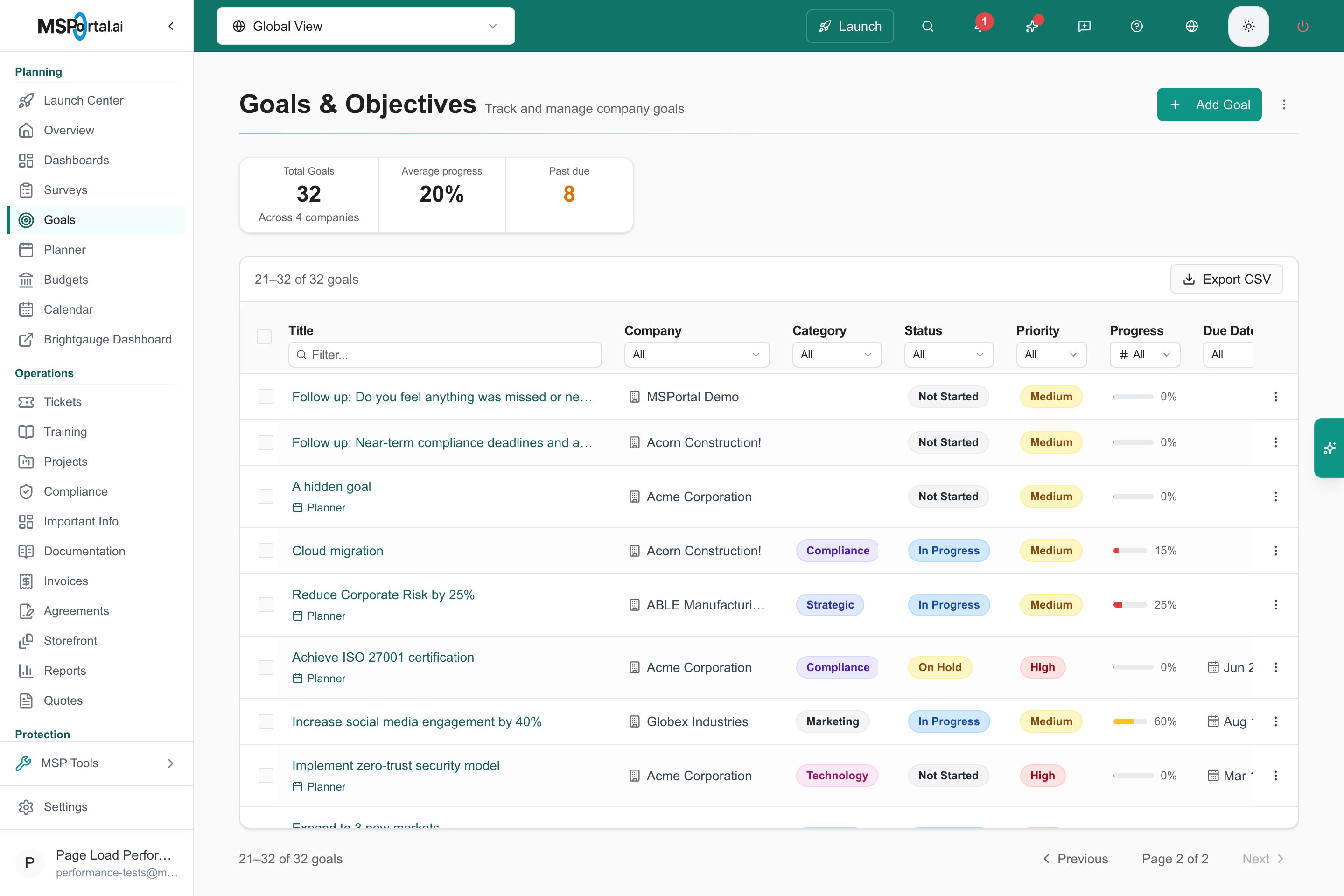
Under each goal’s title, the Goals table shows what the goal connects to.- Planner opens the linked Planner item. With several items it shows a count and opens a list.
- Budget opens a budget that has a line linked to the goal. With several budgets it shows a count and opens a list.
Add goals to a meeting
1
Choose the goals
For one goal, open its … menu and choose Add to Meeting. For several, tick their checkboxes and choose Actions > Add to Meeting. All goals must be from the same company.
2
Pick the meeting
The Add to Meeting Agenda dialog lists the items to add. Under Select Meeting, choose an upcoming meeting for that company.
3
Check the agenda
After you choose a meeting, Current Agenda shows what is already on it.
4
Click Add to Agenda
Wait for Added to meeting agenda.
5
Confirm in Calendar
Open the meeting and check the agenda items.
Troubleshooting
Frequently asked questions
Will three selected goals create three Planner items?
Will three selected goals create three Planner items?
No. They create one Planner item linked to all three goals.
Does Add to Planner save as soon as I click it?
Does Add to Planner save as soon as I click it?
No. It opens a draft. Save the draft to create the item.
Can I combine goals from different companies?
Can I combine goals from different companies?
No. Split the work by company.
Can I use a goal with no company?
Can I use a goal with no company?
No. These actions need a company.
Why is a past meeting missing?
Why is a past meeting missing?
The list shows upcoming meetings only.
Does linking sync status and progress?
Does linking sync status and progress?
No. Update the goal, the Planner item and the meeting separately.