

Before you start
- You need budget edit access (write_budgets or manage_budgets) to open the page. Without it the page says You don’t have permission to view budget forecast.
- Only people with manage_budgets see the Sync from Budget, Sync from Planner and Save buttons, and only they can edit the worksheet. With write_budgets alone you can open the forecast, but it is read-only.
- Select exactly one company in the top bar. Global View and a list of several companies show Select a single company to forecast.
Open the forecast
1
Select one company
Pick the company in the top bar.
2
Open Forecast
Click Budgets, then Budgets Menu, then Forecast. The page is titled Budget Forecast.
3
Choose the Base Year
Use Base Year at the top left. It lists fiscal years from two years ago to five years ahead and starts on the current year. If you have unsaved changes, a message asks Switch to base year 2026 and discard your unsaved forecast changes? Click Keep editing to stay, or Switch base year to discard the edits and load the new year. Save first if you want to keep your work.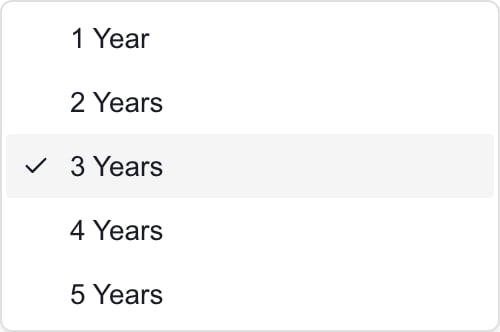
4
Read the table
Each row is a category. Read Include, the Base Year amount, one column per forecast year, % Increase and Use Global. Scroll sideways for later years. The Total row adds the included categories. Under each year, the change compares with the year before, not with the base year. Rows come from your Planner item types.
Where the starting amounts come from
With no saved rules, the forecast starts from the company’s budget lines for the Base Year. It adds up every budget the company has for that fiscal year. It does not let you pick one budget. Drafts, copies, archived budgets and rejected lines all count. Each line adds its twelve-month cost, which includes its billing schedule and any monthly overrides. A line with no category is not shown in any row. The currency comes from the company’s budget data, with your MSP’s default as a fallback. Amounts in different currencies are not converted. If the forecast differs from a budget total or Actuals, compare the budgets for that company and year.Adjust the projection
For example, a base amount of 1,000 with a 5% increase gives 1,050, then 1,102.50. If you override the first year to 2,000, the next year is 2,100 at 5%. With a blank percentage the next year goes back to 1,000. A 0% rate carries the previous amount forward, which is different from a blank percentage after an override.
Save the forecast
1
Finish your edits
Tab out of the last box and check the new amounts. An Unsaved changes badge shows next to Base Year while edits are waiting.
2
Click Save
Click Save on the toolbar. This needs manage_budgets. Wait for Budget forecast rules have been saved successfully.
3
Check it
Reload the same company and Base Year and check the settings and amounts.
Troubleshooting
Frequently asked questions
Can a company user with read-only budget access open Forecast?
Can a company user with read-only budget access open Forecast?
No. Forecast needs budget edit access.
Does Forecast use only my latest approved budget?
Does Forecast use only my latest approved budget?
No. It adds every budget for the company and year, whatever the status.
Does turning Include off keep a category flat?
Does turning Include off keep a category flat?
No. It leaves the category out of the totals. Keep Include on and leave % Increase blank to hold a base amount flat.
Does turning Apply to All Categories off restore my old rates?
Does turning Apply to All Categories off restore my old rates?
No. The percentages already copied stay. Edit each row.
How do I remove a forecast override?
How do I remove a forecast override?
Clear that future-year box. The calculated value returns.
Does saving a forecast approve or create budgets?
Does saving a forecast approve or create budgets?
No. It only saves the forecast rules.