

Before you start
- You need the write_budgets or manage_budgets permission.
- To make a company-specific product, select that company in the top bar first.
- Open Budgets > Budgets Menu > Products. See Find and understand budget products.
Create a product
1
Check the company
Look at the top-bar company selector. With one company selected, the form shows Assign to Company Name only. Global View does not show it.
2
Click New Product
Click New Product at the top right of the Products page. The New Product dialog opens.
3
Choose who can use it
Tick Assign to Company Name only to make a product for that one company. Leave it clear to make a shared product.
4
Enter the details
Type a Name. It is required. Enter the Unit Price, zero or more. A blank price saves as zero. Add a SKU, Vendor and Description if you want. Pick a Category, or Uncategorized.
5
Choose the recurrence
Pick One-time, Monthly, Quarterly, Annual or Custom in Recurrence. New products start as One-time. For Custom, type Interval (months), a whole number from 1 to 60. For example, 6 means every six months. The price is the amount for one billing occurrence.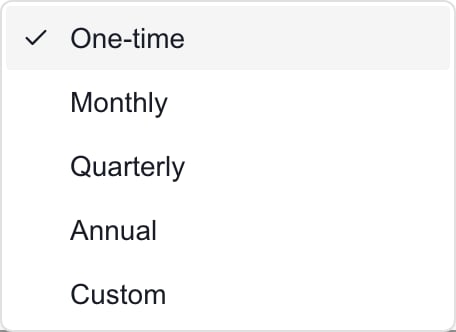
6
Create the product
Click Create. The dialog closes and the product appears in the table. Create stays unavailable until the name is filled in and any custom interval is valid.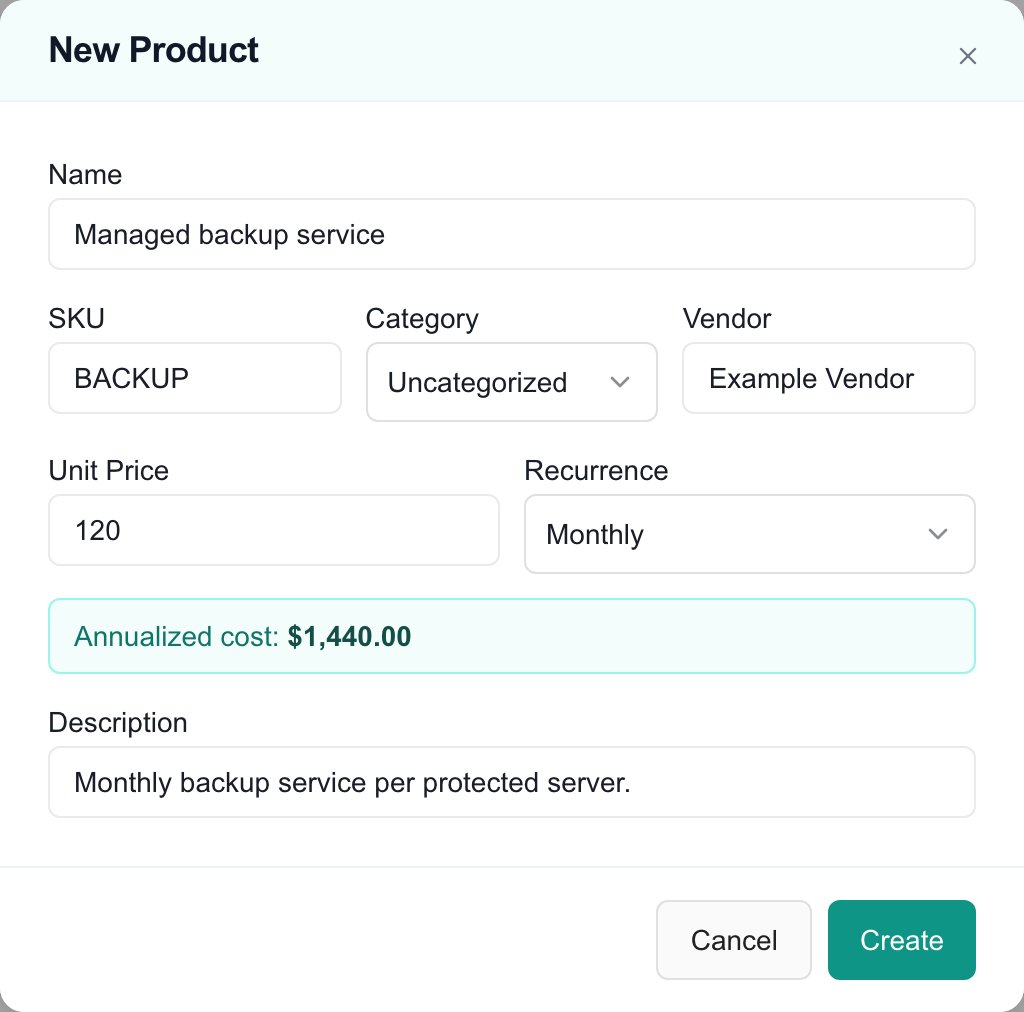
Read the annualized cost
A recurring product shows Annualized cost: under the fields. Monthly multiplies the price by 12, Quarterly by 4, Annual by 1, and Custom by 12 divided by the interval. One-time products show no estimate. This is only an estimate. For an interval that does not divide 12 evenly, it is not a count of bills in one year. A budget line’s real schedule comes from its start month, term and overrides. Check the line’s billing after you add the product. See Add and edit budget line items.Edit a product
1
Open the row menu
Find the product, click … at the end of its row, then click Edit.
2
Change the fields
In the Edit Product dialog you can change Name, SKU, Category, Vendor, Unit Price, Recurrence and Description.
3
Save
Click Save. The dialog closes and the table refreshes.
Troubleshooting
Frequently asked questions
How do I make a product for one company?
How do I make a product for one company?
Select the company in the top bar, click New Product, and tick Assign to Company Name only.
How do I set a semiannual price?
How do I set a semiannual price?
Pick Custom recurrence and type 6 in Interval (months). The price is for each six-month period.
Can I change a product's company later?
Can I change a product's company later?
No. The edit form has no company field. Ask your MSP admin.
Does saving a product update budgets or my provider?
Does saving a product update budgets or my provider?
No. It changes the catalog record only.