

.xlsx workbook to a budget. The import adds proposed lines to the editor. They are not saved until you click Save. This guide is for MSP staff and for company users whose MSP has given them budget edit access.
Before you start
- You need budget edit access (the write_budgets or manage_budgets permission).
- The budget must be Draft or Pending Approval, and it must belong to a company. The Import button is unavailable otherwise.
- Check the budget’s Currency first. Imported prices use the budget’s currency. Nothing is converted.
Prepare the workbook
The importer reads the sheet named Budget if there is one. Otherwise it reads the first sheet. It does not combine sheets. A workbook exported from a budget imports without changes.
Use number cells for quantities and prices. Give each cost its own description, because rows with the same description are treated as duplicates even when the prices differ.
Import the workbook
1
Open the budget
Open a Draft or Pending Approval budget with Edit, or start a new budget with Create New Budget and choose a company. See Create and edit a company budget.
2
Open the Import menu
Click Import, then click Import Excel. The Import budget from Excel dialog opens.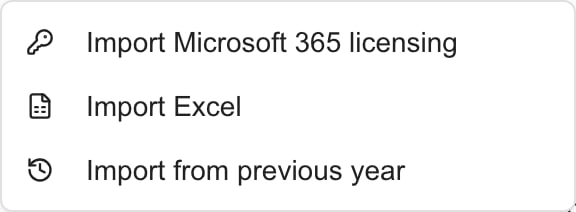
3
Choose the file
Click Choose file and pick the
.xlsx workbook. Wait for Parsing… to finish.4
Check Column mapping
The dialog finds the header row and fills in the mapping. Make sure Description, Qty and Unit Price point to the right workbook columns. Map Category, Recurrence, Term, Status and Notes if you need them. Choose Not mapped to skip a field.
5
Fix errors and read the warnings
Any error blocks the import. Messages read like Fix 2 issues before importing with a row number for each. Warnings such as Skipped 1 row name rows that already exist in the budget or appear twice in the workbook. Those rows are left out.
6
Import the rows
When the dialog says Ready to import N line items, click Import N items. The dialog closes and the new rows appear in the editor.
7
Set start months and review
Imported lines start in January. Open each recurring line and set Start month. For Custom recurrence, also set Every N months. Check descriptions, quantities, prices, categories, statuses and notes.
8
Save
Click Save and wait for Budget saved successfully. Then open Monthly Breakdown to check the schedule.
What the import copies
Import copies the mapped line fields only. It does not copy the workbook’s title, company, fiscal year, budget status or currency. It does not copy links to Planner items, goals or products, start months, custom intervals or monthly overrides. Import only adds. It never changes an existing line or removes a line that is missing from the workbook.Troubleshooting
Frequently asked questions
Can I import a CSV or several sheets?
Can I import a CSV or several sheets?
No. The dialog accepts
.xlsx only and reads one sheet.Do my columns need the same order as an export?
Do my columns need the same order as an export?
No. Use Column mapping to pick the right column for each field.
Will a changed price update an existing line?
Will a changed price update an existing line?
No. A matching description is skipped. Edit that line in the editor.
Can valid rows import while another row has an error?
Can valid rows import while another row has an error?
No. Fix every error first. Duplicate warnings are different. Those rows are skipped and the rest import.
Does an Approved status in the sheet approve the budget?
Does an Approved status in the sheet approve the budget?
No. It only sets that line’s status. Approving the whole budget is a separate step.
Why did my imported rows disappear?
Why did my imported rows disappear?
They were never saved. Import adds rows to the open editor, and you must click Save.