

Before you start
- You need budget read access to export or print a single budget.
- Selecting several budgets needs the manage_budgets permission, because the row checkboxes only appear with it.
- Exports use the saved budget. Save edits first.
What each output contains
Download one budget from Budget Details
1
Open the budget
Click Budgets, click … on the budget’s row, then click View. Check the title, fiscal year, currency and status.
2
Open the page menu
Click the … button in the page header.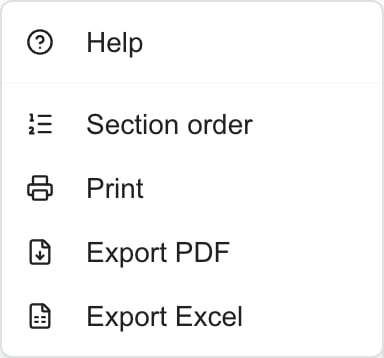
3
Choose a format
Click Export PDF or Export Excel. Keep the page open while the file is prepared. Your browser downloads it.
4
Check the file
Open the file and check the budget name, company, year, amounts, statuses and notes.
Download from the list or the editor
- From the list. Click … on a budget’s row, then click Export. You get a PDF named
budgets.pdf. This works in Global View too. - From the editor. Open the budget with Edit, then click Export and choose Export PDF or Export Excel. A budget you have not saved yet cannot be exported. Save it first.
Print the current tab
1
Open the tab you want
Open Overview, Monthly Breakdown or Actuals in Budget Details.
2
Click Print
Click … in the page header, then Print. The browser print preview opens. Monthly Breakdown prints on a landscape letter page and the other tabs on a portrait letter page.
3
Check the preview
Look at every page, column and total. Choose a printer or Save as PDF, then print.
Combine selected budgets into one PDF
1
Choose one company
Select a single company in the top bar. In Global View the action stops with the message Select a company first to export budgets.
2
Tick the budgets
Tick the checkbox on each budget row. Check the count and the titles, because filters can hide selected rows.
3
Open the actions menu
Click the menu button above the table. It shows the selected count and reads Actions (count).
4
Click Export Selected
Your browser downloads
budgets.pdf.5
Check the PDF
Make sure every selected budget is in the file. If one budget could not be generated, the others are still joined and the missing one is left out without a warning. Export a missing budget by itself.
Read exported amounts
- A line amount is quantity times unit price. The Total includes rejected lines. The list’s Total leaves them out.
- A recurring line with quantity 1 and price 100 shows 100. Its yearly cost can be higher. Use Monthly Breakdown for the schedule.
- Budget notes appear in both the PDF and the Excel file, and the notes help text in the editor says so. Write notes for everyone who can open the budget.
- Line notes appear in Excel only.
- Excel amounts are fixed values. Changing a number in the file does not recalculate the totals or change MSPortal.
Troubleshooting
Frequently asked questions
Where can a company user download a budget?
Where can a company user download a budget?
Open Budgets, click … then View on the row, then click … in the page header and choose Export PDF or Export Excel.
Does exporting save my edits?
Does exporting save my edits?
No. Exports read the saved budget. Save first.
Does the Excel file include a monthly schedule?
Does the Excel file include a monthly schedule?
No. It has one Budget sheet with line items and fixed totals. It has no month columns or overrides.
What is the difference between Print and Export PDF?
What is the difference between Print and Export PDF?
Print uses the open tab and your browser’s print layout. Export PDF builds a separate document from the saved budget.
Can I use the Excel export as an import file?
Can I use the Excel export as an import file?
Yes, for line items. See Import budget line items from Excel. Check each line’s start month afterward, because the file does not carry it.
Does exporting approve a budget?
Does exporting approve a budget?
No. Exports and printing change nothing. Approval is a separate step for people with manage_budgets.